

Apple doesn't exactly telegraph older Mac software features, but there are several useful time-saving tricks hidden in your Mac's operating system that you may not be aware of. Here are eight quick tips that could be key to turbo-charging your productivity.

This article assumes you're using a Mac running macOS Sonoma, but most of these tips also work in earlier versions of Apple's Mac operating system.
1. Copy and Paste Text Excluding Formatting
When you select some text on a Mac, pressing Command-C copies it to the clipboard, and pressing Command-V pastes it along with any formatting.

If you'd rather paste the copied text elsewhere as purely plain text, use the key combination Command-Option-Shift-V and it will be stripped of any formatting.
2. View All Calendar Events as a List
Some calendar apps allow you to view all your upcoming events as a vertical list. Many users find this sort of viewing mode beats staring at the regular calendar interface, since it provides a quick at-a-glance summary of their entire schedule over the coming days and months.

You may think Apple's Calendar app for macOS lacks an equivalent feature. However, there is one way to force a list view that includes all your events. Click the Search field in the upper right corner of the Calendar window and enter double quotes (") to generate a list of all upcoming events. This makes it easier to copy multiple events and paste them into other apps in chronological order.
3. Open a Copy of a File by Default
Stationery Pad is a handy way to nix a step in your workflow if you regularly use document templates on your Mac. The long-standing Finder feature essentially tells a file's parent application to open a copy of it by default, ensuring that the original file remains unedited. Almost any file type can be defined as a template with Stationery Pad – it could be used to streamline common Photoshop jobs, create skeleton HTML/CSS files, or help with Word document invoicing.
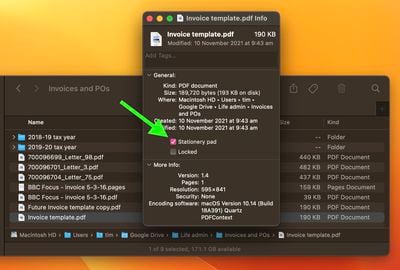
To take advantage of it, right-click (Ctrl-click) the file that you want to use as a template, select Get Info, then check the Stationery Pad checkbox under the General section. Lastly, click the red traffic light button to close the Get Info window. Next time you double-click the template file, Finder will automatically create and open a copy of it, leaving the original untouched.
Stationery Pad doesn't get much attention these days, but it's a neat alternative to repeatedly editing templates and using the "Save As..." command, which can lead to overwriting the original file if you're not too careful.
4. Access More Preview File Format Options
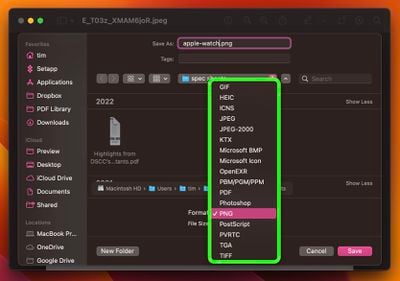
When you come to save or export a file in Preview, Option-click the Format dropdown to get access to several additional file types.
5. Add App/File/Folder Shortcuts to Finder
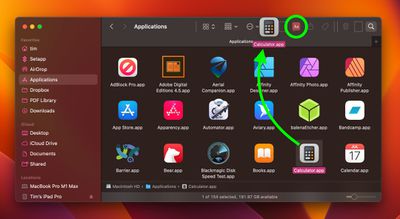
Here's how to add convenient app, file, and folder shortcuts to the toolbar of Finder windows: Simply begin to drag the item within the Finder window, then hold down the Command (⌘) key and drop it onto an available space in the toolbar.
6. Open Files From the App Switcher
Most long-time macOS users will be aware of the Application Switcher. It's invoked using the Command-Tab keyboard shortcut, and lists all of the apps currently running on your Mac, enabling you to quickly switch between them.
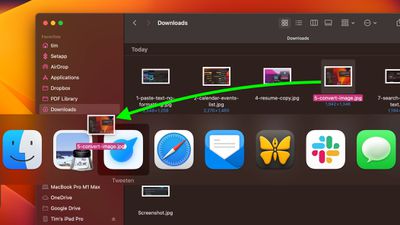
An oft-overlooked function of the App Switcher is its ability to open files. Simply begin to drag a file from a Finder window, then invoke the App Switcher and drag the file onto the relevant app icon in the overlay. Let go of the file and it should open in the selected app.
Bonus tip: To quit an open app with the App Switcher, highlight the app and tap Q. To quickly quit multiple apps, try cycling through the overlay with the Tab key, tapping Q as you go.
7. Search and Replace Text in Filenames
When you highlight several files in Finder, you can use the Rename... option in the Ctrl-click menu to rename all of them. The Rename dialog also allows you to rename only specific files in a selection whose names include a certain piece of identifying text. This is really handy if you have tens or hundreds of files in a folder with different names and you only want to change those files that contain a particular word.
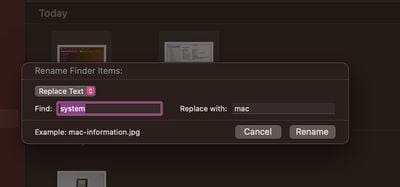
Select all the files in a folder (make sure they're all of the same kind, or this won't work), then Ctrl-click and select Rename.... Select Replace Text in the first dropdown. Now simply type the identifying text you want to replace into the "Find" field, and enter the text you want to replace it with in the "Replace With" field, then click Rename.
8. Use Text Clippings
In macOS, a Text Clipping is a selection of text that you've dragged from an application to another location on your Mac, where it becomes a unique kind of standalone file. The relatively little-known feature has been around since at least Mac OS 9, and it offers a convenient way to save out pieces of text from pretty much anywhere for later use in another app or document.
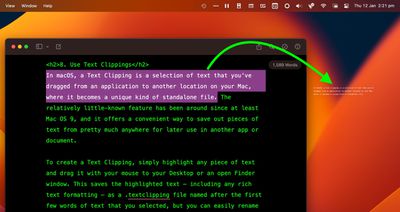
To create a Text Clipping, simply highlight any piece of text and drag it with your mouse to your Desktop or an open Finder window. This saves the highlighted text – including any rich text formatting – as a .textclipping file named after the first few words of text that you selected, but you can easily rename it to make it more identifiable.
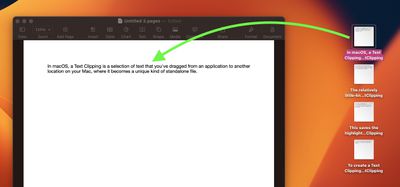
To use the selected text in another file like a Pages document, drag the Text Clipping into the open document and the text will be automatically pasted wherever the cursor is located. You can paste the clipping in the same way into all sorts of open files and apps, including browser search engines, Mail compose windows, Xcode projects, and more.



























![Apple Pulls Keynote, Pages and Numbers From App Store [Update: Back]](https://images.macrumors.com/t/Okb7kitB_gNr6qe5Pex9nQIysD8=/112x112/article-new/2026/01/Apple-Creator-Studio-iWork-suite.jpg)

















