

Apple first introduced Image Playground in iOS 18.2 as part of Apple Intelligence, and refined the models and features across iOS 26 and iOS 27.
This guide highlights everything that you need to know about Image Playground, from its limitations to where you can use it.
The Image Playground App
There is a dedicated Image Playground app on the iPhone, iPad, and Mac in iOS 18.2 and later. The app is simple, and you can create an image by tapping on the "+" button.
Tapping the "+" brings up a card where you can describe an image or upload a photo to make edits to. Type in what you want, and Image Playground will start working on it.
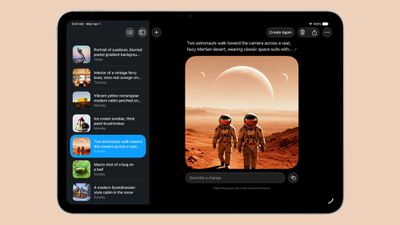
You can modify the result with additional word descriptions, or use one of Apple's suggestions. You'll get several possible images for each description, and you can swipe through them to choose what you want. You can add and remove words and phrases until you refine the generated image to exactly what you want.
After you've created your ideal image, you can tap on the Done button to save it to your Image Playground library. Items saved in the Image Playground library can be edited again later, deleted, or shared with the standard Share Sheet. There are also built-in tools for copying, sharing, or saving an image during the creation process.
Personalized Images Based on People
You can start an Image Playground creation with a person. People that are saved in your People album in the Photos app will show up as an option (yourself included), and you can select a specific photo of a person to use as the base for a new image.

Each photo of a person will look different because Image Playground is pulling in the specific angle, lighting, and look of a particular image rather than of an aggregate, so you can swipe through to see which image of a person looks the most like them when converted to an animated form.
You are limited to individuals that are saved to your People album, so AI isn't going to understand if you ask for an image of Tim Cook or Taylor Swift, but for this use case, you can import a photo.
You can also create a generic look to use as a base using the built-in "Appearance" option in the Person interface. That setting lets you select a skin tone and feature set, which can be refined further with image descriptions.
Animation Style
Apple has pre-set options for Animation, Illustration, and Sketch styles, but as of iOS 27, you can generate any kind of image you want, including a photorealistic image. There are also options to use ChatGPT's image generation capabilities, or create a Genmoji.
Base an Image on a Photo
You can take a photo or import a photo from the Photos app to use as inspiration for an Image Playground creation. If you want an Image Playground image with Tim Cook, using a photo is the way to go.
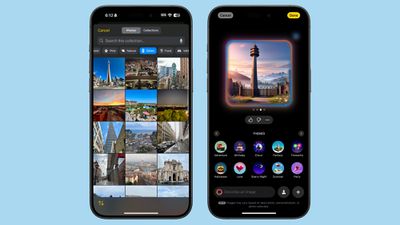
Any photo works to serve as inspiration for a creation, and you can use a photo for the main subject of an image or for the background.
Image Playground in Messages
You can create images in the Image Playground app and share them in Messages, but you can also do it directly from the Messages app. In a conversation, tap on the "+" button and then choose Image Playground from the list.
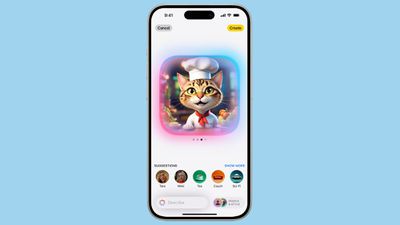
The Messages mini app works like the full app. Just type in a description of an image and use the same steps to get it to where you want it. When you're finished, tap on Done, and it'll show up in the send field of your conversation so you can text it to whoever you're conversing with.
Sharing Image Playground Creations
To share an Image Playground image in a text message, you can use the built-in Image Playground mini app in Messages, which is the quickest route.
You can also go to the Image Playground library or create a new image in the app and then use the Share Sheet to AirDrop it, send it via Messages, email it, or save it to the Photos or Files app. Anything you've saved to Photos can be uploaded to a social media app.
The Share Sheet is like the Share Sheet anywhere else in iOS, so if you have an app like Instagram installed, there is a Share Sheet option to upload an Image Playground creation directly to Instagram. The same goes for other social networks that support the Share Sheet.
Orientation
By default, images are square, but there are wallpaper, portrait, and landscape layouts to select.
Restricted Phrases
Apple learned some lessons from other tech companies that have introduced image generation tools, and there are plenty of built-in restrictions. When Google debuted Pixel Studio in August, people were able to use it to generate images with drugs, alcohol, Nazis, and more, and Apple's not allowing any of that.
When a word isn't allowed, you'll see the following message: "Unable to use that description" with an undo button you can use to remove it.
There are other phrases that Image Playground will kind of ignore. If you use "blood" or "bloody" for example, you'll get a red-tinted background, but no actual blood. You can't use words like murder or dead or their synonyms, and while gun and pistol are okay, AK-47, machine gun, and shotgun are not.
Concepts that could be used to generate a political image are likewise banned. You can't add country-specific flags, or countries like United States, Mexico or Germany. Words related to drugs or drug paraphernalia don't work, and there are a lot of descriptors that Image Playground will just disregard, even if you don't get a message that it's explicitly forbidden.
It's clear that Apple put a lot of work into preventing Image Playground from generating inappropriate images, and the company has made it clear that improvements will be made and that there's still a possibility of unexpected results during the beta.
Copyright
Likewise, Apple doesn't allow you to create images of copyrighted characters, so there won't be any option to use Image Playground to create compromising photos of Bluey and Mickey Mouse.
Security
Image generation for Image Playground is done on-device, so nothing that you're typing in is sent to a cloud server or shared, though it is worth noting that Apple is collecting feedback on it right now.
Availability
Image Playground is only available on Apple Intelligence devices running iOS 18.2, iPadOS 18.2, or macOS 18.2 or later.
























![Apple Pulls Keynote, Pages and Numbers From App Store [Update: Back]](https://images.macrumors.com/t/Okb7kitB_gNr6qe5Pex9nQIysD8=/112x112/article-new/2026/01/Apple-Creator-Studio-iWork-suite.jpg)





















