Relocated Items in macOS Catalina Explained - GeekWebGuides
Skip to Content

Relocated Items in macOS Catalina Explained

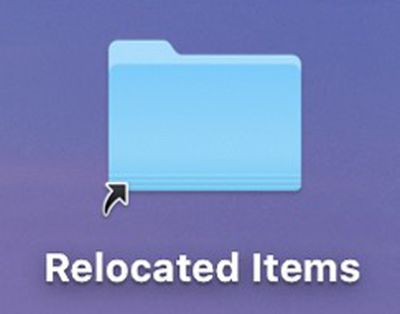
catalina relocated itemsAfter upgrading to macOS Catalina, you may be surprised to discover a shortcut on your Mac's desktop to a Relocated Items folder that wasn't there previously. The generation of this folder is actually normal behavior when upgrading an older version of macOS to Catalina, but we're highlighting it in this article because a lot of users are confused about why the folder exists and what to do with its contents.

What Are Relocated Items?

Relocated items are older files and data from previous macOS installations that Apple is not sure what to do with after upgrading to Catalina.

Catalina is the first version of macOS to adopt wholesale the relatively new Apple File System (APFS), which is optimized for the flash storage used in recent Macs. Aside from introducing a bunch of other new technical features, an APFS-formatted disk uses a space-sharing "container" that can house multiple secure "volumes" or file systems. This allows the disk's free space to be shared on demand and allocated to any of the individual volumes in the container as required.

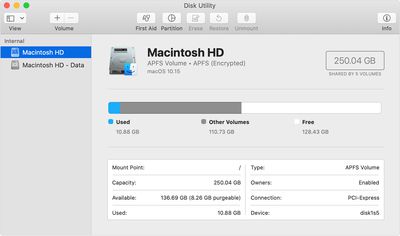
When you upgrade to macOS 10.15, Catalina is installed on a dedicated read-only system volume called "Macintosh HD," while your files and data are stored separately in another volume named "Macintosh HD - Data." The idea behind this setup is that it helps prevent the accidental overwriting of critical operating system files, since the user can no longer alter data or store files on the read-only system volume.
macos catalina disk utility show only volumes
In practice, the average user shouldn't notice any difference after the split, since both volumes appear in Finder as a single unified Macintosh HD volume (although if you want, you can view them separately in Disk Utility).

However, during the upgrade process, files or data that were previously stored in the startup volume are now stored in the new Macintosh - HD Data volume, and Catalina may not be able to find a corresponding home for them there. That's where the Relocated Items folder comes in.

The Relocated Items Folder

While creating the two separate volumes during the upgrade process, Catalina reviews the files and data on your hard drive to check that they're valid, authorized, and in the correct location. Any files and data that couldn't be stored on the Macintosh HD - Data volume in a folder equivalent to their original location, are placed in the Relocated Items folder. This folder also includes a PDF document with more details about these files.

Amongst a bunch of other things that you may not recognize, the folder can include configuration files that were modified by you, by another user, or by an app. Regardless, the modifications make them incompatible with macOS Catalina and are considered redundant as far as the system is concerned.

Can I Delete the Relocated Items Folder?

It's worth reiterating that the Relocated Items folder you see on the Desktop is just a shortcut that can be safely deleted. Doing so will not remove the folder or its contents from your hard disk. You can find the actual folder in /Users/Shared/Relocated Items.

Whether or not you delete the Relocated Items folder proper is entirely up to you. Removing the contents should be safe as far as your Mac's operating system goes, just be sure to check the contents carefully for anything that looks familiar. If you have any third-party apps that don't work since you updated to Catalina, then the Relocated Items folder may well contain data related to them, but it likely needs updating by the developers in new versions of these apps. If you recognize custom configuration files in the Relocated Items folder, then you might want to keep them around for reference in case you want to recreate them at a later date.

If your Relocated Items folder isn't very big, then simply remove the Relocated Items shortcut on your Desktop to remove the eyesore and carry on. But if you feel strongly about deleting the actual files, see below.

How to Delete the Relocated Items folder

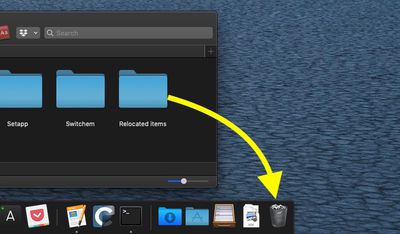
To delete the actual Relocated Items folder, simply drag it into the Trash and then empty the Trash folder. Having said that, some of the contents may resist being deleted when you come to empty the Trash because of old security permissions on the relocated files.
relocated items to trash
If that's the case, one way to get rid of the files is to disable system integrity protection (SIP) on your Mac. The following steps explain how to disable SIP, but before you go ahead, note that the process involves rebooting your Mac and using Terminal. If you're not familiar with the Terminal command prompt, or if you have any other misgivings about the steps, our advice is to just leave the Relocated Items folder where it is, or move it elsewhere out of sight. GeekWebGuides cannot be held responsible for any data loss.

  1. If the Relocated Items folder is in your Trash, right-click it there and select Put Back from the contextual pop-up menu.
  2. Restart your Mac via the Restart... option in the Apple menu bar, and when the boot cycle starts again, hold down the Command and R keys to enter Recovery mode.
  3. From the Recovery screen menu bar, select Utilities -> Terminal.
  4. Type csrutil disable and hit Enter.
  5. Restart your Mac via the Restart option in the menu bar.
  6. Now delete the Relocated Items folder, then empty the Trash.
  7. Restart your Mac and enter Recovery mode again using Command-R.
  8. From the Recovery screen menu bar, select Utilities -> Terminal.
  9. Type csrutil enable and press Enter to re-enable SIP.
  10. Restart your Mac via the Restart option the menu bar.

Once you've followed these steps, the contents of the Relocated Items folder should be gone from your system for good.

Related Forum: macOS Catalina

Popular Stories

iPhone Duo Trio

Here's What Apple's Apps Look Like on the iPhone Duo

Tuesday October 20, 2026 11:12 am PDT by
With just three days to go until the iPhone Duo is released, Apple is getting ready for the launch. Behind the scenes, the App Store now has screenshots of Apple's built-in apps running on the Duo. We've seen some apps in marketing materials, but images of the ones we haven't seen give us an idea of what it will be like using the iPhone Duo day to day. Many apps are shown in landscape...
Apple Creator Studio iWork suite

Apple Pulls Keynote, Pages and Numbers From App Store [Update: Back]

Thursday October 22, 2026 11:01 am PDT by
Apple has temporarily removed Keynote, Pages, and Numbers from the App Store, just after releasing an update that added iPhone Duo support and a new Intelligent Assistant. It is not clear if the apps were removed intentionally, or if it is a bug. Apple has not said when the apps will be reinstated, but if it was in error, they should return soon. Update: The Mac versions are back without...
M5 MacBook Pro

RIP, MacBook Ultra

Monday October 19, 2026 9:37 am PDT by
Apple today sent out invites for an experience in Los Angeles on Wednesday, October 28, and the "Pro and tell" tagline on the invitation likely means that the rumored MacBook models with touch-enabled OLED displays will stick with MacBook Pro branding instead of the once-rumored "MacBook Ultra" name. The long-rumored "iPhone Ultra" ended up being named iPhone Duo, so speculation that Apple...

Top Rated Comments

zorinlynx Avatar
92 months ago
This folder might contain very important data, delete with caution!

My example:

I once had an external drive called "Storage" on my Mac, that was mounted in /Volumes/Storage -- when I upgraded to a Mac with larger internal storage, I didn't have to use the external drive anymore so I copied the contents to /Storage which was in the root folder.

Upgrading to Catalina moved that Storage folder (with lots of important stuff!!!) to the Relocated Items directory. If I had blindly deleted it, I would have deleted about 300GB of stuff that I would have had to restore from backup.

So check that folder CAREFULLY before deleting it. What I ended up doing was create a new APFS volume called Storage and moving the stuff there, as for historical reasons I want it separate from my home folder in /Users.
Score: 13 Votes (Like | Disagree)
BornAgainMac Avatar
92 months ago
i looked in my folder and didn’t see any naked photos.
Score: 12 Votes (Like | Disagree)
zorinlynx Avatar
92 months ago

So less control over my files. I trust myself to not screw up important files. More nanny state style control to lock the Mac platform down and iOS it.
You still have full control over the system. If you want to hack on MacOS, you can disable all the extra security features.

Partitioning the OS separate from user data is good practice. Not only does it increase security, but it makes system updates cleaner (just update the OS partition, don't touch the user ones) and also makes it easier to migrate to a new system. (Just copy the data partition verbatim)


It took me years (of OS X) to fully accept that no user data should be stored outside the /Users folder. It felt overly complex but you save yourself potential trouble by sticking to this rule.
Indeed. A lot of really old school Mac users like myself went by the "Put stuff in the root of the boot drive" for a long time; it was a hard habit to break.

It's weird because I've been a UNIXhead for a long time too, and typically on UNIX systems you don't do that. But Macs have always felt "different" and thus I'd subconsciously treat them differently. It doesn't help that MacOS classic encouraged data storage pretty much anywhere and kept the OS entirely contained in a "System" folder. In fact, you could make any volume bootable just by copying a System folder to it. Mac power users would keep a minimal copy of System around for this purpose.
Score: 10 Votes (Like | Disagree)
92 months ago
Sounds like a fresh install will be in order for me.
Score: 8 Votes (Like | Disagree)
92 months ago

I once had an external drive called "Storage" on my Mac, that was mounted in /Volumes/Storage -- when I upgraded to a Mac with larger internal storage, I didn't have to use the external drive anymore so I copied the contents to /Storage which was in the root folder.

Upgrading to Catalina moved that Storage folder (with lots of important stuff!!!) to the Relocated Items directory. If I had blindly deleted it, I would have deleted about 300GB of stuff that I would have had to restore from backup.

So check that folder CAREFULLY before deleting it. What I ended up doing was create a new APFS volume called Storage and moving the stuff there, as for historical reasons I want it separate from my home folder in /Users.
It took me years (of OS X) to fully accept that no user data should be stored outside the /Users folder. It felt overly complex but you save yourself potential trouble by sticking to this rule.
Score: 5 Votes (Like | Disagree)
BigBoy2018 Avatar
92 months ago

So less control over my files. I trust myself to not screw up important files. More nanny state style control to lock the Mac platform down and iOS it.
Couldn’t agree more. I prefer not to have an OS with a bunch of ‘child safety gates’ on it.

Somehow ... in over THREE decades of using a mac my system has never been so borked that I couldnt recover it myself.

I may be a little more mac savvy than most, but Apple seems to be making an OS for the lowest common demoninator.

For ya’ll who think this is just wonderful, just wait for another couple OS releases and see Apple lock down the Mac OS even more.
Score: 5 Votes (Like | Disagree)
Latest Stories
iPhone Duo Demand Reportedly Exceeds Apple's Expectations
25 minutes ago
iPhone Duo Launch Begins as First Orders Reach Customers
7 hours ago
1Password for Agents Keeps Your Passwords Hidden From AI
7 hours ago
iPhone Duo 24 Hours Later: Your Questions Answered
8 hours ago
Apple's iWork Apps Get 'Intelligent Assistant' and iPhone Duo Support
9 hours ago
Apple is Apparently Considering a Slightly Larger iPhone Duo
9 hours ago
Giant iPhone Duo Displays Coming to Four Apple Stores
10 hours ago
Apple Pulls Keynote, Pages and Numbers From App Store [Update: Back]
11 hours ago
Apple Updates More Apps With iPhone Duo Support
11 hours ago
Apple Will Label Apps 'Made for iPhone Duo' in App Store
14 hours ago
Amazon Takes $49 Off iPad With Prices Starting at $399.99
15 hours ago
F1 on Apple TV Now Available in Dolby Atmos
15 hours ago
Apple Reveals More Than 50 Apps That Will Be Updated for iPhone Duo
16 hours ago
Apple Blocks Certificates That Could Help Attackers Fake Websites
17 hours ago
Giant iPhone Duo Installations Spotted at Apple Fifth Avenue
18 hours ago
iPhone Duo 2 Prototypes Include Under-Display Face ID
18 hours ago
Tesla App Gains iPad and iPhone Duo Support
22 hours ago
Apple Reportedly Boosts iPhone Duo Orders by 44%
22 hours ago
Fortnite Returning to Australian App Store After Court Ruling
23 hours ago
Apple Ordered to Open iPhone to Rival App Stores in Australia
23 hours ago
Apple Suppliers Face Hurdles Cutting Circuit Board Emissions
1 day ago
Things Updated for iPhone Duo With Adaptive Layout
1 day ago
Simplicity and Siri AI Are HomeView's Killer Features, Apple Says
1 day ago
iPhone Duo Reviewers Really Miss Face ID
1 day ago
Does the iPhone Duo Run Hot? Here's What Reviews Found
1 day ago
Apple Music's New Look is Now Live on Apple's Website
1 day ago
Anthropic Launches Claude Duet, a Proactive AI Agent
1 day ago
What 32,000 Folds Did to the iPhone Duo's Hinge
1 day ago
iPhone Duo's Hidden FaceTime Camera Takes 'Trash' Photos
1 day ago
iPhone Duo Has 'Edge Light' Feature That Debuted on Macs Last Year
1 day ago