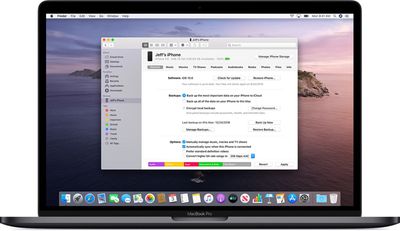
This article shows you how to back up your iPhone, iPad, or iPod touch to your Mac using the new route in Catalina.

With the release of macOS Catalina, Apple said goodbye to iTunes and broke it up into separate Mac apps for Music, Podcasts, and Apple TV, meaning the functions for managing a connected ‌iPhone‌, ‌iPad‌ or iPod touch needed a new home.

macoscatalinafinder
It's not immediately obvious, but Apple chose to integrate these device functions into the Finder, so now you can choose media sync settings, manage iCloud and local backups, and restore or update your iOS device without even opening another application on your Mac.

Keeping a local backup of your iOS device ensures that, should you ever lose it, you'll be able to restore all your information on a replacement device. You can also encrypt your local backup to keep private information like your passwords and personal health or activity data safe and secure. Keep reading to learn how.

How to Back Up Your iOS Device in macOS Catalina

  1. Plug your ‌iPhone‌, ‌iPad‌, or iPod touch into your Mac using the supplied cable.
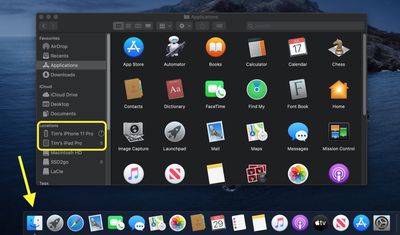
  2. Open a Finder window by clicking the Finder icon in the Dock.
  3. Click your iOS device's name in the sidebar.
    finder

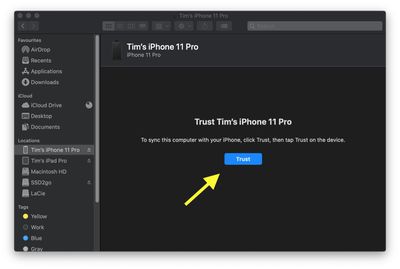
  4. If this is the first time connecting your device to your Mac, click Trust in the Finder window.
    finder

  5. Tap Trust on your device when prompted, then enter your passcode to confirm.
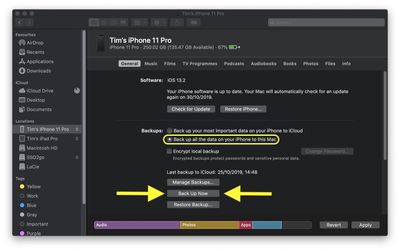
  6. In the General tab, click the circle next to where it says Back up all of the data on your [iPhone/iPad/iPod touch] to this Mac.

  7. If you don't want to create an encrypted backup, or you've already set up encrypted backups, click Back Up Now at the bottom of the General tab.
    finder

When the backup is finished, you can find the date and time of the last backup in the General tab, just above the Manage Backups button.

How to Encrypt an iOS Device Backup in macOS Catalina

  1. Plug your ‌iPhone‌, ‌iPad‌, or iPod touch into your Mac using the supplied cable.
  2. Open a Finder window by clicking the Finder icon in the Dock.
  3. Click your iOS device's name in the sidebar.
    finder

  4. If this is the first time connecting your device to your Mac, click Trust in the Finder window.
    finder

  5. Tap Trust on your device when prompted, then enter your passcode to confirm.
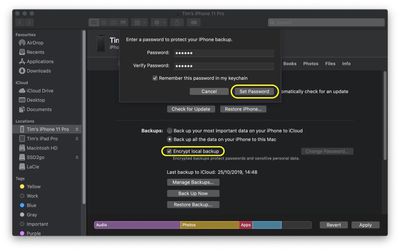
  6. Click the checkbox next to Encrypt local backup in the General tab.
  7. Choose a password to protect your device backup, then verify it and tick the box if you want to remember the password in your keychain.
  8. Click Set Password.
    finder

  9. Enter your passcode on your iOS device to begin the backup.
When the backup is finished, you can find the date and time of the last backup in the General tab, just above the Manage Backups button.


Related Forum: macOS Catalina

Popular Stories

Apple Logo Zoomed

Tim Cook Teases Plans for Apple's Upcoming 50th Anniversary

Thursday February 5, 2026 12:54 pm PST by
Apple turns 50 this year, and its CEO Tim Cook has promised to celebrate the milestone. The big day falls on April 1, 2026. "I've been unusually reflective lately about Apple because we have been working on what do we do to mark this moment," Cook told employees today, according to Bloomberg's Mark Gurman. "When you really stop and pause and think about the last 50 years, it makes your heart ...
wwdc sans text feature

Apple Rumored to Announce New Product on February 19

Thursday February 5, 2026 12:22 pm PST by
Apple plans to announce the iPhone 17e on Thursday, February 19, according to Macwelt, the German equivalent of Macworld. The report, citing industry sources, is available in English on Macworld. Apple announced the iPhone 16e on Wednesday, February 19 last year, so the iPhone 17e would be unveiled exactly one year later if this rumor is accurate. It is quite uncommon for Apple to unveil...
Finder Siri Feature

Why Apple's iOS 26.4 Siri Upgrade Will Be Bigger Than Originally Promised

Friday February 6, 2026 3:06 pm PST by
In the iOS 26.4 update that's coming this spring, Apple will introduce a new version of Siri that's going to overhaul how we interact with the personal assistant and what it's able to do. The iOS 26.4 version of Siri won't work like ChatGPT or Claude, but it will rely on large language models (LLMs) and has been updated from the ground up. Upgraded Architecture The next-generation...
iOS 26

iOS 26.3 and iOS 26.4 Will Add These New Features to Your iPhone

Tuesday February 3, 2026 7:47 am PST by
While the iOS 26.3 Release Candidate is now available ahead of a public release, the first iOS 26.4 beta is likely still at least a week away. Following beta testing, iOS 26.4 will likely be released to the general public in March or April. Below, we have recapped known or rumored iOS 26.3 and iOS 26.4 features so far. iOS 26.3 iPhone to Android Transfer Tool iOS 26.3 makes it easier...
iphone 17 pro dark blue 1

iPhone 18 Pro Max Rumored to Deliver Next-Level Battery Life

Friday February 6, 2026 5:14 am PST by
The iPhone 18 Pro Max will feature a bigger battery for continued best-in-class battery life, according to a known Weibo leaker. Citing supply chain information, the Weibo user known as "Digital Chat Station" said that the iPhone 18 Pro Max will have a battery capacity of 5,100 to 5,200 mAh. Combined with the efficiency improvements of the A20 Pro chip, made with TSMC's 2nm process, the...