Unsolicited phone calls and messages can become a regular annoyance and even a cause of stress for many smartphone users these days. Thankfully, Apple provides features in iOS that allow you to block nuisance calls and messages from the same number coming through to your phone, and in this article we're going to show you how to set them up.
Whether it's messages from a debt collector looking for the wrong person, a random number from a foreign country that keeps calling in the middle of the night, or just someone in your contacts that you'd rather not hear from again, following the steps below should stop them from bothering you.
How to Block a Recent Caller on iPhone
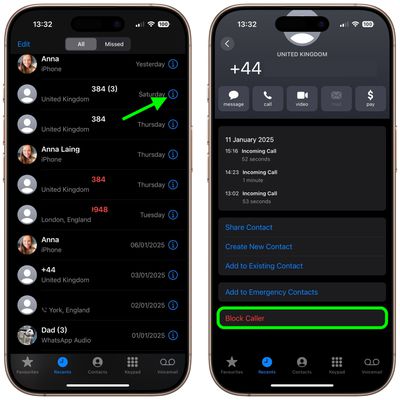
If the number you want to block is a recent caller, follow these steps on your iPhone.
- Launch the Phone app.
- Tap Recents.
- Locate the number you want to block in the All or Missed calls list.
- Tap the information icon (the encircled lowercase "i") to the right of the number.
- Scroll down the Caller ID screen and tap Block Caller.
How to Block a Number That Messages You
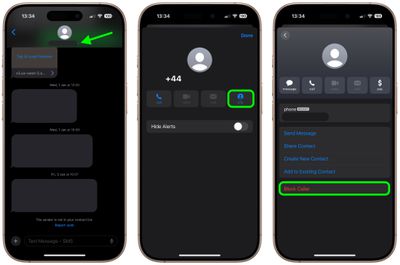
If you're the recipient of unwanted messages from a specific number, here's how to prevent them from coming through to your iPhone.
- Launch the Messages app.
- Navigate to the main messages list if necessary, and tap a message received from the number you want to block.
- Tap the chevron next to the number at the top of the screen.
- Next, tap the info button.
- Scroll down the Caller ID screen if necessary and tap Block Caller.
How to Block a Number in FaceTime
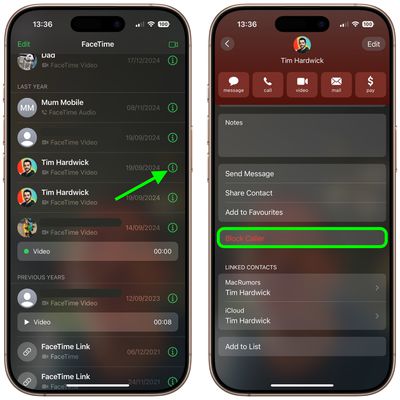
If you received a FaceTime call from a number that you want to block, follow these steps.
- Launch the FaceTime app.
- Locate the unwanted call you received in the list and tap the information icon (the encircled lowercase "i") next to it.
- Scroll down the Caller ID screen if necessary and tap Block Caller.
How to Manage Blocked Contacts on iPhone
Follow these steps to add or remove a contact from your blocked list of numbers.
- Launch the Settings app, scroll down and tap Apps.
- Select Phone in the list.
- Tap Blocked Contacts.
- To remove a contact from your blocked list, tap Edit in the upper right corner of the screen, tap the red minus button that appears next to the contact(s) you want to remove, and then tap Done.
- To add a contact to your blocked list, tap Add... and select the contact from your Contacts list. All of the numbers in the contact card you select will be added to your blocked list.
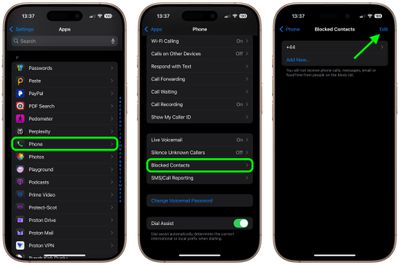
Note that you can also access and manage your blocked contacts list in the Settings app via Messages -> Blocked and FaceTime -> Blocked.
Try a Third-Party Blocking Solution
If you're inundated with spam calls from different numbers on a regular basis, then consider one of the many third-party blocking solutions available from the App Store: Several apps like Hiya and TrueCaller use an implementation of Apple's CallKit to identify and block suspect numbers before your phone even rings.
After installing one of these apps, you can manage their call permissions at any time from within the Settings app, by tapping Phone and selecting Blocked Contacts.