

This article guides you through the process of performing a clean installation of macOS 10.14 Mojave using the bootable USB drive method, rather than upgrading your Mac using Apple's standard installation package, which retains existing user data and any user-installed apps.
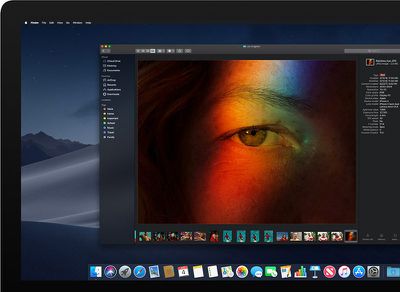
Creating a bootable USB drive provides you with a convenient way to install a fresh copy of macOS Mojave on multiple Macs. Performing a clean install can also remove annoying quirks and strange behaviors that your Mac may have inherited over time, and often helps to reclaim disk space caused by junk files left by third-party apps.
The following procedure works with the latest public beta of macOS Mojave, which you can download by enrolling in the Apple Beta Software Program. It will also work with the final version of Mojave, once it's released in the fall. To follow the steps, you'll need an empty 8GB or larger USB thumb drive (USB-C or USB-A, depending on your Mac) and an hour or two of downtime while the installation procedure completes.
Also, be sure to perform a full backup of your Mac beforehand using Time Machine, so that you can restore your original system from the Recovery partition if something goes wrong.
Compatibility Check
macOS Mojave is a major update that introduces a range of new features like a Dark Mode, Desktop and Finder improvements, new apps, and a revamped Mac App Store, but not every Mac that can run macOS High Sierra will run macOS Mojave. The full list of compatible Mac models is as follows:
- MacBook (Early 2015 or newer)
- MacBook Air (Mid 2012 or newer)
- MacBook Pro (Mid 2012 or newer)
- Mac mini (Late 2012 or newer)
- iMac (Late 2012 or newer)
- iMac Pro (2017)
- Mac Pro (Late 2013, plus mid 2010 and mid 2012 models with recommended Metal-capable GPU)
To check if your Mac is compatible, open the Apple () menu in the upper left corner of your Mac's screen and select About This Mac. Look just below the OS X version number in the Overview tab – if the Mac model name is the same or a later model year than the one shown in the compatibility list above, your Mac is compatible with macOS Mojave.
How to Perform a Clean Install of macOS Mojave
- Download macOS Mojave, either via Apple's Public Beta Program or from the Mac App Store (once it's available).
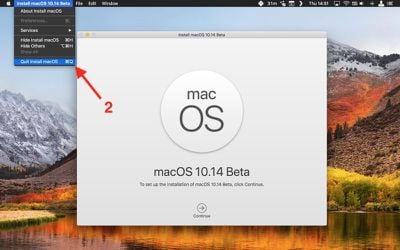
- Once the download is complete, close the installer window by selecting the Quit Install macOS option in the menu bar or using the keyboard shortcut Command (⌘) + Q.

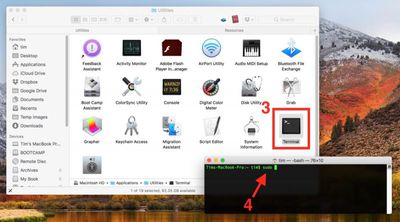
- Launch the Terminal app (found in Applications/Utilities/Terminal).
- At the Terminal command prompt, type sudo followed by a space.
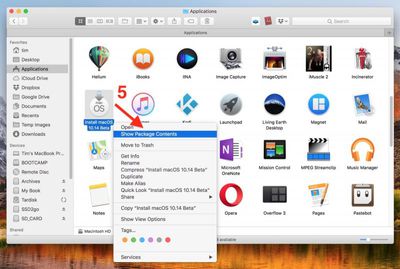
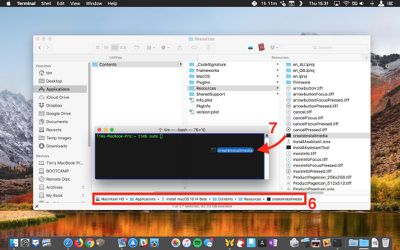
- Next, open a Finder window, navigate to your Applications folder, right-click (or Ctrl-click) on the macOS 10.14 installer, and select Show Package Contents from the contextual dropdown menu.
- Navigate to Contents -> Resources within the installer package.
- Drag the createinstallmedia file into the Terminal window.
- Still in the Terminal window, type --volume followed by a space.
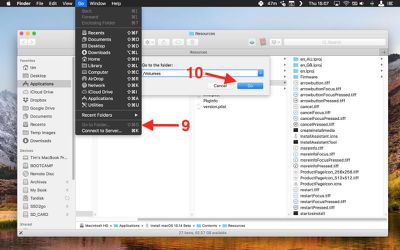
- Click the open Finder window to bring it to the front, and in the Finder menu bar select Go -> Go To Folder....
- In the Go to the folder input box, type /Volumes and click Go.
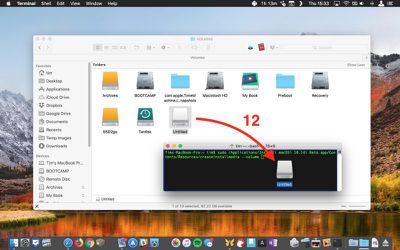
- Connect your USB thumbnail drive to your Mac.
- Drag the USB drive's icon from Finder into the Terminal window.
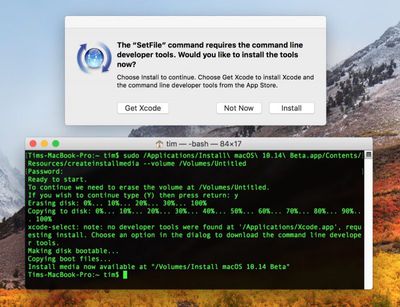
- Press the Enter key on your keyboard to run the completed Terminal command.
- Enter your administrator password when prompted.
- Type Y and press Enter when prompted, and the command will create your bootable Mojave installer on the USB drive. This will take a few minutes to complete, so leave it running. Note that if you're asked whether you want to install Xcode during this time, you can safely click Not Now and the process will complete successfully regardless.

Restart and Install
Once the USB installer has been created, restart your Mac and hold down the Option (⌥) key as soon as you hear the reboot tone. Then follow these steps:
- Use the mouse pointer or the arrow keys on your keyboard to select the disk called Install macOS Mojave in the drive list that appears on the screen.
- Once the USB drive has booted, select Disk Utility from the Utilities window, choose your Mac's startup drive from the list, and click Erase.
- When your Mac's startup disk is formatted, return to the Utilities window and select Install macOS, choose your freshly erased startup drive when asked where to install the OS, and follow the onscreen prompts to complete the installation.













Top Rated Comments
Goes in the same bin as memory cleaners, defragmentation etc.
Unless you have a serious problem, just upgrade.