In iOS 16, Apple has added multiple options to customize the iPhone Lock Screen, including the ability to change the font and color, apply filters, and even add information-rich widgets to your wallpaper.
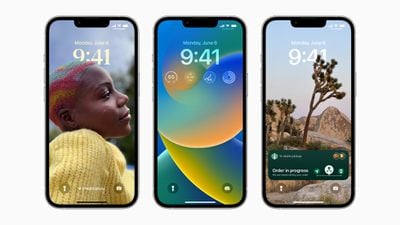
Apple has created a variety of customizable Lock Screen wallpaper types that you can choose from, including shuffling photos, Emoji backgrounds, Apple Collections, and Colors, as well as dynamic Weather and Astronomy screens that reflect real-time data.
And with the introduction of Lock Screen widgets, you can display information like the weather, time, date, battery level, calendar events, alarms, time zones, Activity ring progress, and more, with Apple making a widget API available for developers.
You can build a gallery of different Lock Screen wallpapers and switch between them on the fly with a swipe. If you have an Apple Watch, the Lock Screen gallery interface will be familiar to you, since it's very similar to the way watch face customization works.
Let's dive right in and create a new Lock Screen by following the steps below.
- Unlock your iPhone with Face ID or Touch ID
- Press and hold on the Lock Screen.
- Tap the blue + button, or swipe leftwards all the way to the end and then tap Add New.
- Select a new wallpaper from the menu of options, which include People, Photos, Photo Shuffle, Emoji, Weather, Astronomy, Collections, and Color.

- Customize the look of your chosen Lock Screen by tapping the frames up top to change the clock style and add widgets above and below the time. For further personalization, use the filter and image options at the bottom of the screen, which will change depending on the type of wallpaper you've chosen.
- When you've finished customizing your new Lock Screen, tap Done in the top-right corner, and then tap the screen again to exit the Lock Screen gallery.
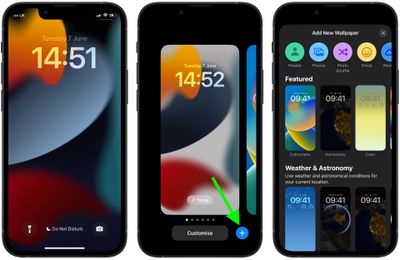
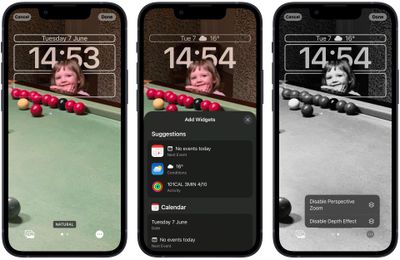
Note that you can customize the current Lock Screen at any time by invoking the gallery view from the Lock Screen with a long press, or by going into Settings -> Wallpaper & Lock Screens.