

 On iPhone, Apple has a neat way to organize your favorite contacts and even access them quickly, thanks to its Home screen widget system. In addition to adding one-tap phone calling icons, you can customize whether each contact icon will call, FaceTime, text, or email the person you tap on.
Note that the basic communication preferences stored within each contact card on your iPhone will come into play when customizing your new favorites widget, so be sure to add in any phone numbers and email addresses before you start if you haven't done so already.
Customize Favorites in the Phone App
Follow these steps to navigate through the new way you can customize favorites in the phone app.
- Launch the Phone app on your iPhone.
- The app should open on the Favorites tab, but if not tap to it.
- Tap the "+" button in the top-left corner of the screen.
- Search for the contact you want to add and tap it.

- Choose between Message, Call, Video, or Mail as your shortcut.
- To pick a number or email other than the one shown as default, tap the small down arrow to the right of Message, Call, Video, or Mail to pick from any number/email already stored in your phone for this contact.
- Return to the Favorites tab and your new quick access contact will be at the bottom of your Favorites list.
- Tap Edit in the top-right corner to delete or reprioritize contacts. You can also swipe left on a favorite in your Favorites list and tap Delete to remove it.
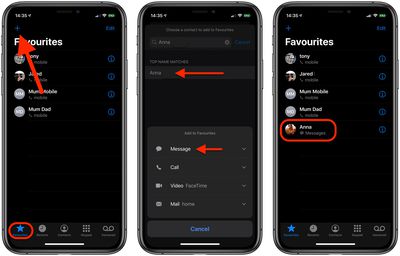
When organizing your new favorite contacts, be sure to note that the first four contacts will receive top billing in the favorites widget, but a total of eight can fit.
Setting Up the Favorites Widget
The favorites list's granular settings allow you to jump into the contacts you only text with, while still accommodating those people you more often speak with on the phone. The personalization doesn't stop there, however. Follow the next few steps to get your favorites widget up and running.
- Navigate to the widgets screen by swiping right on your iPhone's main Home screen, Notification Center, or Lock screen.
- Scroll all the way down to the bottom of your widgets and tap Edit.
- Find Favorites and tap the small green plus button to add it to your widgets.
- Use the triple bar or "hamburger" icon on the right side of the screen to move favorites further up or down the list.
- Hit Done to save your changes.
- You'll see your favorite contacts as a widget, with the top four contacts getting premium placement.
- Tap the little chevron in the top-right corner of the widget to expand it for a total of eight contacts.
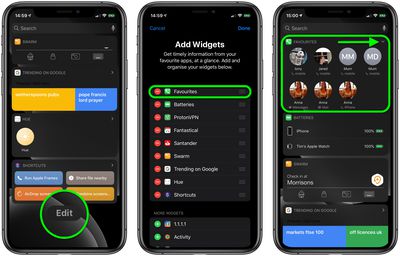
Since the favorites widget can show up to eight contacts, you can return to the phone app to add and rearrange your most important friends, family members, and co-workers to see the changes reflected in the widget.
Your customization options include: adding multiple methods of communication for one person (all four if you contact one person multiple ways frequently), removing the default phone call options for message-focused contacts, and setting your top four most used contacts to save room on the widgets screen, without needing to use the "Show More" option.



















![Apple Pulls Keynote, Pages and Numbers From App Store [Update: Back]](https://images.macrumors.com/t/Okb7kitB_gNr6qe5Pex9nQIysD8=/112x112/article-new/2026/01/Apple-Creator-Studio-iWork-suite.jpg)




















Top Rated Comments
[doublepost=1474143244][/doublepost]So it doesn't just bypass DND but even the silent/vibrate setting and always rings for calls and plays a tone for messages even if the phone is on silent/vibrate?
[doublepost=1474143285][/doublepost]Updated calling apps can have their calls show up as normal calls would (rather than as just an app notification).
If you haven't checked out the supplementary new feature in the Contact app buried under the Ringtone toggle option named "Emergency Bypass", one can turn off "Favorites" in DND and still designate one or more people to get through by toggling on that Bypass for each relevant Contact.