The photos and videos you take using your iPhone can quickly eat up storage. If your device is close to full capacity because of all that media, one solution is to start afresh and delete all the photos on your iPhone. The following steps show you how.
Before you wipe all the photos from your iPhone, make sure you've backed any up that you want to keep. iCloud will only let you restore all your deleted photos at once, but you can take a more selective approach by using a third-party solution like Google Photos or Dropbox on Mac or PC.
Caution: Deleting your photos with iCloud Photo Library enabled will delete your photos from ALL devices, so before you act, make sure the iCloud Photos setting is disabled in Settings -> Apps -> Photos.
Deleting All Photos on iPhone and iPad
- Launch the Photos app on your iPhone or iPad.
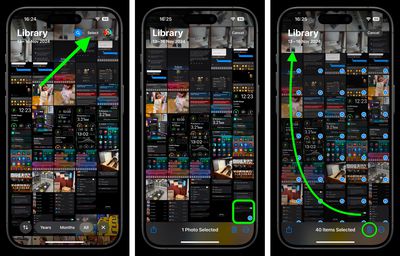
- Tap Select in the upper right corner of the main view.
- Tap the most recent photo at the bottom of the library view, then tap the photo next to it and drag your finger along the row, up towards the farthest corner of the screen so that the other photos are included in the selection (indicated by a blue tick).

- Keep your finger in contact with the screen as it continues to scroll upwards, until all the photos in your library are selected.
- Tap the trashcan icon in the bottom-right corner to delete them, then tap Delete XX Photos (XX being the number of photos selected) to confirm.
- Next, scroll down to the "Utilities" section and choose Recently Deleted from the list.
- Authenticate if necessary, then tap Select in the top-right corner.
- Tap the ellipsis (three dots) button in the bottom-right corner, then choose Delete All.
- Tap Delete XX items to confirm you want to remove the photos from your device completely.

Note that if you're asked to confirm deletion "From All Devices," then iCloud Photos is enabled and you should not proceed.
If you have iCloud Photo Library enabled on your iOS devices as well as your Mac, deleting all photos from all of your devices is a cinch – click here to learn how it's done.























![Apple Pulls Keynote, Pages and Numbers From App Store [Update: Back]](https://images.macrumors.com/t/Okb7kitB_gNr6qe5Pex9nQIysD8=/112x112/article-new/2026/01/Apple-Creator-Studio-iWork-suite.jpg)