

Starting with iOS 11, Apple overhauled the way we interact with the iPad, introducing several features designed to make the iPad experience better mimic the way we use a Mac or a PC. Central among these new features is a revamped Dock that holds more apps, an improved app switcher, and most importantly, system-wide Drag and Drop.
With Drag and Drop, text, links, photos, files, and more can be transferred between one app and another without the need to use in-app Share Sheets. It's a great way to do things like add photos or links to an email, save PDFs or documents from an email to the Files app, share links with friends in Messages, and more.
Below, we'll walk you through the steps on how to use Drag and Drop and offer some examples of how it can be used in different apps.
How to Use Drag and Drop
- Tap and hold on a link, text, a photo, or a file within any app on the iPad.
- While maintaining a finger on the file in question, move your finger away to initiate a drag gesture.
- You now have a file, link, or photo that can be dropped into any other app.
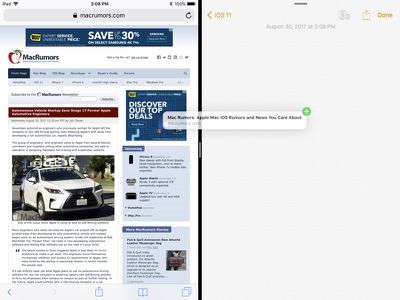
- To open up another app, you can tap it from the Home screen, bring up the dock with a swipe, use the app switcher, or use a Split-View multitasking window. Dragging multiple files between apps is particularly useful with two apps open at once.
- Continue dragging the file/link/photo into the other app.
How to Drag and Drop Multiple Files at Once
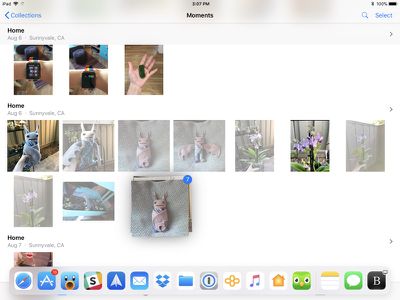
Drag and Drop works with more than one file at a time, so if you want to move multiple files to the Files app or drag multiple photos from the Photos app to another location on the iPad, you can do so with Drag and Drop.
- Grab a file with a drag gesture (tap, hold, and pull away).
- Keep your finger on the file.
- With another finger or your other hand, simply tap additional files.

- The new files will be added to the file under your first finger and you'll see a little blue badge letting you know how many files are being dragged.
- Multiple files work just like a single file - open up another app to drop your content where it needs to go.
Drag and Drop Usage Examples
Because Drag and Drop is a system-wide feature on the iPad, you can drag all kinds of files between any app, just like you can do on a Mac or a PC. It makes moving content between apps so much simpler than iOS 10. Below are some of the ways it can be used:
- Dragging photos from the Photos app to Mail or Messages
- Dragging a link from Safari to Notes, Mail, or Messages
- Transferring a photo from a web page in Safari to the Photos app
- Copying a PDF from the Mail app to the Files app, Notes or another app
- Dragging your location in Maps from the Maps app to Messages or Mail
- Dragging a calendar event from the Calendar app to Mail or Messages
- Dragging a contact from the Contacts app to Messages to share contact info with friends
- Selecting a block of text and then transferring it from one app to another
- Dragging an address from Maps to another app
- Dragging a Reminder into Mail or Messages
- Dragging an Apple News story into Mail or Messages to share a link
- Move multiple apps on the Home screen into a folder with multi-drag
While Drag and Drop is a feature available anywhere on the iPad, third-party apps still need to implement support for it, so it may not be immediately available in all apps right when iOS 11 launches.
Drag and Drop on the iPhone
While Drag and Drop was primarily built for the iPad, there are a limited number of Drag and Drop features that also work on the iPhone.
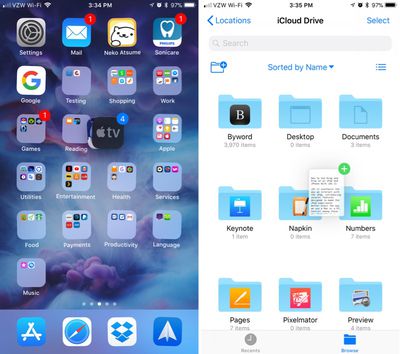
You can use the multi-drag feature to drag more than one app from the Home screen into a folder or onto another screen, and you can drag and drop files between different folders in the Files app. Outside of these two use cases, there's no other Drag and Drop functionality available on the iPhone at this time.



















Top Rated Comments
[doublepost=1505870994][/doublepost]Funny you should be joining in with all the liars in that case, "former Apple user".