This article explains how to erase and factory reset your Mac if you plan to give it away, sell it, or trade it in. Apple silicon Macs and Intel Macs with a T2 security chip (2017-2020 models) have an "Erase All Content and Settings" option available in macOS Monterey and later. If you have an older pre-2017 Mac, it's a more convoluted process – follow this link instead to erase and factory reset your machine.


Traditionally, wiping a Mac and returning it to factory settings involved manually signing out of a range of services, erasing your Mac's internal drive, then reinstalling macOS. These steps are quite involved when you consider how easy it is to wipe an iPhone or iPad (Settings -> General -> Transfer or Reset iPhone -> Erase All Content and Settings).

Fortunately, Apple includes the same option on newer Macs running macOS Monterey and later. Erase All Content and Settings in macOS offers a very simple and straightforward way to erase your Mac without needing to reinstall the operating system. Thanks to the way storage is encrypted on Macs with Apple silicon or the T2 chip, the option is able to instantly and securely "erase" all user date by destroying the encryption keys.

Not only does this effectively erase all user data and user-installed apps from your Mac without reinstalling macOS, it also signs out your Apple Account from a range of services, removes any Touch ID fingerprints, purchases, and all Apple Wallet items, and turns off Find My and Activation Lock, making it far easier to restore your Mac to like-new factory settings.

The following steps show you how it's done. Whether you simply want to start fresh with your Mac or are planning to sell or gift your computer to another person, after erasing it using this option, your Mac will display the Setup Assistant and be ready to be set up like new.

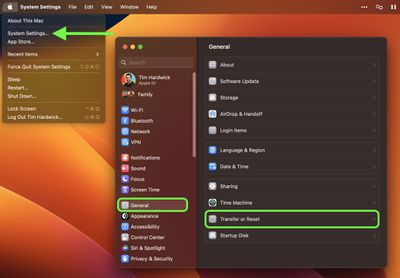
  1. Click the Apple () symbol in the menu bar and select System Settings (System Preferences... if you're not running macOS Ventura or later).
  2. If you're running macOS Ventura or later, select General in the sidebar, then choose Transfer or Reset -> Erase All Content and Settings.... Otherwise, select System Preferences -> Erase All Content and Settings from the menu bar.
    settings

  3. Enter your admin password in the Erase Assistant dialog prompt and click OK.
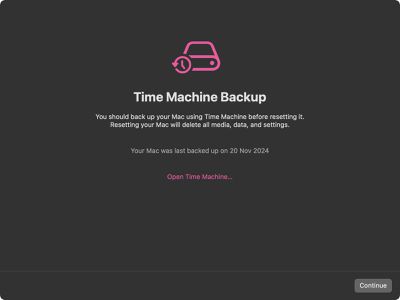
  4. If you haven't already backed up your important data, heed the onscreen Time Machine advice. Otherwise, click Continue.
    erase content settings mac

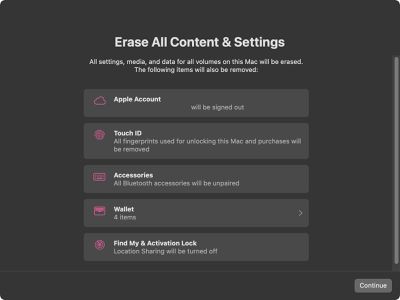
  5. Note all the settings, data, media, and other items that will be removed. Click Continue if you're sure.
    erase

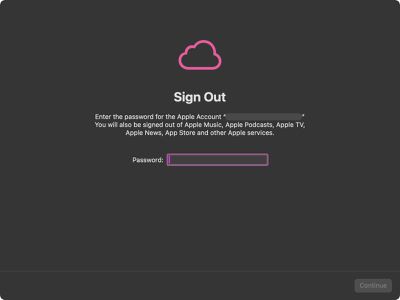
  6. Enter the password for your Apple Account to sign out, click Continue, then click Erase All Content & Settings in the prompt to confirm.
    erase

After following these steps, allow the erase process to complete. Your Mac may restart more than once during the process. Once finished, you'll see the "hello" message on your Mac's screen, indicating that your Mac has been restored to factory settings and Setup Assistant is ready to start anew.


Top Rated Comments

heystu Avatar
16 months ago
Sorry I’m just too paranoid to trust it, I have to clean format the drive, overwrite it with zeros 50 times, smash it to pieces with a sledgehammer, encase it in magma and bury it 200 feet underground. I’m still confused though why I never seem to get a decent trade in price.
Score: 16 Votes (Like | Disagree)
WarmWinterHat Avatar
16 months ago

If you are going to sell the Mac, be careful. Buyer may revive the erased contents. Use secureErase utility to erase permanently.
I don't think that is really the case anymore with Filevault. Once the encryption keys are wiped, it's unrecoverable.
Score: 6 Votes (Like | Disagree)
Arytonsenna Avatar
16 months ago

There are some restore utilities that can walk a hard drive and find all kinds of documents and files and photos, it’s good to at least do one secure pass. :rolleyes:
I think you're a bit clueless how this feature works. It tosses out the keys in the secure enclave and generates new ones. It makes no attempt to erase your data, because it's no longer readable without the original keys.
Score: 6 Votes (Like | Disagree)
Weaselboy Avatar
16 months ago

Question......I assume if we want to just revert to factory settings for our own use, just to go back to a clean state or to regain performance from the degradation that comes with general use, these steps would apply also. Correct?
Correct... this gives you the same end result as the old wipe/erase and reinstall OS routine.
Score: 5 Votes (Like | Disagree)
neuropsychguy Avatar
16 months ago

A couple years ago, during a major purge of old tech I had in the basement, I had about twenty spinning-platter hard drives to get rid of. Didn't want to bother wiping them so I took them outside and used my oxy-acetylate cutting torch to blow holes though every one of them.

Good luck!
Not enough. Any competent law enforcement or "hacker" group from a movie or TV show will be able to reconstruct pictures of your dog from them.
Score: 4 Votes (Like | Disagree)
Fishrrman Avatar
16 months ago
I used this procecure recently on my 2021 MacBook Pro (m1pro), and it went quickly -- seems like less than 5 minutes (might have been only a minute or two, I should've had a stopwatch going).

Then... restored from a CarbonCopyCloner backup. That, too, went quickly (about 10 minutes), but I don't keep lots "of stuff" on it, and the backup was on a USB3.1 gen2 SSD.

A VERY nice improvement by Apple over "the old way of doing things"...
Score: 4 Votes (Like | Disagree)

Popular Stories

Apple Logo Zoomed

Tim Cook Teases Plans for Apple's Upcoming 50th Anniversary

Thursday February 5, 2026 12:54 pm PST by
Apple turns 50 this year, and its CEO Tim Cook has promised to celebrate the milestone. The big day falls on April 1, 2026. "I've been unusually reflective lately about Apple because we have been working on what do we do to mark this moment," Cook told employees today, according to Bloomberg's Mark Gurman. "When you really stop and pause and think about the last 50 years, it makes your heart ...
iOS 26

iOS 26.3 and iOS 26.4 Will Add These New Features to Your iPhone

Tuesday February 3, 2026 7:47 am PST by
While the iOS 26.3 Release Candidate is now available ahead of a public release, the first iOS 26.4 beta is likely still at least a week away. Following beta testing, iOS 26.4 will likely be released to the general public in March or April. Below, we have recapped known or rumored iOS 26.3 and iOS 26.4 features so far. iOS 26.3 iPhone to Android Transfer Tool iOS 26.3 makes it easier...
imac video apple feature

Apple Makes Its Second-Biggest Acquisition Ever

Tuesday February 3, 2026 12:45 pm PST by
Apple recently acquired Israeli startup Q.ai for close to $2 billion, according to Financial Times sources. That would make this Apple's second-biggest acquisition ever, after it paid $3 billion for the popular headphone maker Beats in 2014. This is also the largest known Apple acquisition since the company purchased Intel's smartphone modem business and patents for $1 billion in 2019....
wwdc sans text feature

Apple Rumored to Announce New Product on February 19

Thursday February 5, 2026 12:22 pm PST by
Apple plans to announce the iPhone 17e on Thursday, February 19, according to Macwelt, the German equivalent of Macworld. The report, citing industry sources, is available in English on Macworld. Apple announced the iPhone 16e on Wednesday, February 19 last year, so the iPhone 17e would be unveiled exactly one year later if this rumor is accurate. It is quite uncommon for Apple to unveil...
Finder Siri Feature

Why Apple's iOS 26.4 Siri Upgrade Will Be Bigger Than Originally Promised

Friday February 6, 2026 3:06 pm PST by
In the iOS 26.4 update that's coming this spring, Apple will introduce a new version of Siri that's going to overhaul how we interact with the personal assistant and what it's able to do. The iOS 26.4 version of Siri won't work like ChatGPT or Claude, but it will rely on large language models (LLMs) and has been updated from the ground up. Upgraded Architecture The next-generation...