

Apple has made a macOS 12 Monterey beta available for its public beta testing group, letting public beta testers try out the software before it launches this fall.
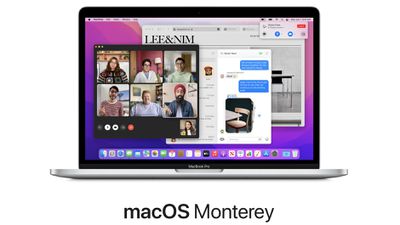
The macOS Monterey Public Beta is available to anyone with a compatible Mac and it does not require a developer account. This guide walks you through some simple steps on installing the beta software.
Before downloading the update, it's worth noting that Apple does not recommend installing the macOS Monterey Public Beta on your main Mac, so if you have a secondary machine, use that. This is beta software, and there are often bugs and issues that pop up that can prevent software from working properly or cause other problems.
It's also worth noting that there are some major design changes to Safari that take some adjusting to, so you may want to avoid committing to the beta usage experience until you've tried it out.
macOS Monterey Compatibility
macOS Monterey is compatible with many of the Macs that were able to run macOS Big Sur, but it drops support for some older MacBook Air and iMac models from 2013 and 2014. The Macs below can run the software.
- iMac - Late 2015 and later
- iMac Pro - 2017 and later
- MacBook Air - Early 2015 and later
- MacBook Pro - Early 2015 and later
- Mac Pro - Late 2013 and later
- Mac mini - Late 2014 and later
- MacBook - Early 2016 and later
Make a Time Machine Backup
Before you upgrade to the Monterey beta, you should make sure to make a backup using Apple's Time Machine backup feature with an external drive.
If you want to revert back to your previous setup after testing macOS Monterey or if you run into a bug and need to backtrack, you'll need to reinstall macOS Big Sur (or your prior OS) and a backup can be helpful for reverting.
Enroll in the Beta Software Program
Installing macOS Big Sur requires enrolling your Mac in Apple's free Apple Beta Software Program. Follow these steps to do so.
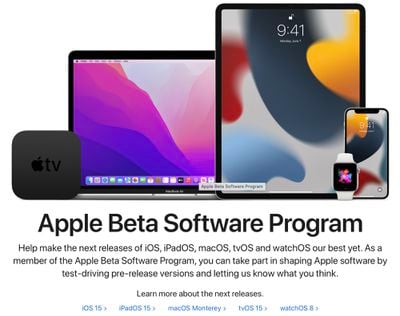
- Visit the Apple Beta Software Program website in a browser on your Mac.
- Click on the blue Sign up button or, if you're already a member, click sign in.
- Enter your Apple ID and password and then a two-factor authentication code if verification is required.
- Agree to the Apple Beta Software Program terms and conditions.
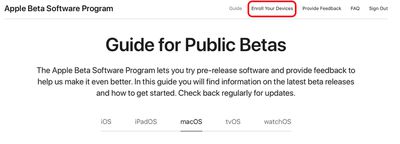
- Once signed in and at the Guide for Public Betas page, scroll up to the top and click on "Enroll Your Devices" then click on "macOS."

Downloading and Installing the macOS Monterey Beta
After you've enrolled in the public beta testing program, you're able to download macOS Monterey.
- After selecting the macOS section on the beta website, scroll down to "Enroll your Mac" and click on "Download the macOS Public Beta Access Utility option."
- If you get a popup asking if you want to allow downloads on "beta.apple.com" click on "Allow."
- Unless you've changed where files download, the beta installer (macOSPublicBetaAccessUtility.dmg) will show up in your downloads folder. Locate it and double click on it to open it up.
- Double click on the .pkg file inside to run the installer.
- You may see a warning advising you to back up your Mac with Time Machine. Either stop here and back up, or, if you've already done so, Click OK and then click Continue.
- Click Continue again and then click on Agree to accept Apple's software license agreement, then click on "Install." Enter your admin password if prompted.
- Once the installer has completed the download, the System Preferences Software Update panel will open automatically and display the macOS Monterey Beta download. Click on Upgrade Now to download the public beta software when prompted. It will take some time to download the file, and when the download is complete, your Mac should restart.
- After a restart, the macOS Monterey installer should launch automatically. If it does not, it can be found in the applications folder.
- From here, click "Continue" and walk through the steps as instructed, agreeing to the terms and conditions and making sure you've performed a backup.
- Select the drive that you want to install the public beta on. You can choose your main drive or a partition that you've created.
- Click Install, enter your administrator password, and click OK, then click Restart or wait for your Mac to reboot automatically.
After your Mac restarts, the Monterey installation process will begin. It takes some time for the update to install, but when the installation is finished and your Mac boots up again, it will be running the Monterey public beta.
macOS Monterey introduces a long list of new features like Universal Control for using a mouse across multiple iPads and Macs and a new FaceTime experience with sharing features for watching movies and listening to music with friends. We have a full list of everything new in macOS Monterey in our dedicated roundup.
















Top Rated Comments
So please ship the new Mx MacBook Pro soonest!
Like this mid 2012 - I'll buy the most expensive biggest best etc and then see you again in 2030...
I'm almost thinking about suggesting they should make a kind of movie about this one: has been in over 30 countries, and still going strong! Should be a heck of advertisement.
But then again, maybe they don't want customers like me, only buying a laptop every 9-10 years?
I'm taking the jump and putting this on my main Intel Mac.
Yes, this early Beta really is that good. By far the most stable release I have encountered.
The difference then was Apple wasn't on a yearly schedule for new major OS releases. The final PowerPCs shipped in 2005 and Snow Leopard shipped in 2009. It's anyone's guess whether Apple sticks to 4 years or one more major release over that, which the final hardware shipped with.
They're just about to release a new Intel Mac Pro apparently. People will shell out thousands to get their hands on it, so it better be supported all the way up to 2028.