How to Use Messages' Tapback, Screen Effects and Bubble Effects in iOS 10 - MacRumors
Skip to Content

How to Use Messages' Tapback, Screen Effects and Bubble Effects in iOS 10

by

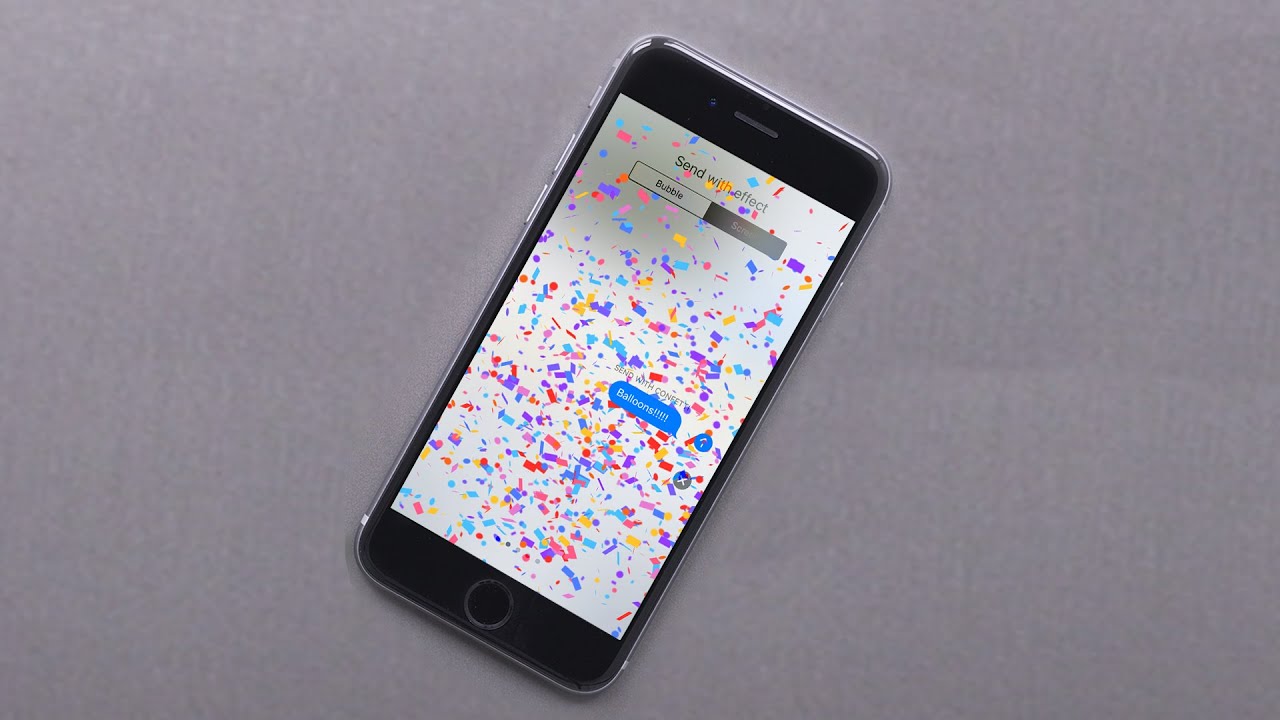
In iOS 10, Messages features creative tools to give users new ways to express themselves and communicate with friends and family. Additions include new bubble effects that change the way iMessage bubbles look, tapback reaction options for sending quick feedback on texts or photos, and screen effects that add fireworks, confetti, and more to the whole messages screen.

All of these tools are simple to use, but there are some hidden features and accessing them for the first time can be tricky, so make sure to check out our how-to for pointers.
Using Bubble Effects

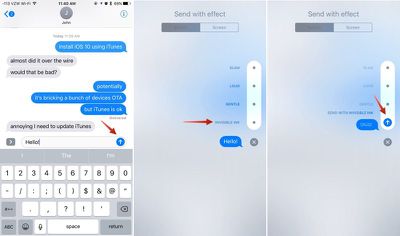
There are currently four kinds of bubble effects that can be added to chat bubbles to impact the mood of a message: Slam, Loud, Gentle, and Invisible Ink. Each one changes the way a chat bubble looks when it's delivered to a friend.

Slam, for example, expands the size of the chat bubble and slams it down onto the screen, while Loud enlarges the chat bubble and makes it shake for a few seconds before it settles down.

Gentle, meanwhile, makes the text within the chat bubble tiny for a few seconds before it expands in size, and Invisible Ink, the neatest effect, fully obscures the look of the text in the chat bubble until a finger is swiped over it to unveil it.
messagesbubbleeffects
Here's how to use Bubble Effects:

  1. Open the Messages app and select an existing conversation or start a new conversation.
  2. Type a message.
  3. On the iPhone 6s or 6s Plus, use a Force Press on the blue arrow next to the chat box to bring up the Bubble Effect options.
  4. On iPads or older iPhones, use a Long Press (press and hold for a few seconds) to bring up the Bubble Effect options.
  5. Select one of the Bubble Effect options to see a preview of what it will look like.
  6. Press the blue up arrow to send your message. It'll be delivered to the recipient with the effect.

Using Screen Effects

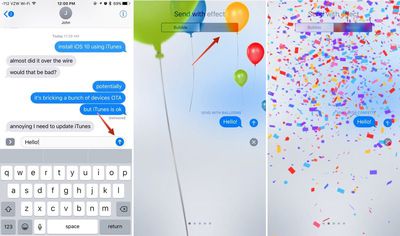
Bubble Effects change the look of the chat bubbles, but Screen Effects temporarily alter the look of the entire Messages display with full screen animations that play alongside text messages you send.
imessagescreeneffects

  1. Open the Messages app and select an existing conversation or start a new conversation.
  2. Type a message.
  3. On the iPhone 6s or 6s Plus, use a Force Press (use a long press on iPads and older iPhones) on the blue arrow next to the chat box to bring up the Bubble Effect and Screen Effect menu.
  4. The default option is Bubble Effects. Tap "Screen Effects" at the top of the display to change modes.
  5. Swipe left and right to cycle through all of the different options.
  6. When you've selected the desired effect, press the blue up arrow to send your message. It will be delivered to the recipient as a full screen animation.

Screen effects can be added to messages manually by following the above directions, but they're also an automatic effect that's activated by certain phrases. For example, if you text a friend "Happy Birthday!" your message will be sent with balloons. If you send a "Congratulations!" text, it'll be accompanied by confetti.

Using Tapback

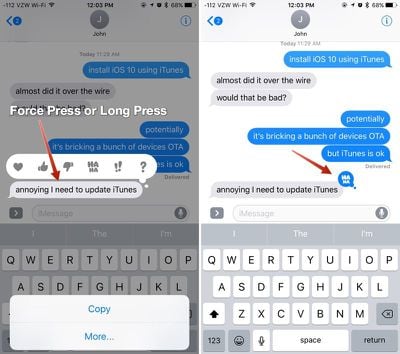
Tapback responses are little icons that can be added to any incoming message bubble, including texts, photos, GIFs, and more, allowing you to quickly share a reaction without having to type a full message. Tapback icons, when used, are added to the chat bubble that was selected and are visible to both you and the message recipient.

Tapback options include a heart, thumbs down symbol, thumbs up symbol, a "haha" icon, an exclamation point, and a question mark. Each symbol represents a different emotion or response, which is conveyed through both the icon and the accompanying notification.
tapbackresponses
Using a heart Tapback response means you "love" a photo or text message, for example, and when you send a heart response, your friend will see the message "Juli loved an image," if attached to a photo. Here's a full list of Tapback responses and the notification that accompanies them:

  • Heart - Juli loved an image
  • Thumbs up - Juli liked an image
  • Thumbs down - Juli disliked an image
  • Haha - Juli laughed at an image
  • Exclamation point - Juli emphasized an image
  • Question mark - Juli questioned an image

Here's how to respond to a message with Tapback:

  1. Open a conversation.
  2. Choose the message you want to respond to.
  3. Long press on the chat bubble. A selection of Tapback icons will be displayed.
  4. Choose the icon you want to respond with.
  5. The icon is attached to the chat bubble and sent to the message recipient.
  6. Want to remove or change a Tapback reaction? Press again and deselect the icon you chose the first time or choose a new one.

Troubleshooting

If you're having trouble getting Bubble Effects and Screen Effects to work, the Reduce Motion setting needs to be turned off if you've turned it on. The feature can be accessed in Settings --> General --> Accessibility --> Reduce Motion. Make sure it's toggled to off, aka not green.

With Reduce Motion turned on, Screen Effects and Bubble Effects do not work because they're motion-based. If you don't like Screen Effects and Bubble Effects, turning on Reduce Motion is a good way to disable them.

Bubble and Screen Effects are only displayed properly on iOS devices running iOS 10 and macOS Sierra.

Related Forum: iOS 10

Top Rated Comments

sudo1996 Avatar
132 months ago
I love how the example conversations are about iOS 10 bricking devices.
Score: 3 Votes (Like | Disagree)
132 months ago
Question:

My mother has an iPhone 6S and she recently updated to iOS 10. She can send messages using the effects and they work when I view them, but messages sent to her using the effects do not work. For instance, if she sends me a text on my phone using invisible ink the effect works on both phones, but if I send her a text from mine using invisible ink she only receives the text along with (sent using invisible ink). Any ideas on how to fix this?

I've made sure the "reduced motion" is off so that wasn't it.
Score: 3 Votes (Like | Disagree)
132 months ago
Is there anyway to turn off this? Also the drawing and App icon?

Prefer to not use these on iMessage
Score: 2 Votes (Like | Disagree)
132 months ago
If changing reduce motion isn't working, try settings>messages> turn iMessage off and back on.
Score: 2 Votes (Like | Disagree)
132 months ago
Ughhh. I wish reduce motion could be a feature by feature selection. Oh well. I'll put up with it now to have these additional message features. Also. It appears bubble and screen effects can only be selected in portrait mode. Kind of wack.
Score: 2 Votes (Like | Disagree)
131 months ago
I'm having trouble using force touch on my 7 plus Press on the blue arrow next to the chat box to bring up the Bubble Effect and Screen Effect menu... it does nothing even if I press really hard, I've adjusted force touch intensity on various levels and nothing.
Have you checked to make sure your reduce motion setting is disabled?
Score: 1 Votes (Like | Disagree)

Popular Stories

iPhone Duo Trio

Here's What Apple's Apps Look Like on the iPhone Duo

Tuesday October 20, 2026 11:12 am PDT by
With just three days to go until the iPhone Duo is released, Apple is getting ready for the launch. Behind the scenes, the App Store now has screenshots of Apple's built-in apps running on the Duo. We've seen some apps in marketing materials, but images of the ones we haven't seen give us an idea of what it will be like using the iPhone Duo day to day. Many apps are shown in landscape...
Apple Creator Studio iWork suite

Apple Pulls Keynote, Pages and Numbers From App Store [Update: Back]

Thursday October 22, 2026 11:01 am PDT by
Apple has temporarily removed Keynote, Pages, and Numbers from the App Store, just after releasing an update that added iPhone Duo support and a new Intelligent Assistant. It is not clear if the apps were removed intentionally, or if it is a bug. Apple has not said when the apps will be reinstated, but if it was in error, they should return soon. Update: The Mac versions are back without...
M5 MacBook Pro

RIP, MacBook Ultra

Monday October 19, 2026 9:37 am PDT by
Apple today sent out invites for an experience in Los Angeles on Wednesday, October 28, and the "Pro and tell" tagline on the invitation likely means that the rumored MacBook models with touch-enabled OLED displays will stick with MacBook Pro branding instead of the once-rumored "MacBook Ultra" name. The long-rumored "iPhone Ultra" ended up being named iPhone Duo, so speculation that Apple...
Latest Stories
iPhone Duo Launch Begins as First Orders Reach Customers
6 hours ago
1Password for Agents Keeps Your Passwords Hidden From AI
6 hours ago
iPhone Duo 24 Hours Later: Your Questions Answered
7 hours ago
Apple's iWork Apps Get 'Intelligent Assistant' and iPhone Duo Support
8 hours ago
Apple is Apparently Considering a Slightly Larger iPhone Duo
8 hours ago
Giant iPhone Duo Displays Coming to Four Apple Stores
9 hours ago
Apple Pulls Keynote, Pages and Numbers From App Store [Update: Back]
10 hours ago
Apple Updates More Apps With iPhone Duo Support
10 hours ago
Apple Will Label Apps 'Made for iPhone Duo' in App Store
13 hours ago
Amazon Takes $49 Off iPad With Prices Starting at $399.99
14 hours ago
F1 on Apple TV Now Available in Dolby Atmos
14 hours ago
Apple Reveals More Than 50 Apps That Will Be Updated for iPhone Duo
15 hours ago
Apple Blocks Certificates That Could Help Attackers Fake Websites
16 hours ago
Giant iPhone Duo Installations Spotted at Apple Fifth Avenue
17 hours ago
iPhone Duo 2 Prototypes Include Under-Display Face ID
17 hours ago
Tesla App Gains iPad and iPhone Duo Support
21 hours ago
Apple Reportedly Boosts iPhone Duo Orders by 44%
21 hours ago
Fortnite Returning to Australian App Store After Court Ruling
22 hours ago
Apple Ordered to Open iPhone to Rival App Stores in Australia
22 hours ago
Apple Suppliers Face Hurdles Cutting Circuit Board Emissions
23 hours ago
Things Updated for iPhone Duo With Adaptive Layout
23 hours ago
Simplicity and Siri AI Are HomeView's Killer Features, Apple Says
23 hours ago
iPhone Duo Reviewers Really Miss Face ID
1 day ago
Does the iPhone Duo Run Hot? Here's What Reviews Found
1 day ago
Apple Music's New Look is Now Live on Apple's Website
1 day ago
Anthropic Launches Claude Duet, a Proactive AI Agent
1 day ago
What 32,000 Folds Did to the iPhone Duo's Hinge
1 day ago
iPhone Duo's Hidden FaceTime Camera Takes 'Trash' Photos
1 day ago
iPhone Duo Has 'Edge Light' Feature That Debuted on Macs Last Year
1 day ago
Apple Support App Updated for iPhone Duo's Larger Display
1 day ago