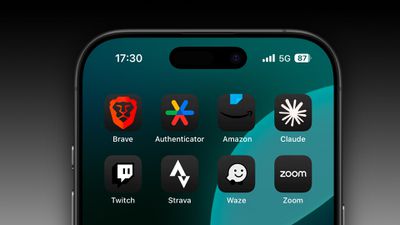
Have you tried making your iPhone's Home Screen app icons dark using the new customization options in iOS 18? If so, you may have run up against the issue that, despite all efforts, some app icons simply refuse to turn dark. Well, we may have a solution for you.
dark mode icons
It's been over two months since Apple released iOS 18, but not all app developers have updated their apps to include equivalent dark mode icons (we're looking at you, Amazon). And while iOS 18 tries to automatically generate dark icons when developers haven't provided them, it doesn't always work.

If that leaves one or two light icons spoiling your otherwise carefully crafted dark-themed Home Screen, don't despair. The following steps describe a relatively simple method you can use that will give most stubborn app icons a passable dark appearance. Big thanks to Redditor Straight_Random_2211 for sharing their custom dark icon assets and process, which we've distilled below:

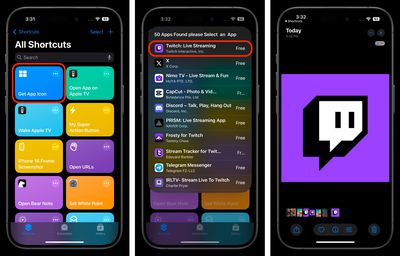
  1. On your iPhone, download the "Get App Icon" shortcut: [Shortcut Link].
  2. Run the shortcut and type in the name of the app whose icon you want to make dark, then select it from the search results. The icon will be saved in your photo library.
    shortcuts

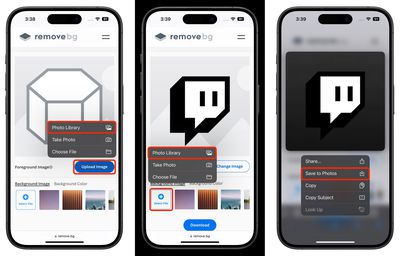
  3. Next, save the following dark-background image to your photo library (long press ➝ Save to Photos): [Image Link]
  4. Visit Remove.bg's "change background" web tool, then tap the blue Upload Image button and choose the app icon that's saved in your photos.
  5. Under "Background Image," tap Select File, then choose the dark background image that's also saved in your photos.
  6. Press and hold the resulting image on the remove.bg webpage, then tap Save to Photos in the contextual menu.
    twitch

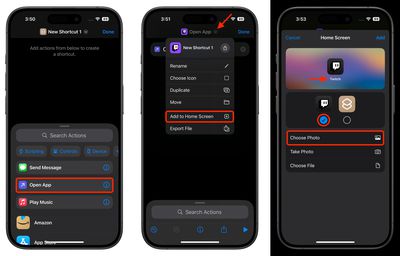
  7. Now, open Shortcuts and tap the + button at the top to create a new Shortcut, then select the Open App action.
  8. Tap the blue "App" text in the "Open App" action, then choose the app whose icon you want to make dark.
  9. Tap the chevron at the top of the screen, select Add to Home Screen from the dropdown menu.
  10. Label the shortcut as the app's name and choose your custom dark icon for the photo, then tap Add to finish.
    custom dark icon

With a bit of luck, your custom dark mode icon will look the part on your personalized Home Screen. Note: If you have several app icons that you want to create dark mode equivalents for, make sure to create a new "Open App" shortcut for each one as you go. If you don't, you may end up accidentally creating several icon shortcuts that refer back to the same app.
Related Forums: iOS 18, iPadOS 18

Popular Stories

wwdc sans text feature

Apple Rumored to Announce New Product on February 19

Thursday February 5, 2026 12:22 pm PST by
Apple plans to announce the iPhone 17e on Thursday, February 19, according to Macwelt, the German equivalent of Macworld. The report, citing industry sources, is available in English on Macworld. Apple announced the iPhone 16e on Wednesday, February 19 last year, so the iPhone 17e would be unveiled exactly one year later if this rumor is accurate. It is quite uncommon for Apple to unveil...
Apple Logo Zoomed

Tim Cook Teases Plans for Apple's Upcoming 50th Anniversary

Thursday February 5, 2026 12:54 pm PST by
Apple turns 50 this year, and its CEO Tim Cook has promised to celebrate the milestone. The big day falls on April 1, 2026. "I've been unusually reflective lately about Apple because we have been working on what do we do to mark this moment," Cook told employees today, according to Bloomberg's Mark Gurman. "When you really stop and pause and think about the last 50 years, it makes your heart ...
Finder Siri Feature

Why Apple's iOS 26.4 Siri Upgrade Will Be Bigger Than Originally Promised

Friday February 6, 2026 3:06 pm PST by
In the iOS 26.4 update that's coming this spring, Apple will introduce a new version of Siri that's going to overhaul how we interact with the personal assistant and what it's able to do. The iOS 26.4 version of Siri won't work like ChatGPT or Claude, but it will rely on large language models (LLMs) and has been updated from the ground up. Upgraded Architecture The next-generation...
maxresdefault

Apple Shows Off a Key Reason to Upgrade to the iPhone 17

Saturday February 7, 2026 9:26 am PST by
Apple today shared an ad that shows how the upgraded Center Stage front camera on the latest iPhones improves the process of taking a group selfie. "Watch how the new front facing camera on iPhone 17 Pro takes group selfies that automatically expand and rotate as more people come into frame," says Apple. While the ad is focused on the iPhone 17 Pro and iPhone 17 Pro Max, the regular iPhone...
iOS 26

iOS 26.3 and iOS 26.4 Will Add These New Features to Your iPhone

Tuesday February 3, 2026 7:47 am PST by
While the iOS 26.3 Release Candidate is now available ahead of a public release, the first iOS 26.4 beta is likely still at least a week away. Following beta testing, iOS 26.4 will likely be released to the general public in March or April. Below, we have recapped known or rumored iOS 26.3 and iOS 26.4 features so far. iOS 26.3 iPhone to Android Transfer Tool iOS 26.3 makes it easier...