Have you tried making your iPhone's Home Screen app icons dark using the new customization options in iOS 18? If so, you may have run up against the issue that, despite all efforts, some app icons simply refuse to turn dark. Well, we may have a solution for you.
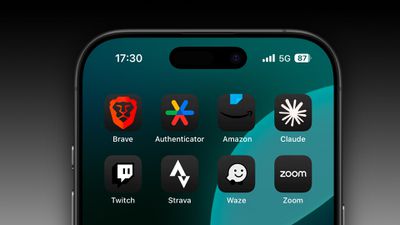
It's been over two months since Apple released iOS 18, but not all app developers have updated their apps to include equivalent dark mode icons (we're looking at you, Amazon). And while iOS 18 tries to automatically generate dark icons when developers haven't provided them, it doesn't always work.
If that leaves one or two light icons spoiling your otherwise carefully crafted dark-themed Home Screen, don't despair. The following steps describe a relatively simple method you can use that will give most stubborn app icons a passable dark appearance. Big thanks to Redditor Straight_Random_2211 for sharing their custom dark icon assets and process, which we've distilled below:
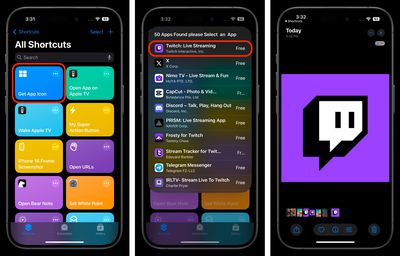
- On your iPhone, download the "Get App Icon" shortcut: [Shortcut Link].
- Run the shortcut and type in the name of the app whose icon you want to make dark, then select it from the search results. The icon will be saved in your photo library.

- Next, save the following dark-background image to your photo library (long press ➝ Save to Photos): [Image Link]
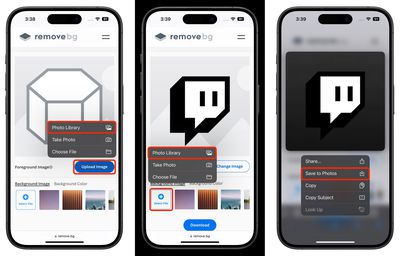
- Visit Remove.bg's "change background" web tool, then tap the blue Upload Image button and choose the app icon that's saved in your photos.
- Under "Background Image," tap Select File, then choose the dark background image that's also saved in your photos.
- Press and hold the resulting image on the remove.bg webpage, then tap Save to Photos in the contextual menu.
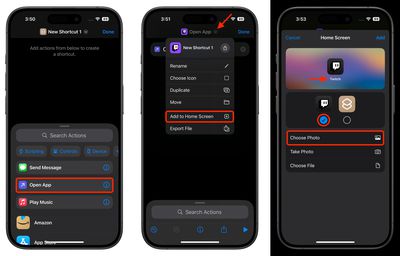
- Now, open Shortcuts and tap the + button at the top to create a new Shortcut, then select the Open App action.
- Tap the blue "App" text in the "Open App" action, then choose the app whose icon you want to make dark.
- Tap the chevron at the top of the screen, select Add to Home Screen from the dropdown menu.
- Label the shortcut as the app's name and choose your custom dark icon for the photo, then tap Add to finish.
With a bit of luck, your custom dark mode icon will look the part on your personalized Home Screen. Note: If you have several app icons that you want to create dark mode equivalents for, make sure to create a new "Open App" shortcut for each one as you go. If you don't, you may end up accidentally creating several icon shortcuts that refer back to the same app.