In iOS 16, Apple has made some significant improvements to the the Weather app, such as making each panel tappable to view more granular details about the current forecast information. Apple has also added an option to get alerts for severe weather. Here's how to set it up.
The Weather app in iOS 16 is able to send a notification if there is a severe weather alert issued near you, so you can get a heads-up for major rain storms, floods, hurricanes, heat waves, tornados, and more.
You can turn on severe weather alerts both for your current location and any location that you've added to the Weather app. Severe weather data is available in Australia, Canada, Japan, China, Brazil, India, Mexico, Thailand, the United States, and most countries and regions in Europe.
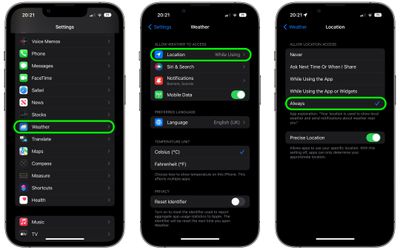
1. Allow Location Access
Before you can enable severe weather alerts, you'll need to grant the Weather app permission access to your location.
- Open the Settings app on your iPhone.
- Scroll down and tap Weather.
- Tap Location.
- Under "Allow Location Access," tap Always.
2. Enable Weather Notifications
You can now enable severe weather notifications like so.
- Launch the Weather app on your iPhone.
- In the forecast screen for a location, tap the button made up of three lines in the bottom-right corner of the interface.
- Tap the ellipsis button (three encircled dots) in the top-right corner, then tap Notifications in the dropdown menu.

- Under "Current Location," toggle on the switch beside Severe Weather.
- Tap Allow in the confirmation prompt.
- Tap Done.
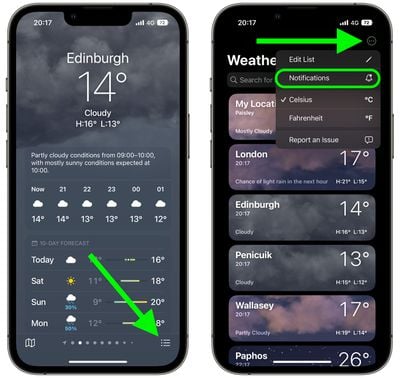
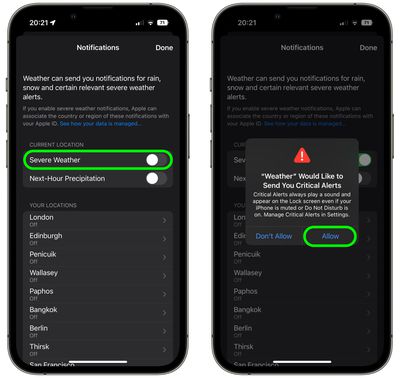
If you want, you can use the last menu to turn on severe weather notifications for other locations that aren't your current location. Simply tap one of the locations in the list and then toggle on the switch next to Severe Weather. Note that Critical Weather Alerts always play a sound and appear on the Lock Screen even if your iPhone is muted or Do Not Disturb is on.