

iOS 11 is an update that brings a much improved user experience to the iPad, and front and center is a new dock. The new dock not only houses far more apps, much like the dock on the Mac, but it also much improves multitasking by allowing iPad users to quickly open apps and switch between them.
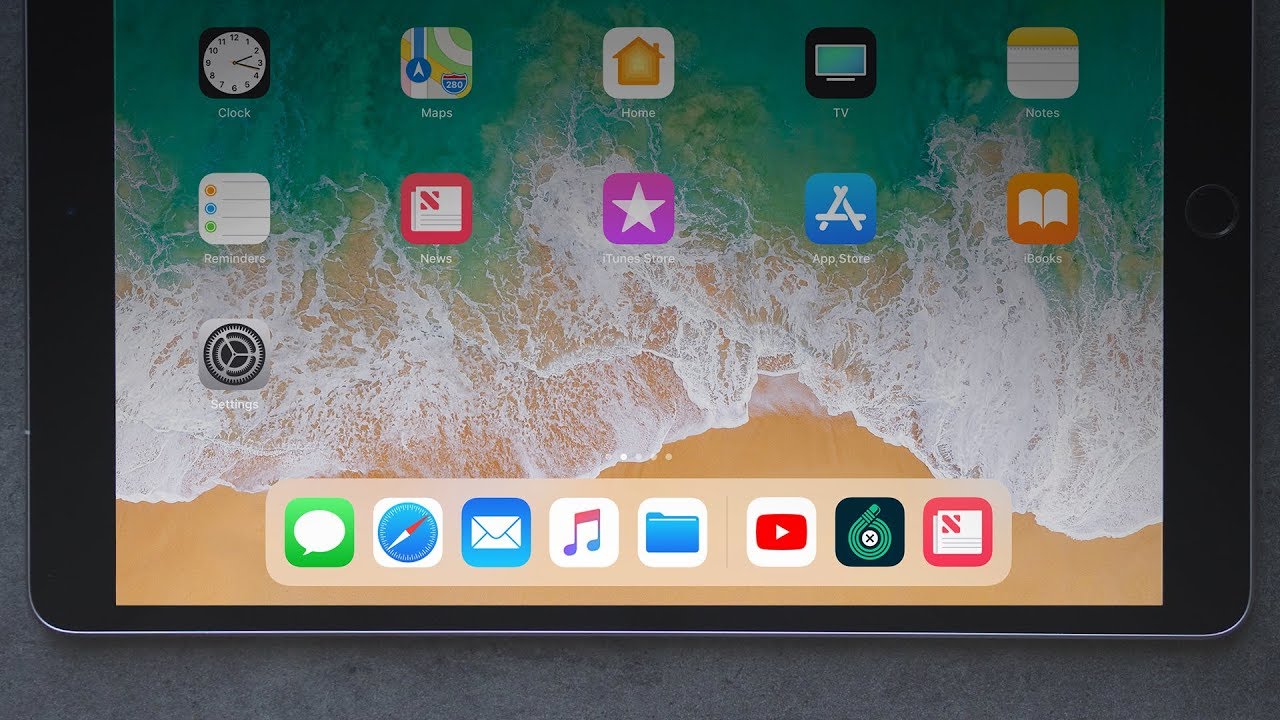

The dock is persistent and can be pulled up within any app at any time with an upwards swipe, a gesture that used to be reserved for the Control Center. A swipe up now opens up the dock, but you can still get to the Control Center and the App Switcher (now one and the same) by continuing to pull in an upwards direction. Swipe downwards to hide the dock.
Adding and Removing Apps on the Dock
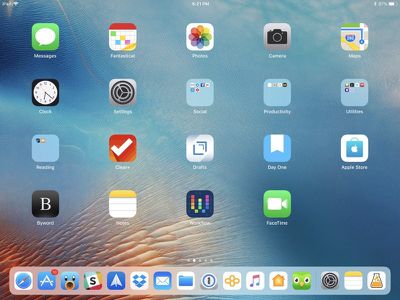
There's only one step required to add an app to the dock. Simply hold a finger over any app on your display for a second and then drag it down to the dock. This will add the app's icon to the dock.
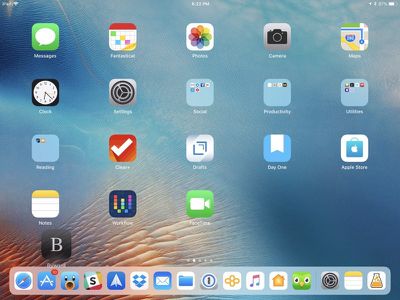
The dock can hold anywhere from 11 (iPad mini) to 15 (12.9-inch iPad Pro) apps in total on this side of the dock, more than double the number that fit in the dock in earlier versions of iOS.
Removing an app is done in the same way. Press and hold on the icon of the app you want to remove and then drag it up and off of the dock.
Hiding or Displaying Recently Used Apps
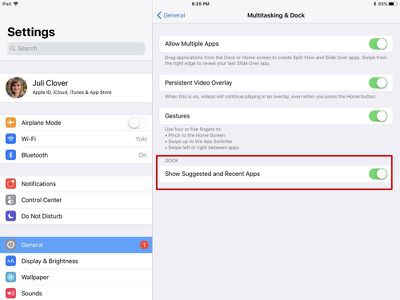
Along with the 11–15 apps you can add to the dock, there are three app slots reserved for your recently used apps, apps that pop up because of Handoff functionality, and apps that are suggested based on your app usage habits. Recently used apps and suggested apps can be turned off. Here's how:
- Open the Settings app.
- Select "General."
- Choose "Multitasking & Dock."

- Toggle off "Show Suggested and Recent Apps."
Launching Apps and Multitasking with the Dock
Launching an app is as simple as tapping it, and because the dock can be brought up within any app, it's also useful for switching between apps.
Switching between apps using the dock is done through bringing the dock up with a swipe within any app and then tapping another app.
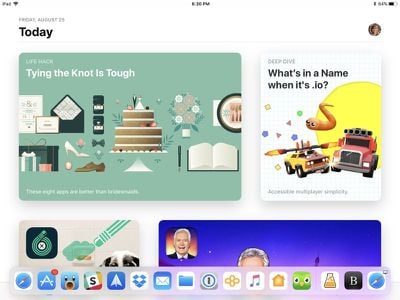
Beyond simply switching between apps, the dock can be used with Split View and Slide Over multitasking. When an app is open, drag another app up from the dock to open a second app that is overlaid on the first. This isn't technically a Slide Over window -- it's just a pop up over the first app, but it can be used simultaneously with the app it overlays.
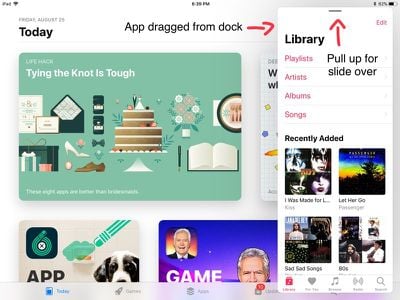
Convert the second app into a Slide Over multitasking window by swiping upwards at the top of the app on the gray line. From there, the Slide Over view can be pulled into a Split View by pulling the gray bar dividing the two apps to the left. You can switch between Slide Over and Split View by dragging the bar to the left or the right.

When using a multitasking view, you can switch between the two apps that are open by swiping to bring up the dock and then pulling a new app into one of the windows.
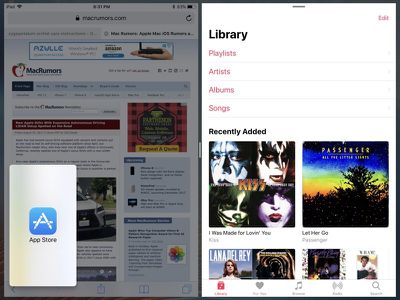
You can close one of the apps that's open by pulling the bar all the way to the left or the right of the screen, depending on which app you want to close.
Bringing Up App Files from the Dock
The iPad doesn't support 3D Touch, but a similar gesture can be used with the Files app on the dock. To access this feature, long press on the Files app to bring up a 3D Touch-style window.
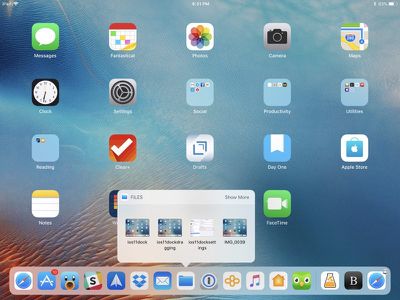
After you press the Files app and the window is open, it'll stay open even after you move your finger. It lists all of your most recent files, which you can drag from the app without having to open it.
Accessing the Dock from a Keyboard
To bring up the dock when you have a physical keyboard like the Smart Keyboard connected, just press Command + Option + D.
Compatibility
While all iPads capable of running iOS 11 have access to the new dock, the split-screen drag and drop functionality is limited to iPads that have support for split screen functionality.
Slide Over, which allows you to interact with an app without quitting the one you have open, is available on the iPad mini 2 and later, the iPad Air and later, the fifth-generation iPad, and all iPad Pro models.
Split View, which is true multitasking and allows you to use two apps side by side, is available on the iPad mini 4, the iPad Air 2, the fifth-generation iPad, and all iPad Pro models.






















![Apple Pulls Keynote, Pages and Numbers From App Store [Update: Back]](https://images.macrumors.com/t/Okb7kitB_gNr6qe5Pex9nQIysD8=/112x112/article-new/2026/01/Apple-Creator-Studio-iWork-suite.jpg)


















Top Rated Comments
Well, time to get cracking....