Macs powered by Apple silicon, such as the M1 MacBook Pro, can run both iOS apps and Mac apps, but they can also run x86-64 software that's been built to work on Intel architecture, thanks to something called Rosetta 2.

Rosetta 2 is the translation layer that enables a Mac with Apple silicon to use apps built for an Intel-based Mac. The first time you launch an app that requires it, an alert will appear asking permission for Rosetta to be installed. After that, the translation layer works in the background whenever you use an app built only for Mac computers with an Intel processor, and automatically translates the app for use with Apple silicon the first time the app is run.
When developers update their apps to run natively on Apple silicon, they use something called a Universal binary. Originally, Universal apps referred to executable files that run natively on both PowerPC or Intel Macs. At WWDC 2020 in June, however, Apple announced Universal 2, which allows apps to run on both Intel-based Macs and Apple silicon Macs.
If an app has yet to be updated to Universal 2, an M1-powered Mac will still run it, but it will do so by converting the Intel x86-64 code using Rosetta 2 emulation software. But what if you want to run the Intel version rather than the Apple silicon version? You may want to do this if the Apple silicon version of the app is missing a particular feature, or if you're using an app with third-party plug-ins or extensions that haven't been updated to support Apple silicon yet.
In such cases, you can use the following steps to force a Universal app to run the Rosetta version instead.
- First, if the app you want to run in Rosetta is running, save your work and quit it.
- Next, open a Finder window, navigate to the Applications folder on your Mac, and locate the app in question.

- Right-click (or Ctrl-click) the app's icon and select Get Info from the contextual dropdown menu.
- Click the checkbox next to "Open using Rosetta."
- Close the Info window, then re-launch the app.
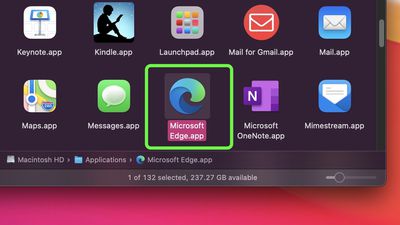
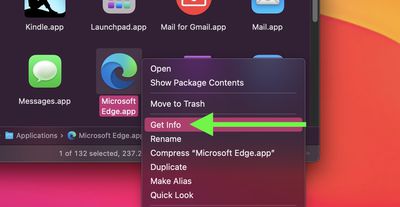
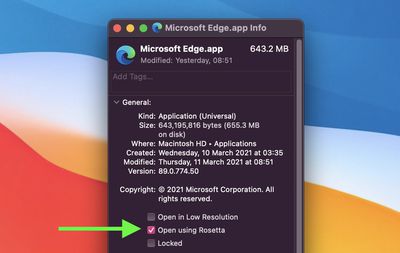
From hereon in, your Mac will run the Intel version of the app using the Rosetta translation layer. To stop using Rosetta at any time, simply repeat the steps above and uncheck the box next to "Open using Rosetta."























![Apple Pulls Keynote, Pages and Numbers From App Store [Update: Back]](https://images.macrumors.com/t/Okb7kitB_gNr6qe5Pex9nQIysD8=/112x112/article-new/2026/01/Apple-Creator-Studio-iWork-suite.jpg)