Looking to keep your mobile browsing in Google Chrome private and secure? Keep reading to learn how to lock your Incognito tabs behind Face ID (or Touch ID) on iPhone and iPad.

Whatever you think of it, Chrome remains one of the most popular browsers on iPhone and iPad, which is why Google continues to work on new features to differentiate it from Apple's Safari. With this in mind, one of the more unique tools in its feature set is the ability to use Face ID and Touch ID with Incognito tabs.
With this feature enabled, you can browse the internet using Incognito tabs and exit the app without closing them, safe in the knowledge that the tabs won't be visible until authenticated with either Face ID or Touch ID, depending on your device. This way, if someone gets hold of your device, they won't be able to just open Chrome to view your Incognito tabs.
Not only will no-one be able to view your tabs, thanks to Incognito mode, none of your browsing history, cookies and site data, or information entered in forms are saved on your device. This means that your activity doesn't appear in your Chrome browser history, so no-one will see your activity either.
Note that Incognito tabs are opened separately from regular tabs in Chrome. If you've used Safari on iPhone or iPad, it's similar to the way Private Browsing works, except in Safari you don't have the option to lock those tabs behind device authentication.
The following steps show you how to enable biometric authentication for Incognito tabs in Chrome.
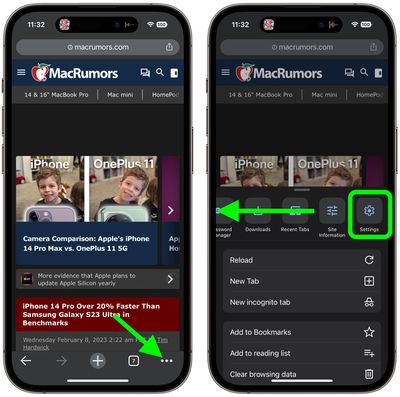
- Open Chrome browser on your iPhone or iPad and then tap the ellipsis icon (three dots) in the bottom-right corner of the screen (top-right corner on iPad).
- In the menu card that pops up, swipe left along the top row of options and tap Settings.

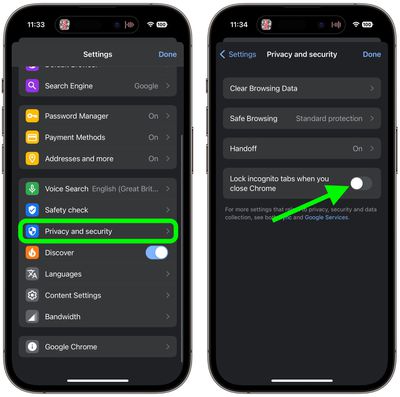
- In Settings, tap Privacy and Security.
- Toggle on the switch next to Lock incognito tabs when you close Chrome.
- Tap OK in the pop-up prompt to confirm.
- Tap Done.
That's all there is to it. Now whenever you exit the app, if it is opened again and Incognito tabs are selected, you (and anyone else) will have to authenticate using Face ID or Touch ID to access them.