

If you own a MacBook and work from home, it's easy to have your laptop plugged in for hours on end without thinking about the long-term battery life implications. Fortunately, Apple recently added a setting that lets you cap how high your Mac's battery charges, and if you own an iPhone that was released in the last few years, you may already be familiar with it.
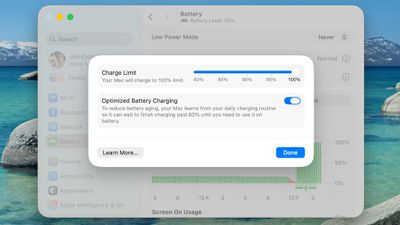
Lithium-ion batteries generally degrade fastest when held at a high state of charge, which means keeping your iPhone or your Mac's battery at 100 percent accelerates the chemical wear that permanently reduces its actual capacity over time.
To mitigate this on iPhone 15 and newer models, Apple lets you set a Charge Limit that prevents your device from charging beyond 80, 85, 90, 95, or 100 percent. And in macOS Tahoe 26.4, Apple has brought over the same Charge Limit feature to Macs for the first time.
This option differs from Optimized Battery Charging, which learns your daily routine and delays charging past 80 percent until you're likely to need a full battery. Depending on your usage, however, your Mac may still regularly reach 100 percent.
Setting a charge limit prevents that. Obviously a lower charge cap means less time you'll be able to work away from a power outlet. But if you mostly sit at a desk with your MacBook plugged in, the trade-off is worth the long-term battery gains. That said, if you regularly rely on your Mac away from power, then you may want to opt for a higher cap, which should hopefully still curb battery wear without leaving you completely stranded. Either way, here's how to set the feature:
Set a MacBook Battery Charge Limit in macOS
- Click the Apple symbol () in your Mac's menu bar and open System Settings....
- Click Battery in the sidebar.
- Click the i button next to Charging.
- Drag the Charge Limit slider to your preferred level: 80%, 85%, 90%, 95%, or 100%, then click Done.
That's all there is to it. Your Mac will now stop charging once it hits the level you chose, and Optimized Battery Charging will continue to work in the background unless you switch it off in the same panel.
Note that even with Optimized Battery Charging set to a limit below 100%, your Mac will occasionally charge to 100% so that macOS can maintain accurate battery level estimates, but for the most part it will stick to the specified maximum level.


















Top Rated Comments
Not denying this "Lithium-ion batteries generally degrade fastest when held at a high state of charge", but just that maybe the difference is not noticeable for most users? I'd like to see some stats/tests about how much more batteries degrade when fully charged vs 80% etc (any info/links are appreciated)