In macOS Ventura, the way you schedule your Mac to shut down or reboot has changed. Keep reading to learn how to schedule power management using Apple's latest Mac operating system.

Scheduling your Mac to sleep, wake, or reboot can be useful for a number of reasons. Maybe you prefer your Mac to turn itself off at the end of the day so you don't have to. Or perhaps you like to reboot once a week to reset system resources and clear any lingering cruft from previous tasks.
In previous versions of macOS, setting an automated schedule like this was easy. You simply had to navigate to the Energy Saver/Battery panel in System Preferences and set a custom schedule using the interface options. For macOS Ventura, however, in replacing System Preferences with System Settings, Apple decided to remove these options from the graphical interface completely.
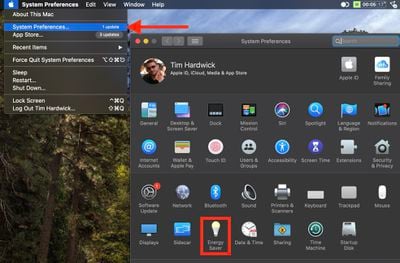
It's not clear why Apple nixed these options in System Settings, but it did not kill them altogether. The good news is that scheduling your Mac to shut down, sleep, wake, or reboot is still possible in macOS Ventura. The bad news is that it's not as easy as it once was.
How to Schedule Power Management in macOS Ventura
In Ventura, you have to use the command line to schedule waking, sleeping, rebooting, and shutting down. If you're comfortable using Terminal (/Applications/Utilities/Terminal.app), you can combine various arguments to set a schedule using the "pmset" command.
The pmset command recognizes the day, date, and time, using the MM/DD/YY format for date, and HH:MM:SS for time. So for January 10, 2024 at 7:00am you would use 1/10/24 07:00:00. You can also specify days of the week using the following letters:
- Monday is M
- Tuesday is T
- Wednesday is W
- Thursday is R
- Friday is F
- Saturday is S
- Sunday is U
Now let's look at some scheduling options you can use, how to view an active schedule, and how to remove scheduling settings.
Schedule Your Mac to Turn On or Wake From Sleep
To schedule your Mac to wake or boot up each day from Monday to Friday at 7am, you would input:
sudo pmset repeat wakeorpoweron MTWRF 07:00:00
Note that the "sudo" command asks Terminal to run the executable with administrative rights, so your Mac may ask you to input your password before processing the rest of the command.

Schedule Your Mac to Shut Down
To schedule your Mac to shut down each weekday at 7pm, you would input:
sudo pmset repeat shutdown MTWRF 19:00:00
Schedule Your Mac to Restart
To schedule your Mac to reboot every day of the week at midnight, you would input:
sudo pmset repeat restart MTWRFSU 00:00:00
View the Currently Active Schedule
To view the currently active schedule, you can use the following command (this can also be useful if you just want to double-check a schedule you just set up):
pmset -g sched
Clear the Currently Active Schedule
If you want to clear the current power management schedule for your Mac, use the following command:
sudo pmset repeat cancel
Will the Energy Saver Panel Return?
For whatever reason, Apple didn't bring over these power management options to the new System Settings interface in Ventura, and it's unlikely that we will see them return in a future update since they have been missing since the very first beta. Perhaps the best we can hope for is that they make their reappearance in macOS 14, which is expected to be released in late 2023.