This article explains how to take screenshots on iPhones and iPads that have a Home button, as well as on iPhones and iPads that don't have a Home button. Keep reading to learn how it's done.
- Taking a Screenshot on iPhone X and Later Models
- Taking a Screenshot on iPhone 6s, 6s Plus, 7, 7 Plus, 8, 8 Plus, and iPhone SE
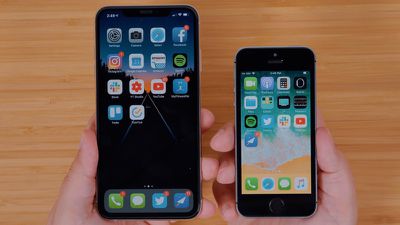
The ability to take screenshots on your iPhone can come in handy for a number of reasons. Maybe you have a blog where you'd like to write about an app you like and you want to include some pictures, or maybe you want to quickly record something useful that you found on a web page. If you're troubleshooting your iPhone and need support, or you're helping someone else with their device, they can also come in really handy.
Taking a Screenshot on iPhone X and Later Models
In 2017, Apple launched the iPhone X – the first Apple smartphone without a Home button. Apple continues to release iPhones that lack a Home button, and so certain iOS functions are performed differently to older iPhones with a Home button, including taking screenshots.
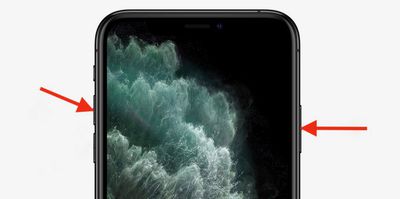
- Press the Side button and the Volume up button at the same time.
- Quickly release both buttons.
- A preview of the screenshot will pop up in the lower left of the display. Tap it to open up the Instant Markup interface, or let it disappear (this takes about five seconds) and it will be saved as-is.
The Instant Markup interface lets you add text, crop, highlight specific areas in a screenshot. To learn more about quickly editing screenshots using Instant Markup, click here.
Taking a Screenshot on iPhone 6s, 6s Plus, 7, 7 Plus, 8, 8 Plus, and iPhone SE
These instructions work on iPhone 8 or earlier models as well as iPod touch.
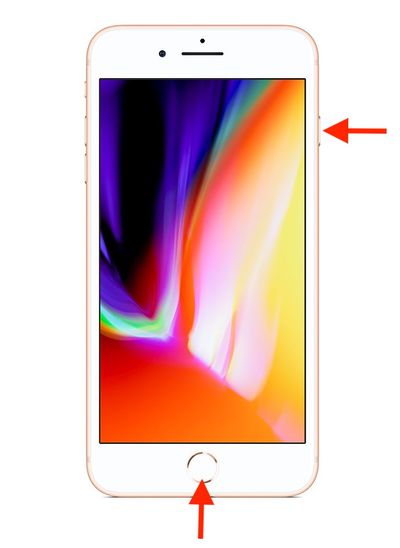
- Press the Side button on the right of the device and the Home button at the same time.
- Quickly release both buttons.
- A preview of the screenshot will pop up in the lower left of the display. Tap it to open up the Instant Markup interface, or let it disappear (this takes about five seconds) and it will be saved as-is.
The Instant Markup interface lets you add text, crop, highlight specific areas in a screenshot. To learn more about quickly editing screenshots using Instant Markup, click here.
Where Are Screenshots Saved?
When you take a screenshot on your iOS device, it's automatically saved to your Photo library. The Photos app also maintains a Screenshots folder where all the pictures you've taken can be conveniently accessed.
























![Apple Pulls Keynote, Pages and Numbers From App Store [Update: Back]](https://images.macrumors.com/t/Okb7kitB_gNr6qe5Pex9nQIysD8=/112x112/article-new/2026/01/Apple-Creator-Studio-iWork-suite.jpg)