 If you've ever used Safari on Mac to search an open webpage for a specific word or phrase, you've probably selected the Edit -> Find command in your browser's menu bar or used the Command-F shortcut.
On iPhone and iPad, the way you search within a webpage in Safari isn't so obvious. There are two different methods you can use in Apple's browser, both of which are described below. Once you've given them a shot, they'll become second nature.
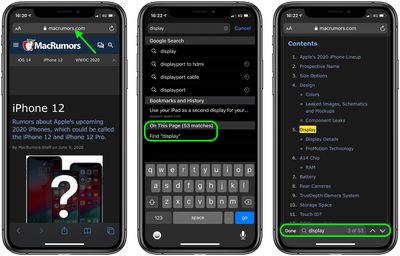
How to Search Within a Webpage Using Safari's Smart Search Bar
- Launch Safari browser on your iPhone or iPad
- Navigate to the page that you want to search.
- Tap the address bar and enter the text that you want to search for. (In our example, we're searching the MacRumors iPhone 12 roundup for all instances of the word "Display.")

- Scroll down the Smart Search results for the section called On This Page. Alongside it you'll see the number of matches for your search term. Tap the Find [your search term] option below it.
- Safari will jump to the first instance of the word or phrase you search for on the webpage and highlight it in yellow. You will also see the matching result above the onscreen keyboard. Use the up/down arrow buttons to jump to each successive instance of your search term on the current page.
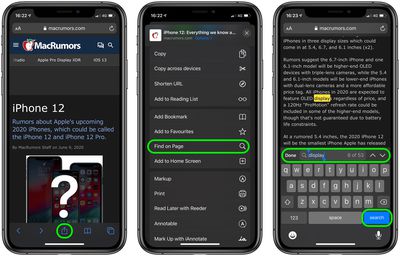
How to Search Within a Webpage Using Safari's Share Sheet
- Launch Safari browser on your iPhone or iPad.
- Navigate to the page that you want to search.
- Tap the Share icon (the square with an arrow pointing out) at the bottom of the screen.
- Scroll past the Share options to the Action menu and select Find on Page.
- Type the word or phrase you're looking for in the search field and tap Search. Safari will jump to the first instance of your search term on the webpage and highlight it in yellow. You will also see the matching result above the onscreen keyboard. Use the up/down arrow buttons to jump to each successive instance of your search term on the current page.
Did you know that Safari can intelligently use a website's own search bar to help you find what you're looking for? For more details, check out our article on how to perform a quick website search in Safari.
Tag: Safari