In iOS 14 and watchOS 7, Apple introduced a new Sleep Tracking feature that lets you monitor how much sleep you're getting each night and improve your sleep habits with the help of bedtime reminders and a winding down process.
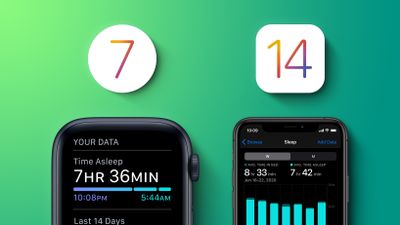
In the Health app on iPhone or using an Apple Watch, you can set up a Sleep Schedule with the amount of sleep you want to get each night and your standard sleep and wake up goals.
The following steps guide you through the process of setting a Sleep Schedule, which also lets your iPhone and Apple Watch recommend a bedtime and provide a wake-up alarm, and lets you know if you're hitting your sleep goals on a nightly basis.
How to Set a Sleep Schedule on iPhone
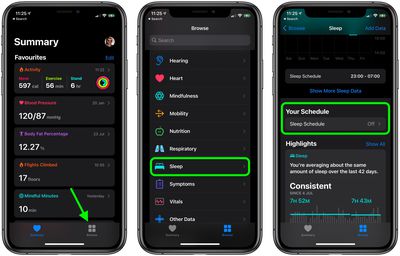
- Launch Apple's Health app on your iPhone.
- Tap the Browse tab in the bottom-right corner of the screen.
- Scroll down and select Sleep.
- Tap Sleep Schedule under "Your Schedule".

- If Sleep Schedule is off, tap the switch to toggle it to the green ON position.
- Under "Full Schedule," tap Set Your First Schedule.
- Tap any of the blue circles under "Days Active" to disable Sleep Schedule on any days of the week.
- Using your finger, drag the ends of the sleep block to extend it around the clock graphic. This sets your sleep goal as well as your bedtime and wakeup time.
- Scroll down to reveal your Alarm options. Use the switch next to Wake Up Alarm to turn the alarm on/off. If you enabled the alarm, you can select the vibration type and sound you'd like to hear using Sounds & Haptics, adjust the volume using the slider, and allow for a snooze using the Snooze switch.
- Tap Add in the top-right corner when you're done.
- To add a different schedule for different days (the weekend, for example), tap Add Schedule for Other Days and customize your options as described in the previous steps.
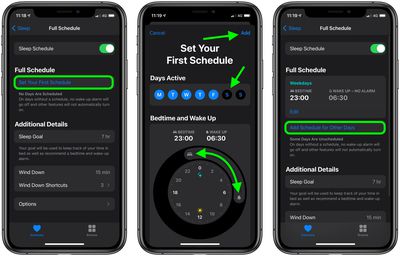
Note that if this is your first time setting up a Sleep Schedule, after opening the Health app and navigating to the Sleep section, you'll need to tap on "Get Started" and set a sleep goal before you can set and adjust your sleep schedule.
How to Set a Sleep Schedule on Apple Watch
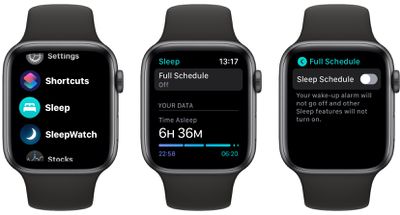
- Press the Digital Crown on your Apple Watch to open the App View.
- Launch the Sleep app.
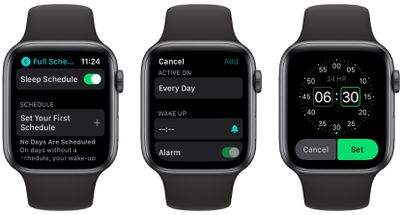
- Tap Full Schedule.
- Tap the switch next to Sleep Schedule to toggle it to the green ON position.
- Now tap Set Your First Schedule.
- If you only want this schedule to apply on certain days of the week, tap Every Day, then uncheck the days to exclude. Otherwise, tap the button below Wake Up, rotate the Digital Crown to select a wakeup time, then tap Set.
- Use the switch next to Alarm to turn the alarm on/off. If you enabled the alarm, you can select the vibration type and sound you'd like to hear using the Sounds & Haptics button. Note that if your watch is in silent mode, your alarm will be replaced by a tap on the wrist.
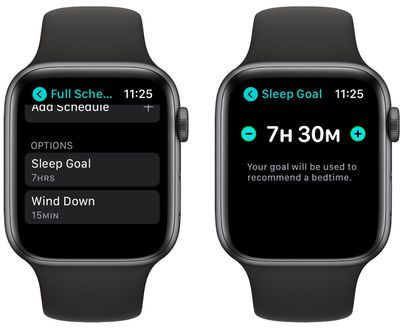
- Your suggested bedtime is based on your Sleep Goal, which you can edit by using the back button to return to the Full Schedule menu screen. From there, swipe down and tap Sleep Goal, and adjust the hours and minutes to suit.
Additional Sleep Options in iOS 14
Be sure to check out our guide that covers the on the Sleep Mode, Sleep Tracking and Wind Down features in iOS 14 as it links to additional how tos and details that may be useful for those new to sleep tracking on iPhone and Apple Watch.