How to Get Your Apple Watch Up and Running - GeekWebGuides
Skip to Content

How to Get Your Apple Watch Up and Running

by

If you are one of the lucky few to receive your Apple Watch on launch day, you are probably excitedly going through the steps to setting up and customizing your device. With a completely new operating system to get used to, we’ve got a couple of tips for getting your Apple Watch ready for daily use.

Apple Watch Overview
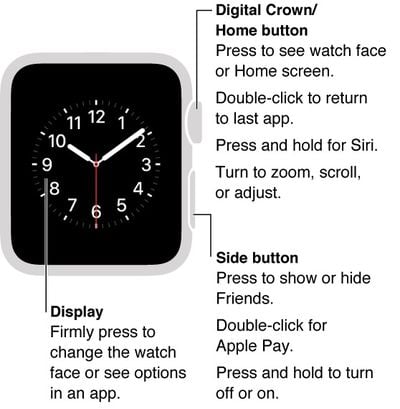
Apple Watch Front

Apple yesterday released a user guide for its wrist-worn device that provides a detailed overview of the case for those who aren't yet familiar with various features. For starters, you can easily identify the Digital Crown/Home button on the side of the watch case. Press it to go to the Home screen while viewing an app, or to display the watch face.

You can also double-click the Digital Crown to access your most recently used app. To activate Siri, press and hold it. Zoom in and out or scroll by turning the crown.

The side button, which sits just below the Digital Crown is used to show or hide friends, turn on or off Apple Watch, and access Apple Pay (with a double-click).
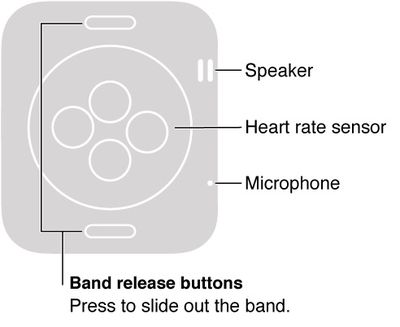
Apple Watch Back

The back side of the case houses the speaker, heart rate sensor, and microphone. You will also be able to remove your watch band by pressing the band release buttons on the back of the case.

Setting Up Apple Watch

  1. Charge Apple Watch (if it needs it). Your watch should generally arrive with at least 50 percent charge to get you going right out of the box.
  2. Press the Home button on the Digital Crown to start up the watch and following the prompts to select a language and proceed.
  3. Pair your Apple Watch with your iPhone.
  4. Open the Apple Watch app on iPhone to access your apps and customize your experience. During the setup process, you will be asked whether you want to automatically install all Apple Watch-compatible apps or manually select apps for installation.

Customizing Apple Watch

The Apple Watch app on your iPhone lets you customize notifications, app layout, and more. You can also use it to set up Apple Pay and access the App Store so you can download compatible Apple Watch apps. Open the Apple Watch app on your iPhone and tap "My Watch" to access the customizable settings.

For Apple Pay, you'll need to set up each card manually as you did on your iPhone, and the process will generally involve a confirmation step such as an activation code sent via email/text or a call to your bank to verify each card for use. Once your cards are set up, you can use Apple Pay from your watch even without your iPhone present.

Fine-Tune Apple Watch Settings

You may want to tweak the settings a bit if you discover that the alerts are too loud, the text is too small, or the screen is too bright, so head to the Settings app to make these adjustments.
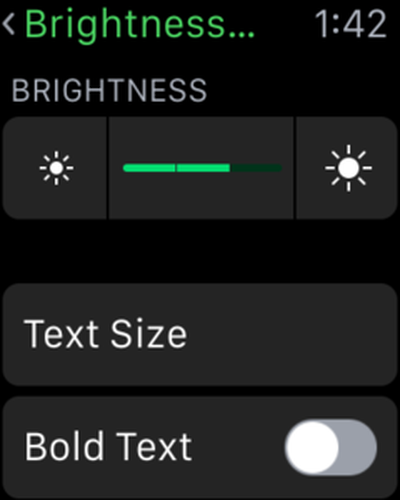
Brightness and TextAdjust Brightness

  1. On Apple Watch, open the Settings app.
  2. Scroll down to Brightness & Text Size.
  3. Tap the Brightness symbol.
  4. Turn the Digital Crown to adjust.
  5. Or, access the settings from the Apple Watch app on the iPhone under My Watch

Adjust Text Size

  1. On Apple Watch, open the Settings app.
  2. Scroll down to Brightness & Text Size.
  3. Tap Text Size.
  4. Turn the Digital Crown to increase or decrease the size of the font
  5. Toggle the Bold Text switch to the On position to make text bold. Apple Watch will reset after turning on or off Bold Text.
  6. Or, access the settings from the Apple Watch app on the iPhone under My Watch.
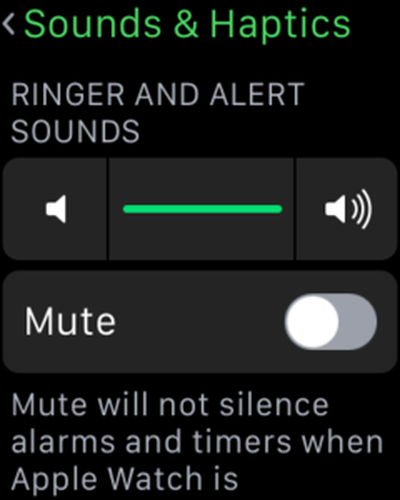
Sound and HapticsAdjust Sound

You can increase or decrease the volume of the ringer and alerts on Apple Watch, or mute everything.

  1. On Apple Watch, open the Settings app.
  2. Scroll down to Sounds & Haptics.
  3. Tap the volume button under Ringer and Alert Sounds.
  4. Turn the Digital Crown to adjust the volume.
  5. To mute Apple Watch, toggle the mute switch to the On position.
  6. You can also mute Apple Watch by swiping up on the watch face. Swipe to the Settings glance, then tap the mute button.
  7. Or, Access the settings from the Apple Watch app on the iPhone under My Watch.

You can quickly mute a new alert or notification sound by placing the palm of your hand over the watch display and holding it there for three seconds. This feature is great when you forget to silence your Apple Watch before going into a meeting.

You must turn the feature on to use it.

  1. Open the Apple Watch app on your iPhone.
  2. Tap My Watch.
  3. Tap Sounds & Haptics.
  4. Toggle the Cover to Mute switch to the On position.
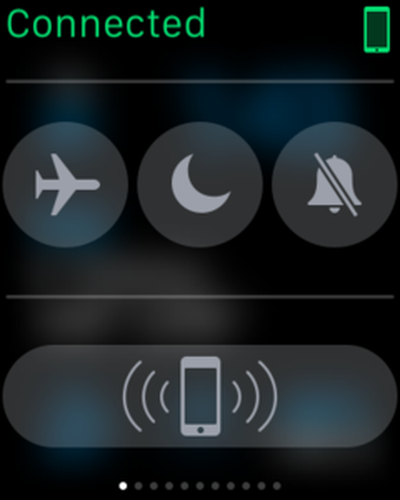
Settings GlanceTurn on Do Not Disturb

You can silence every aspect of Apple Watch, including screen lighting, using Do Not Disturb. You can specify a time period for the feature to turn on and off, designate certain contacts that can be filtered through, and quickly flip it on for a temporary silence.

  1. Swipe up on the watch face
  2. Swipe left or right to access the Settings glance.
  3. Tap the Do Not Disturb button.
  4. Or, on Apple Watch, open the Settings app.
  5. Tap Do Not Disturb.
  6. Toggle the switch to the On position.

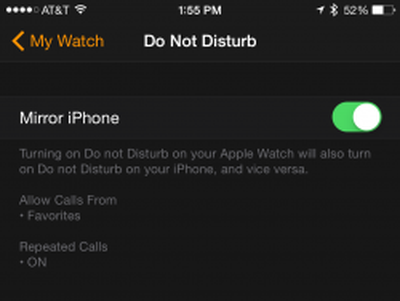
Do Not Disturb MirroringYou can also silence both your iPhone and Apple Watch at the same time from the Apple Watch app on your iPhone.

  1. Open Apple Watch app on iPhone
  2. Tap My Watch.
  3. Turn on Do Not Disturb.
  4. Then, turn on Mirror iPhone.
  5. Any time you change Do Not Disturb on iPhone or Apple Watch, the other will match it.

As a brand-new platform, there is a lot for users to learn about Apple Watch, and it takes some getting used to with multiple types of interaction methods. This guide is just a starting point for after you take it out of the box and before you leave the house, and we’ll keep you updated with more how-to guides to help you get the most out of your Apple Watch.
Related Roundup: Apple Watch 12
Buyer's Guide: Apple Watch (Buy Now)
Related Forum: Apple Watch

Top Rated Comments

150 months ago
Step first: Receive your Apple Watch in June.
Score: 4 Votes (Like | Disagree)
oneMadRssn Avatar
150 months ago
I thought the first step to getting it up and running is to post in 25 threads how your order placed mere seconds after pre-orders opened still hasn't shipped.
Score: 4 Votes (Like | Disagree)
Twimfy Avatar
150 months ago
Just learnt that a screen grab is possible with both buttons :-)
Score: 2 Votes (Like | Disagree)
150 months ago
Anyone think we should fully charge before powering on at all? I realize it will still charge powered on, but just curious...

Won't matter!
Score: 2 Votes (Like | Disagree)
CmdrLaForge Avatar
150 months ago
I love mine already and I prefer to discover new gadgets just by myself without any guide. Thats why I didn't watch the Apple guides.
Score: 2 Votes (Like | Disagree)
hlevolve Avatar
150 months ago
I love my Space Gray 42mm so far. I have to say the band is far far better than I thought it would be (Black Floroelastemer), it's extremely comfortable. I hardly even feel like I'm wearing a watch were most of them bug the crap out of me (band wise).

The haptic feedback scared me at first lol. Felt weird. It's enjoyable now though each time I get a message. I almost want to enable a ton of notifications from more apps just so I can get it to do this more often haha. I currently have it set to just the notifications that are most important such as texts, bill reminders, calls, and such.

Great product and I can see getting an enormous amount of use out of it, happy I was able to get it on launch day!
Score: 1 Votes (Like | Disagree)

Popular Stories

apple watch s12 ultra 4

Apple Watch Series 12, Ultra 4 Owners Report Skin Irritation

Wednesday October 7, 2026 12:02 pm PDT by
Some Apple Watch Series 12 and Ultra 4 owners have experienced unexpected skin irritation with the new models, according to reports on the GeekWebGuides forums and Reddit. Affected users complain of a burning sensation and redness under the sensor area. The Apple Watch Series 12 and Ultra 4 measure heart rate every five seconds, and some people have wondered if that's the cause of the skin...
southern straps 3 1

GeekWebGuides Giveaway: Win an Apple Watch Series 12 and a Nylon Band From Southern Straps

Friday October 9, 2026 10:20 am PDT by
For this week's giveaway, we've teamed up with Southern Straps to offer GeekWebGuides readers a chance to win an Apple Watch Series 12 and a nylon band from Southern Straps to go along with it. Southern Straps is a California-based company that has been making high-quality bands for the Apple Watch since the device first launched in 2015, and the company's selection of bands offer a an...
apple watch series 6 blood oxygen monitoring 1

Apple's $634 Million Apple Watch Patent Bill Just Got Even Bigger

Tuesday October 6, 2026 6:09 am PDT by
Apple's $634 million patent loss to medical technology company Masimo has just gotten even bigger, after a federal judge ordered Apple to pay an additional $184 million in interest on what it owes (via Bloomberg Law). The ruling takes Apple's bill to around $818 million, but that doesn't include any post-judgment interest continuing to accrue until the judgment is paid. Judge James Selna ...
Latest Stories
MacBook Neo Helps Apple Outpace Rivals as Market Declines
25 minutes ago
Happy 25th Anniversary, iPod
55 minutes ago
iPhone Duo Demand Reportedly Exceeds Apple's Expectations
4 hours ago
iPhone Duo Launch Begins as First Orders Reach Customers
10 hours ago
1Password for Agents Keeps Your Passwords Hidden From AI
10 hours ago
iPhone Duo 24 Hours Later: Your Questions Answered
11 hours ago
Apple's iWork Apps Get 'Intelligent Assistant' and iPhone Duo Support
12 hours ago
Apple is Apparently Considering a Slightly Larger iPhone Duo
12 hours ago
Giant iPhone Duo Displays Coming to Four Apple Stores
13 hours ago
Apple Pulls Keynote, Pages and Numbers From App Store [Update: Back]
14 hours ago
Apple Updates More Apps With iPhone Duo Support
14 hours ago
Apple Will Label Apps 'Made for iPhone Duo' in App Store
17 hours ago
Amazon Takes $49 Off iPad With Prices Starting at $399.99
18 hours ago
F1 on Apple TV Now Available in Dolby Atmos
18 hours ago
Apple Reveals More Than 50 Apps That Will Be Updated for iPhone Duo
19 hours ago
Apple Blocks Certificates That Could Help Attackers Fake Websites
20 hours ago
Giant iPhone Duo Installations Spotted at Apple Fifth Avenue
21 hours ago
iPhone Duo 2 Prototypes Include Under-Display Face ID
21 hours ago
Tesla App Gains iPad and iPhone Duo Support
1 day ago
Apple Reportedly Boosts iPhone Duo Orders by 44%
1 day ago
Fortnite Returning to Australian App Store After Court Ruling
1 day ago
Apple Ordered to Open iPhone to Rival App Stores in Australia
1 day ago
Apple Suppliers Face Hurdles Cutting Circuit Board Emissions
1 day ago
Things Updated for iPhone Duo With Adaptive Layout
1 day ago
Simplicity and Siri AI Are HomeView's Killer Features, Apple Says
1 day ago
iPhone Duo Reviewers Really Miss Face ID
1 day ago
Does the iPhone Duo Run Hot? Here's What Reviews Found
1 day ago
Apple Music's New Look is Now Live on Apple's Website
1 day ago
Anthropic Launches Claude Duet, a Proactive AI Agent
1 day ago
What 32,000 Folds Did to the iPhone Duo's Hinge
2 days ago