How to Apply Color Tags to Items in macOS Finder Using Custom Keyboard Shortcuts - MacRumors
Skip to Content

How to Apply Color Tags to Items in macOS Finder Using Custom Keyboard Shortcuts

by

In one of our previous macOS how-to guides, we explained how using tags can help you organize your files and folders and quickly locate them when they're needed. In this article, we're going to show you how to tag items in Finder using a simple custom keyboard shortcut, for even faster tagging.

The first series of steps below shows you how to create a handy key shortcut to activate Finder's inline tagging menu. Once you've done that, we explain how you can use one or more custom shortcuts to directly apply specific color tags to selected items in a Finder window.
Automator tagging e1523634875463
This more powerful color tagging method requires creating a simple Automator service. If that sounds scary, don't worry – it's a simple process, and if you're a frequent user of tags then you'll find this quick recipe well worth the effort. Keep reading to learn how it's done.

How to Create a Shortcut for Tagging Items in Finder

  1. Launch System Preferences from the Apple menu bar ( -> System Preferences...).

  2. Select the Keyboard preference pane.

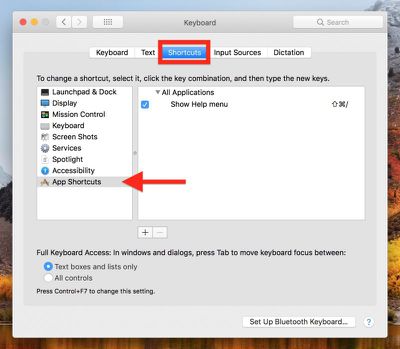
  3. Click the Shortcuts tab.
    Sysyem Prefs Keyboard Pane

  4. Select App Shortcuts in the left column and click the + button.

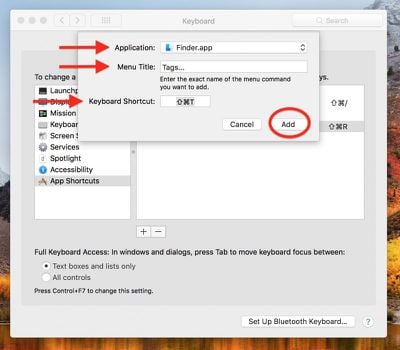
  5. Select Finder.app in the Application field.

  6. Type Tags... in the Menu Title field.
    sys prefs basic tag shortcut

  7. Click inside the Keyboard Shortcut field and press your preferred key combination for activating the service. In our example, we've used Shift-Command-T.

  8. Click Add.

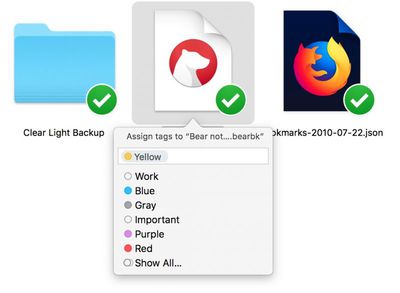
Now your shortcut is set up, it's time to try it out. Open a Finder window and select an item (or several) for tagging. Hit your chosen key combination and you should see a tag menu pop up beneath the selected item(s), like so.
tag a file in Finder
From there, just start typing the name of the tag you want to use and it should appear in the input field. Hit Enter to apply it. Alternatively, use the down arrow key to choose the tag you want from the dropdown list, and hit Enter.

How to Create a Color Tagging Service in Automator

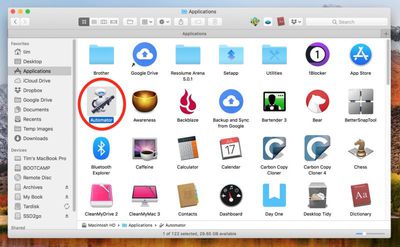
  1. Launch Automator from the Applications folder.
    1 Automator

  2. Click New Document.

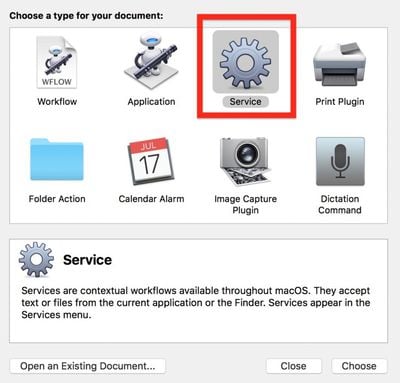
  3. Choose Service as the type of your document.
    2 Automator document type

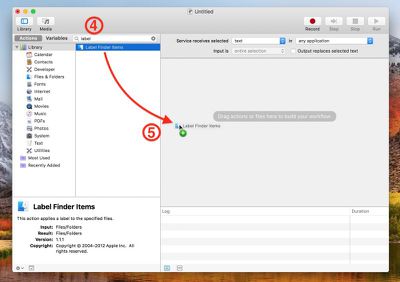
  4. Type label into the Library search field at the top of the Automator sidebar.

  5. Drag the Label Finder Items action into the empty workflow area.
    3 Label Finder Items

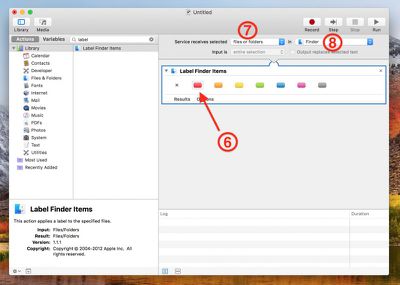
  6. Click the tag color you want to use for your first keyboard shortcut. (We're going for red in our example.)

  7. Select files or folders in the Service receives selected dropdown.

  8. Select Finder in the in application dropdown.
    4 Create Finder Label action

  9. Select File -> Save from the Automator menu bar, and give your service a name. We'll be using the name "Tag Red".

  10. Click Save.

How to Assign a Shortcut to Your New Tagging Service

  1. Launch System Preferences from the Apple menu bar ( -> System Preferences...).

  2. Select the Keyboard pane.

  3. Click the Shortcuts tab.

  4. Select App Shortcuts in the left column and click the + button.
    Sysyem Prefs Keyboard Pane

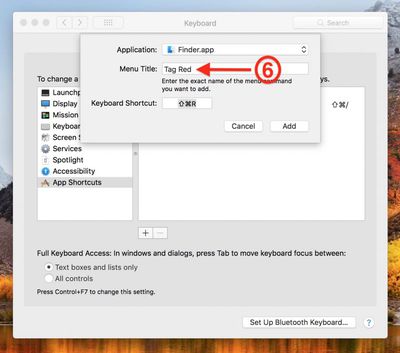
  5. Select Finder.app in the Application field.

  6. In the Menu Title field, type the exact name of the service you just created in Automator ("Tag Red" in our example).
    sys prefs add specific tag shortcut

  7. Click inside the Keyboard Shortcut field and press your chosen key combination for activating the service. We've used Shift-Command-R.

  8. Click Add.

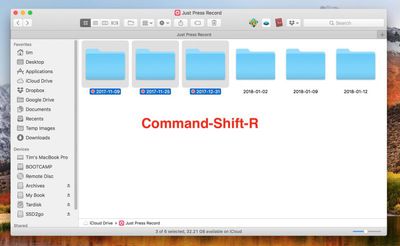
You should now be able to tag selected items in Finder with your chosen color using the keyboard shortcut you created.
Tagging items in Finder
To create additional shortcuts for applying other tag colors, simply follow the Automator steps again but choose another color, and save the service under a corresponding name. Then simply assign a shortcut to the named service in the Keyboard preference pane as described above.


Top Rated Comments

blackxacto Avatar
111 months ago
I stopped using tags the day Apple switched to tiny dots. Ridiculous.
Score: 4 Votes (Like | Disagree)
111 months ago
I love the fact that these tags can sync over through iCloud Drive. The Files app is good but still child’s play to the Finder.
Dropbox syncs tags too, just to add another tool.

I love tags. I'm not great at using them yet -- still very much default to organizing with folders because of many years of habit but the idea of being able to apply multiple tags is a lot more powerful, ultimately, than the folder paradigm. Probably not going to give up folders anytime soon, but it's great to have an Apple-supported way to cross reference files and folders that may be in different folders or even different drives.

I stopped using tags the day Apple switched to tiny dots. Ridiculous.
The previous "color the whole file name" design that labels used to use starts to seriously break down when there's more than one tag applied. It was too much visual clutter to have a folder look like a rainbow of crazy colors if a bunch of files were tagged. Tagging something with a red tag shouldn't mean I'm now reduced to looking at a strip of bright red with black text inside it, bordered by another file that's a strip of blue, then orange... it was quick to see the labels, but man was it a mess after a while.

If it's hard to make out what labels are applied (and yeah, agreed, it can be awfully subtle) you can make them more visible and legible in list view by enabling the "tags" column.


Attachment Image
Score: 3 Votes (Like | Disagree)
chucker23n1 Avatar
52 months ago
Try https://dougscripts.com/itunes/scripts/ss.php?sp=mxchangefilelabelcolor

Or, you can change your Automator action to run a shell script with this tool: https://github.com/jdberry/tag
Score: 1 Votes (Like | Disagree)
chucker23n1 Avatar
98 months ago
Hmm, not sure that's correct. Maybe at some point they were called Labels, but the feature being discussed here is definitely called Tags in the current Finder interface.

Correct. Tags, since 10.9 Mavericks, supersede labels. They do so in a backwards-compatible way (your labels continue to work, from all the way back in System 7, if I'm not mistaken).

But Tags are far more powerful than labels. You can apply multiple, you can give them names, you can search by them, etc. And Apple added some more useful UI, such as setting tags right from the save file dialogs.

More: https://arstechnica.com/gadgets/2013/10/os-x-10-9/8/#tags
Score: 1 Votes (Like | Disagree)
102 months ago
I envy people that actually use this stuff and keep their computers cleaned up.
Score: 1 Votes (Like | Disagree)
TMRJIJ Avatar
111 months ago
I love the fact that these tags can sync over through iCloud Drive. The Files app is good but still child’s play to the Finder.
Score: 1 Votes (Like | Disagree)

Popular Stories

M5 MacBook Pro

RIP, MacBook Ultra

Monday October 19, 2026 9:37 am PDT by
Apple today sent out invites for an experience in Los Angeles on Wednesday, October 28, and the "Pro and tell" tagline on the invitation likely means that the rumored MacBook models with touch-enabled OLED displays will stick with MacBook Pro branding instead of the once-rumored "MacBook Ultra" name. The long-rumored "iPhone Ultra" ended up being named iPhone Duo, so speculation that Apple...
iPhone Duo Trio

Here's What Apple's Apps Look Like on the iPhone Duo

Tuesday October 20, 2026 11:12 am PDT by
With just three days to go until the iPhone Duo is released, Apple is getting ready for the launch. Behind the scenes, the App Store now has screenshots of Apple's built-in apps running on the Duo. We've seen some apps in marketing materials, but images of the ones we haven't seen give us an idea of what it will be like using the iPhone Duo day to day. Many apps are shown in landscape...
apple pro tell logo

Apple Announcing New Products Next Week: 'Pro and Tell'

Monday October 19, 2026 9:05 am PDT by
Apple's Greg Joswiak today hinted at new product announcements coming next week, sharing a social media post that says "Can't wait to pro and tell next week." Rumors suggest Apple is planning to debut the new MacBook Pro with an OLED touchscreen display, an M6 entry-level MacBook Pro, an M6 iMac, an iPad mini with an OLED display. Can't wait to pro and tell next week....
Latest Stories
Apple's iWork Apps Get 'Intelligent Assistant' and iPhone Duo Support
51 minutes ago
Apple is Apparently Considering a Slightly Larger iPhone Duo
56 minutes ago
Giant iPhone Duo Displays Coming to Four Apple Stores
2 hours ago
Apple Pulls Keynote, Pages and Numbers From App Store [Update: Back]
3 hours ago
Apple Updates More Apps With iPhone Duo Support
3 hours ago
Apple Will Label Apps 'Made for iPhone Duo' in App Store
6 hours ago
Amazon Takes $49 Off iPad With Prices Starting at $399.99
7 hours ago
F1 on Apple TV Now Available in Dolby Atmos
7 hours ago
Apple Reveals More Than 50 Apps That Will Be Updated for iPhone Duo
8 hours ago
Apple Blocks Certificates That Could Help Attackers Fake Websites
9 hours ago
Giant iPhone Duo Installations Spotted at Apple Fifth Avenue
10 hours ago
iPhone Duo 2 Prototypes Include Under-Display Face ID
10 hours ago
Tesla App Gains iPad and iPhone Duo Support
14 hours ago
Apple Reportedly Boosts iPhone Duo Orders by 44%
15 hours ago
Fortnite Returning to Australian App Store After Court Ruling
15 hours ago
Apple Ordered to Open iPhone to Rival App Stores in Australia
15 hours ago
Apple Suppliers Face Hurdles Cutting Circuit Board Emissions
16 hours ago
Things Updated for iPhone Duo With Adaptive Layout
16 hours ago
Simplicity and Siri AI Are HomeView's Killer Features, Apple Says
16 hours ago
iPhone Duo Reviewers Really Miss Face ID
21 hours ago
Does the iPhone Duo Run Hot? Here's What Reviews Found
23 hours ago
Apple Music's New Look is Now Live on Apple's Website
23 hours ago
Anthropic Launches Claude Duet, a Proactive AI Agent
1 day ago
What 32,000 Folds Did to the iPhone Duo's Hinge
1 day ago
iPhone Duo's Hidden FaceTime Camera Takes 'Trash' Photos
1 day ago
iPhone Duo Has 'Edge Light' Feature That Debuted on Macs Last Year
1 day ago
Apple Support App Updated for iPhone Duo's Larger Display
1 day ago
Amazon Sweetens the Deal on Entry-Level 16-Inch MacBook Pro With $570 Off
1 day ago
iPhone Duo Tips Over on MagSafe Stands When Unfolded
1 day ago
Apple Music's New Look Officially Announced
1 day ago