If you're looking for a great way to capture a shot of an action scene or an unexpected event on your iPhone, try Burst mode in Apple's stock Camera app. In Burst mode, the camera on your iPhone captures a series of photos in rapid succession, at a rate of ten frames per second.
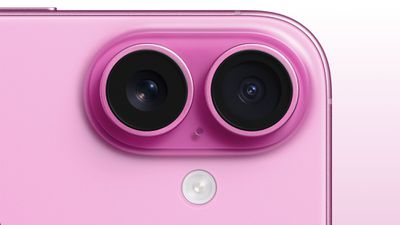
iphone 16 camera
When photographing anything dynamic like sports events, wildlife, or children at play, burst mode increases the likelihood of obtaining sharp, well-timed images. By taking multiple shots in quick succession, you can select the best frame where the subject's motion is perfectly frozen. Here's how to shoot Burst mode photos on iPhone.

Shooting in Burst Mode

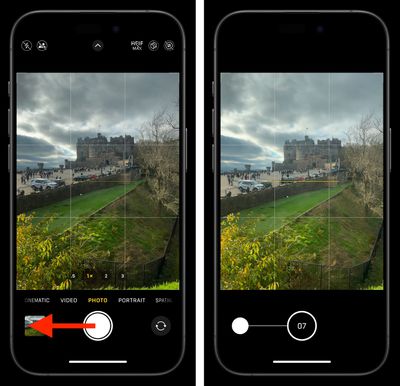
  1. In the Camera app, press and drag the shutter button to the left beneath the viewfinder.
  2. Keep your finger pressed down to continue taking photos in rapid succession.
  3. Take your finger off the shutter when you want to end the burst of shots.
camera

When shooting in Burst mode, notice how the counter increases in the shutter's original position for as long as you hold it down. This indicates how many shots are being captured in the current burst.

Apple also includes an option in iOS settings that when enabled lets you press and hold the Volume Up button to take Burst shots. Go to Settings ➝ Camera, then turn on Use Volume Up for Burst.

Choosing the Best Shot

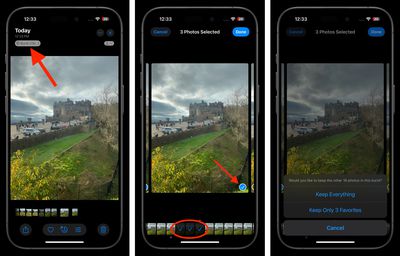
  1. After shooting in Burst mode, tap the image thumbnail in the Camera app, or open the Photos app and select the Burst you just captured.
  2. Tap Burst in the top-left corner, then tap the best shot or shots you want to keep as an individual photo. (You can swipe across the photos or scroll the row of thumbnails below to view them.) Gray dots below the thumbnails mark the suggested photos to keep.
  3. Tap Done, then choose Keep Everything or Keep only X Favorite (X being the number of shots you selected).
photos

When you take a series of burst photos, they automatically appear in the Photos app under the Album name "Bursts." You'll also find them in the Recent Days section.

Top Rated Comments

MasterControlProgram Avatar
17 months ago

Are you serious Matthew? This feature has been in place since those “early days”.

Imagine you were flying and the pilot didn’t know all the controls of the aircraft. You are that pilot.
Wasn't the original burst mode activated by holding the button though? These days that activates video recording, so it's understandable not to think to swipe the button left to trigger burst mode.
Score: 8 Votes (Like | Disagree)
Razorpit Avatar
17 months ago
Thanks for the reminder. This is a feature I should use more often than I do.
Score: 6 Votes (Like | Disagree)
rotlex Avatar
17 months ago
No idea why they ever changed the method for doing burst. Just holding down the shutter buttron was so much more intuitive. Why not allow it to be customized to the uers preference?
Score: 5 Votes (Like | Disagree)
mattkowalski Avatar
17 months ago
Great feature…. but….

In the early days of iOS, you could discover features by exploring. The interface was simple and intuitive. Now there are features like this, hidden behind obscure gestures/actions. I’d never have found this if I’d not seen the article. Maybe that’s just me.
Score: 5 Votes (Like | Disagree)
macjaffa Avatar
17 months ago
So i just tried this. In 14 years of iPhone ownership i dont think i have ever done ‘burst’ shooting. Should be press and hold for burst and swipe for video imo. You need to know you want a burst before shooting you can’t just press harder like a dslr
Score: 3 Votes (Like | Disagree)
ApAx Avatar
17 months ago
You used to be able to press and hold the on screen button. There is already an on-screen label to switch to video mode and cycle through all camera modes. I expect a dedicated burst-only mode button to be added to iPhone 17 to bring clarity and ease of use to the incomprehensibly difficult on-screen button that we have had for 17 years.
Score: 3 Votes (Like | Disagree)

Popular Stories

Apple Logo Zoomed

Tim Cook Teases Plans for Apple's Upcoming 50th Anniversary

Thursday February 5, 2026 12:54 pm PST by
Apple turns 50 this year, and its CEO Tim Cook has promised to celebrate the milestone. The big day falls on April 1, 2026. "I've been unusually reflective lately about Apple because we have been working on what do we do to mark this moment," Cook told employees today, according to Bloomberg's Mark Gurman. "When you really stop and pause and think about the last 50 years, it makes your heart ...
wwdc sans text feature

Apple Rumored to Announce New Product on February 19

Thursday February 5, 2026 12:22 pm PST by
Apple plans to announce the iPhone 17e on Thursday, February 19, according to Macwelt, the German equivalent of Macworld. The report, citing industry sources, is available in English on Macworld. Apple announced the iPhone 16e on Wednesday, February 19 last year, so the iPhone 17e would be unveiled exactly one year later if this rumor is accurate. It is quite uncommon for Apple to unveil...
Finder Siri Feature

Why Apple's iOS 26.4 Siri Upgrade Will Be Bigger Than Originally Promised

Friday February 6, 2026 3:06 pm PST by
In the iOS 26.4 update that's coming this spring, Apple will introduce a new version of Siri that's going to overhaul how we interact with the personal assistant and what it's able to do. The iOS 26.4 version of Siri won't work like ChatGPT or Claude, but it will rely on large language models (LLMs) and has been updated from the ground up. Upgraded Architecture The next-generation...
iOS 26

iOS 26.3 and iOS 26.4 Will Add These New Features to Your iPhone

Tuesday February 3, 2026 7:47 am PST by
While the iOS 26.3 Release Candidate is now available ahead of a public release, the first iOS 26.4 beta is likely still at least a week away. Following beta testing, iOS 26.4 will likely be released to the general public in March or April. Below, we have recapped known or rumored iOS 26.3 and iOS 26.4 features so far. iOS 26.3 iPhone to Android Transfer Tool iOS 26.3 makes it easier...
maxresdefault

Apple Shows Off a Key Reason to Upgrade to the iPhone 17

Saturday February 7, 2026 9:26 am PST by
Apple today shared an ad that shows how the upgraded Center Stage front camera on the latest iPhones improves the process of taking a group selfie. "Watch how the new front facing camera on iPhone 17 Pro takes group selfies that automatically expand and rotate as more people come into frame," says Apple. While the ad is focused on the iPhone 17 Pro and iPhone 17 Pro Max, the regular iPhone...