

If you're looking to cut down on the amount of time you spend performing certain actions on your iPhone, there's usually a solution hidden in Apple's mobile operating system. Here are five quick iOS tips that once you start using will make you a lot more time-efficient in the long run.
This article assumes you're using an iPhone running iOS 11 or later, but some of these tips will work on iPad and earlier versions of Apple's mobile OS. Read on for more.
1. Search a Web Page
In Safari on iOS, there are two ways to search a web page for a specific word or phrase. One method is quicker than the other, although neither is necessarily immediately obvious.
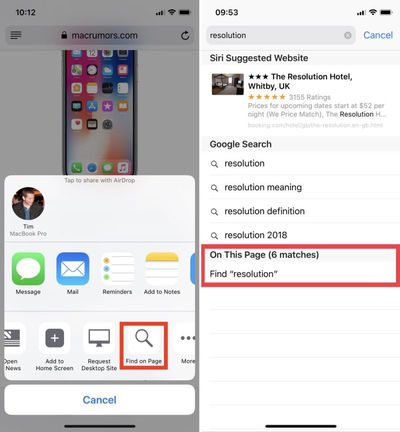
The first way involves tapping the Share icon (the square with an arrow pointing out of it), sliding your finger left along the bottom column, and tapping the Find on Page button, indicated by a magnifying glass. Start typing what you're looking for, and your search results will be returned automatically.
The second, faster method is to type your search term straight into Safari's address bar and then tap the On This Page option at the bottom of the suggestion list, after which you'll be able to tap through each occurrence of the term on the current page.
2. Swipe to Delete in the Calculator
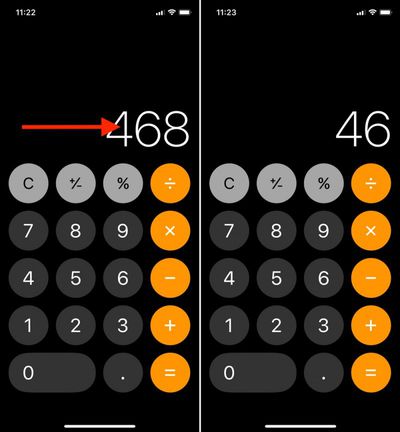
It's a common misconception that if you type the wrong number into the Calculator app, you have to start the whole sum all over again. Happily, that isn't the case: Simply swipe right or left with a finger across the number display to remove the last number you typed, and repeat the action if necessary to remove several numbers.
3. Access Deeper Control Center Options Sans 3D Touch
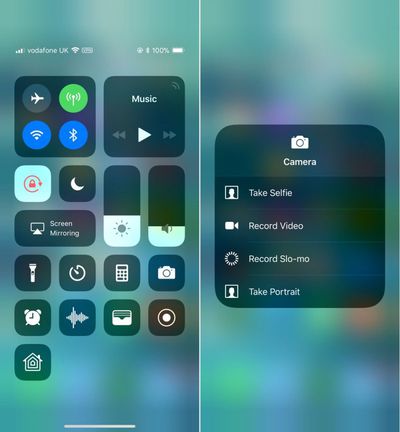
In iOS 11, the Control Center is designed to reveal deeper controls when the user hard-presses to activate 3D Touch – just try it on the camera button, for instance.
If you own an iPhone SE or an older iPhone that doesn't support 3D Touch gestures, it's still possible to access these more granular controls on any button that supports them by using a simple long press instead.
4. Quick-Switch Back From Numbers/Symbols to Letters
Switching onscreen keyboards when you need to type a number or symbol is an all-too-often occurrence on iPhone, so here's a tip for making the transition super-swift.
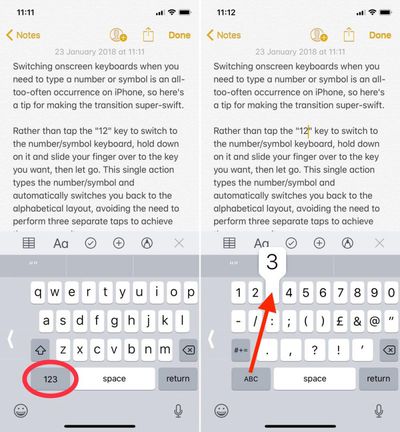
Rather than tap the "123" key to switch to the number/symbol keyboard, hold down on it and slide your finger over to the key you want, then let go. This single action types the number/symbol and automatically switches you back to the alphabetical layout, avoiding the need to perform three separate taps to achieve the same result.
5. Clear All Notifications At Once
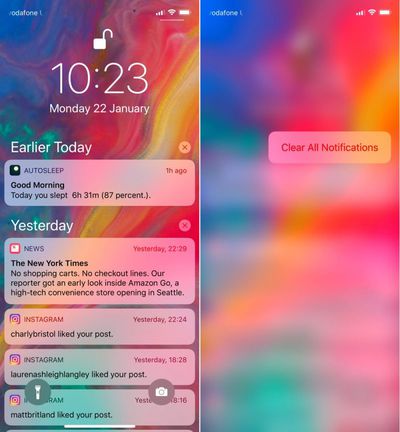
If you've got a bunch of notifications from earlier in the day or week that are clogging up your Notifications Screen, don't waste time clearing them one by one. Simply hard press on the first x icon you see on the right of the list. From there, you only need to select the Clear All Notifications 3D Touch option to make them instantly vanish.



















Top Rated Comments
I knew you could search from the address bar for Find on Page but I had no idea there was a share sheet option. I’ve just moved the icon to the first spot and I actually think I prefer it over typing in the address bar then scrolling down. TIL.
Thank YOU anyjungleinguy for the tip.
This thread is full of goodness :)
* multi-app closing: use two fingers after the tap hold for closing multiple apps.
Which makes me think: I find it pointless of :apple: not to have that action done in a similar way to iOS on iPad’s behaviour... numerous times, I just try to swipe close my apps on my phone, to realise that I need to first tap hold :confused:
* Swipe down on your home screen and calculate there, just as you would on your mac in the siri field. It is perfect for most calculations, and you have a natural typing behaviour. Also, you can check your full calculation query as well.
* Make a pdf of anything printable by giving the print command, force tap the print preview, and saving it...
Great tip on the single number 3 input. Woops
* Multi-apps drag and drop
* “Hey siri, turn off all alarms”
* 3D touch on keyboard to move cursor freely