How to Troubleshoot Apps Overusing Energy in OS X - GeekWebGuides
Skip to Content

How to Troubleshoot Apps Overusing Energy in OS X

by

Even though most developers work their hardest to ensure that the programs you download onto your Mac run smoothly, sometimes, things go wrong. One issue that may arise is an app using an exorbitant amount of energy or memory, causing your Mac to overheat or suffer severe battery drain.

Sometimes, simply closing an app doesn't do the trick. For example, if a program includes a helper tool, that tool may be the culprit. Closing the program may not solve the problem.

We've got a troubleshooting guide for finding out which apps are using the most percentage of processes on your computer.

Check Energy Consuming Apps

If you experience a fast drain on your MacBook's battery, it may be caused by certain programs running in the background. While you may have intended to run something like Spotify, it is possible that you have a program open that you didn't know about.
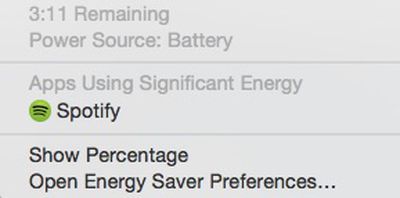
Apps using significant energy
You can quickly check to see which apps are using a significant amount of energy by left clicking on the battery icon in the upper right corner of your laptop's tool bar. From the dropdown list, wait a few seconds until your Mac finishes collecting power usage information. Any apps that are using a lot of energy will be listed.

You can then find the app by searching in Finder and quit the program. Or, you can right click on the app to open Activity Monitor.

Using Activity Monitor

Sometimes, issues causing overheating come from programs that are overusing memory and CPU. The Activity Monitor provides information on how activities are affecting your Mac based on CPU, Memory, Energy, Disk, and Network.

CPU
The CPU pane can help you identify processes that affect your Mac's performance, battery, temperature, and fan. Click the "%CPU" column to sort percentages and see which apps are using the highest percentage.
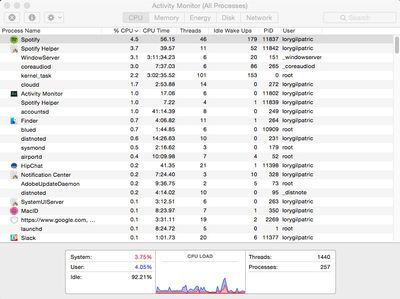
CPU
Individual CPU usage should not be very high. Processes should use less than one percent when not actively in use. Most apps that are in use should not be using more than 10 percent, and that is for such programs as content streaming (like Spotify or Plex). If a program is using a large percentage of your CPU (above 50 or 60 percent) it is probably the culprit.

Memory
The memory pane shows how memory is being used on your Mac. Apps using a lot of memory will affect your startup drive. Click the "Memory" column to sort memory usage. If a process is using an excessive amount of memory, it might affect the performance of your Mac.
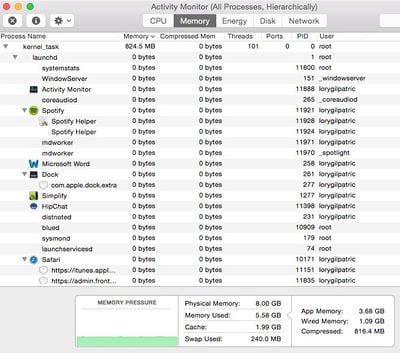
Memory
Energy
The energy pane shows how much energy is being used altogether, and by individual processes. Click the "Energy Impact" column to sort energy consumption. Processes at the top of the list are using the most energy. If a process seems to be gobbling up more energy than you think they should, even when it is closed, there may be a problem with the program.
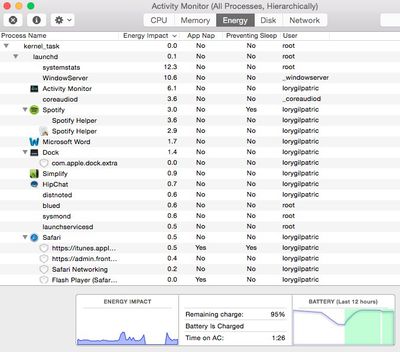
Energy
Disk
The disk pan shows the amount of data being written to and read by your disk. It also provides information on the amount of times your Mac accesses the disk to read and write data.
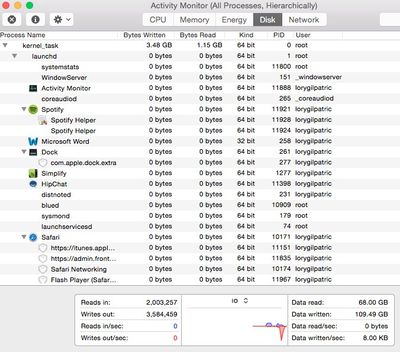
Disk
Network
The network pane shows how much data your Mac is sending or receiving over your network. You can check which processes are sending or receiving the most data from this view.
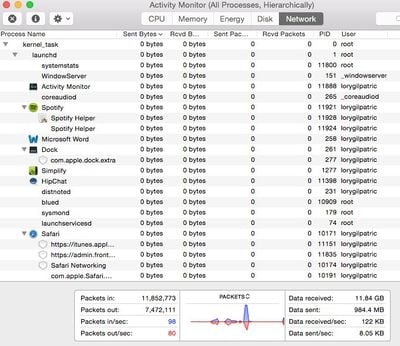
Network

Quitting a Process

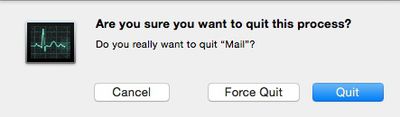
If you've discovered the process that is overworking your Mac, you can quit it from Activity Monitor. Highlight the item by selecting it. Then, click on the X in the upper left corner of the screen.
Activity Monitor
You will be provided with the option to quit the process, force quit, or cancel the action. If you quit a process that that could cause data loss or is being used by another process, it won't quit. Nothing will happen.
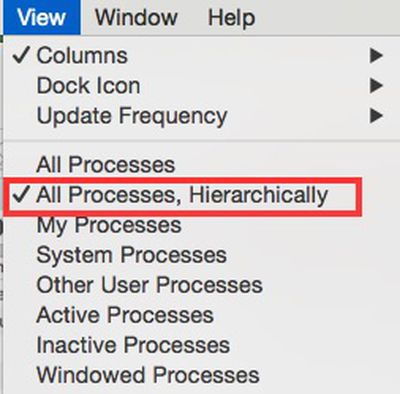
Switch Views in Activity Monitor
If you force quit a process that is being used by another application, it may cause a problem with its performance. You can check to see if a process is being used by another program by changing the window view. Select View from the tool bar. Then select "All Processes, Hierarchically" from the dropdown menu. This will repopulate the processes by their main program.

If there's a process that's overusing your Mac's CPU, memory, or energy and you can't quit it without possibly affecting the performance of the main program it is being used with, the best option is to contact the app's developer.

If you experience an unusual amount of overheating and your Mac's fan starts running continuously, or if your battery is suffering an unusual amount of drainage, troubleshoot the problem by checking the Activity Monitor and shutting down processes that are not in use.


Top Rated Comments

AlecZ Avatar
148 months ago
"sudo killall Chrome" is a good way.
Score: 8 Votes (Like | Disagree)

Popular Stories

iPhone Duo Trio

Here's What Apple's Apps Look Like on the iPhone Duo

Tuesday October 20, 2026 11:12 am PDT by
With just three days to go until the iPhone Duo is released, Apple is getting ready for the launch. Behind the scenes, the App Store now has screenshots of Apple's built-in apps running on the Duo. We've seen some apps in marketing materials, but images of the ones we haven't seen give us an idea of what it will be like using the iPhone Duo day to day. Many apps are shown in landscape...
Apple Creator Studio iWork suite

Apple Pulls Keynote, Pages and Numbers From App Store [Update: Back]

Thursday October 22, 2026 11:01 am PDT by
Apple has temporarily removed Keynote, Pages, and Numbers from the App Store, just after releasing an update that added iPhone Duo support and a new Intelligent Assistant. It is not clear if the apps were removed intentionally, or if it is a bug. Apple has not said when the apps will be reinstated, but if it was in error, they should return soon. Update: The Mac versions are back without...
M5 MacBook Pro

RIP, MacBook Ultra

Monday October 19, 2026 9:37 am PDT by
Apple today sent out invites for an experience in Los Angeles on Wednesday, October 28, and the "Pro and tell" tagline on the invitation likely means that the rumored MacBook models with touch-enabled OLED displays will stick with MacBook Pro branding instead of the once-rumored "MacBook Ultra" name. The long-rumored "iPhone Ultra" ended up being named iPhone Duo, so speculation that Apple...
Latest Stories
MacBook Neo Helps Apple Outpace Rivals as Market Declines
2 hours ago
Happy 25th Anniversary, iPod
2 hours ago
iPhone Duo Demand Reportedly Exceeds Apple's Expectations
5 hours ago
iPhone Duo Launch Begins as First Orders Reach Customers
11 hours ago
1Password for Agents Keeps Your Passwords Hidden From AI
12 hours ago
iPhone Duo 24 Hours Later: Your Questions Answered
12 hours ago
Apple's iWork Apps Get 'Intelligent Assistant' and iPhone Duo Support
13 hours ago
Apple is Apparently Considering a Slightly Larger iPhone Duo
13 hours ago
Giant iPhone Duo Displays Coming to Four Apple Stores
14 hours ago
Apple Pulls Keynote, Pages and Numbers From App Store [Update: Back]
15 hours ago
Apple Updates More Apps With iPhone Duo Support
16 hours ago
Apple Will Label Apps 'Made for iPhone Duo' in App Store
18 hours ago
Amazon Takes $49 Off iPad With Prices Starting at $399.99
19 hours ago
F1 on Apple TV Now Available in Dolby Atmos
20 hours ago
Apple Reveals More Than 50 Apps That Will Be Updated for iPhone Duo
20 hours ago
Apple Blocks Certificates That Could Help Attackers Fake Websites
21 hours ago
Giant iPhone Duo Installations Spotted at Apple Fifth Avenue
22 hours ago
iPhone Duo 2 Prototypes Include Under-Display Face ID
22 hours ago
Tesla App Gains iPad and iPhone Duo Support
1 day ago
Apple Reportedly Boosts iPhone Duo Orders by 44%
1 day ago
Fortnite Returning to Australian App Store After Court Ruling
1 day ago
Apple Ordered to Open iPhone to Rival App Stores in Australia
1 day ago
Apple Suppliers Face Hurdles Cutting Circuit Board Emissions
1 day ago
Things Updated for iPhone Duo With Adaptive Layout
1 day ago
Simplicity and Siri AI Are HomeView's Killer Features, Apple Says
1 day ago
iPhone Duo Reviewers Really Miss Face ID
1 day ago
Does the iPhone Duo Run Hot? Here's What Reviews Found
1 day ago
Apple Music's New Look is Now Live on Apple's Website
2 days ago
Anthropic Launches Claude Duet, a Proactive AI Agent
2 days ago
What 32,000 Folds Did to the iPhone Duo's Hinge
2 days ago