In iOS 18.2, Apple introduced a major change to iPhone's Mail app with a new Categories feature, which has now been rolled out to iPad and Mac with iPadOS 18.4 and macOS Sequoia 15.4. Categories automatically sorts your emails into four distinct sections: Primary, Transactions, Updates, and Promotions. However, while this organizational system aims to help manage email overload, not everyone will prefer the new layout.
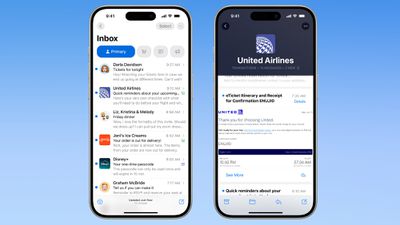
Mail Categories attempts to intelligently organize your incoming emails into different sections. Important emails are shown in a "Primary" category, with orders, newsletters, social notifications, and deals organized into three other sections.
The "Transactions" section includes receipts, orders, and deliveries, and aims to make it easy to find orders that you've placed and shipping information for those orders. Meanwhile, the "Updates" section includes newsletters, alerts for things like doctor's appointments and correspondence, and other subscription emails. Lastly, Apple's "Promotions" category includes special offers and deal emails.
Note that even if an email would normally fall into Transactions, Updates, or Promotions, it will also appear in your Primary inbox if it contains time-critical information. On devices that support Apple Intelligence, the system goes a step further by highlighting priority emails that require action or have deadlines.
Mail Categories: Why You Might Want to Revert
The new Categories view, while helpful for some, might not suit your email management style. Perhaps you prefer seeing all emails in chronological order, or have your own organization system. Or maybe you just want fast access to all your emails without switching between categories. On iPhone and iPad, you can swipe left across the categories to switch to an "All Mail" view (the same option can be found on Mac to the right of the category buttons) but what if you want to remove the categories completely?
How to Return to List View in Apple Mail
Categories is the default view after updating to the new software. Fortunately, Apple makes it simple to switch back to the traditional list view. Here's how it's done:
- Open the Mail app on your iPhone, iPad, or Mac.
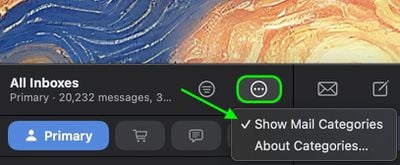
- On iPhone/iPad, tap the More button (three dots) in the upper right corner of your inbox. On Mac, you can find the More button at the top of the inbox view.

- On iPhone/iPad, select List View from the pop-up menu. On Mac, click Show Mail Categories to uncheck it.
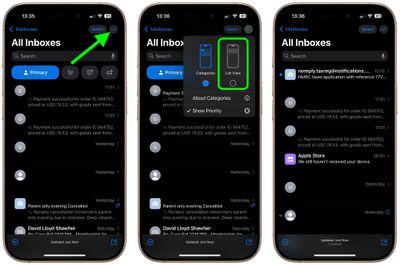
Once you switch to List View, your inbox will return to showing all emails in chronological order, just as it did before. The change takes effect immediately. While categorization is not perfect, it's likely something that Apple will improve over time. You can always switch back to Categories view using the same menu if you want to try it again later.
Note: If you're using an iPhone/iPad that supports Apple Intelligence, you'll see an additional option in the More menu for priority messages. This option won't appear on devices without Apple Intelligence support. The More menu also has an "About Categories" section where you can see how your messages have been categorized over the course of the last week, but there is no option to tell the Mail app if you believe an email has been put into the wrong category.