How to Use App Limits and Downtime in iOS 12 - MacRumors
Skip to Content

How to Use App Limits and Downtime in iOS 12

by

In iOS 12, Apple's digital health push includes a couple of special new features for iPhone and iPad users who want to cut down on their app usage: App Limits and Downtime. In this article, we'll show you how to use them.

App Limits allows you to set specific time limits on a particular app category (games, for example). When you've spent the designated time using the app category, iOS sends you an alert notifying you of the fact. Of course, you're free to ignore these alerts, but the idea behind them is that they'll help you manage your time better.
how to set app limits in ios 12
The second feature, Downtime, enables you to set a daily schedule for when you'd rather not use your iOS device at all. Once activated, the feature restricts device usage to phone calls and any apps you've specifically exempted from Downtime. Like App Limits, you can override these restrictions – they're more like good guidance than anything else, and can still help if you honestly want to self-regulate your mobile usage.

How to Set Individual App Limits in iOS 12

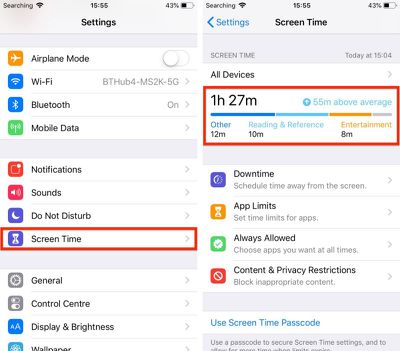
  1. Launch the Settings app on your iPhone or iPad.
  2. Tap Screen Time.
  3. Tap the Screen Time graph for this device. Alternatively, tap All Devices.
    ios 12 app limits

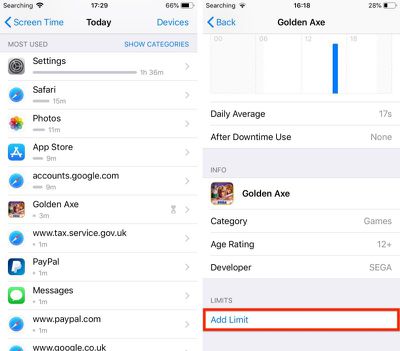
  4. Scroll down to the Most Used list and tap an app you want to set a limit for.
  5. Tap Add Limit at the bottom of the menu.
    IMG 0075

  6. Select a time limit using the hour and minute wheels. If you want to set different limits for particular days of the week, tap Customize Days.
  7. Tap Add to apply the app limit.

How to Set App Category Limits in iOS 12

  1. Launch the Settings app on your iPhone or iPad.
  2. Tap Screen Time.
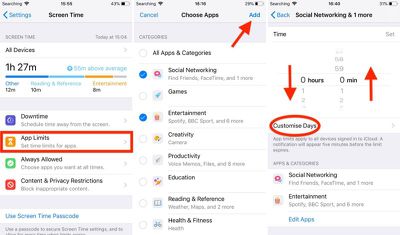
  3. Tap App Limits.
  4. Tap the categories in the list that you'd like to include in the limit, or select All Apps & Categories.
    ios 12 app limits 1

  5. Tap Add in the upper right of the screen.
  6. Select a time limit using the hour and minute wheels. If you want to set different limits for particular days of the week, select Customize Days.
  7. Tap Back when you're done.
  8. Add another limit if desired, or tap Screen Time to return to the main Screen Time menu.
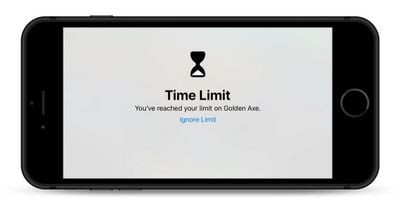
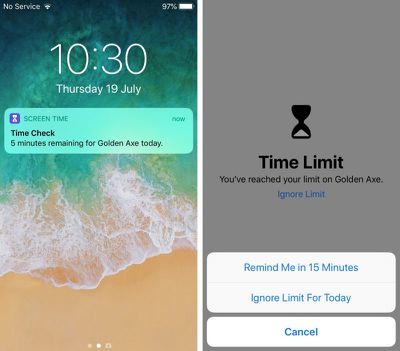
When you're approaching a designated limit, iOS will alert you in advance with a standard notification. When you finally reach the limit, the alert will take over the screen.
ios 12 app limit warnings
If you want to override the custom limit, simply tap Ignore Limit. You can then select either to Reminded Me in 15 Minutes or Ignore Limit for Today.

To delete app category limits and individual app Limits at any time, go to Settings -> Screen Time -> App Limits, tap on the limit you want to remove, then tap Delete Limit.

How to Use Downtime in iOS 12

  1. Launch the Settings app on your iPhone or iPad.
  2. Tap Screen Time.
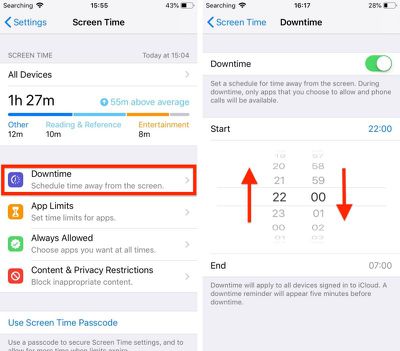
  3. Tap Downtime.
    ios 12 downtime

  4. Slide the Downtime toggle to enable it.

  5. Select a Start and End time using the dropdown hour and minute wheels.
How to Exempt Certain Apps From Downtime

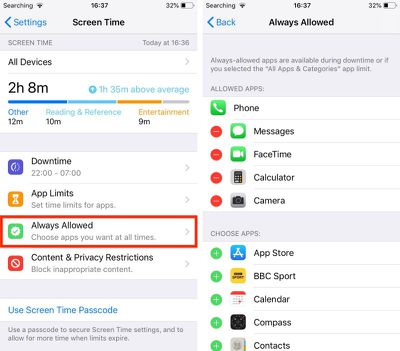
If there are particular apps which you'd like to remain accessible during Downtime, you can add these to your Allowed Apps list, located in Settings -> Screen Time -> Always Allowed.
ios 12 downtime 1
Simply tap the green plus buttons beside apps that you want to add to the list, or the red minus buttons to remove them.


Related Forum: iOS 12

Top Rated Comments

108 months ago
Only if you give them the passcode you set up when you enable Time Limit.
No, I just tested it. There is no passcode required to tell it to ignore the time limit.

Edit: Oh, you're right! You have to turn on the Content and Privacy Restrictions (under a different menu item) to make it prompt them for a password.

This will actually let me give my daughter an iPad now. :-)
Score: 4 Votes (Like | Disagree)
108 months ago
They were SO close to having something that works for kids. As it works now, the kids can just ignore the limit...
If your kids have separate devices and their own appleID set up as part of the family, they will need to request permission from you to extend their time limit.
Score: 3 Votes (Like | Disagree)
Billberryjuice Avatar
106 months ago
A few things this still needs:

- bug fixes: not tried it on many other apps but on Safari when the limit has run out and I “ignore for 15 minutes”, instead of getting 15 minutes it will lock down again basically every time I change page or tap on something (on iPhone 6S). Looking at the Screen Time data, I guess this is something to do with the way it logs time for individual sites.

- A simpler way to set restrictions on individual apps: the current way almost feels like it’s unintentional by the way it’s hidden, completely unintuitive

- Categories editing

- Finer Downtime control: what if I want different rules for the weekend? The app restrictions allow custom limits by day, why not here? Ideally they would add even finer control than this (e.g. the ability to set two or more Downtime slots per day)

- Better implementation of “Share Across Devices”: on my main iPhone I spent ages adding apps to Always Allow, setting up Downtime and app limits, and turned on SAD, before moving on to my other phone and iPads - switching on SAD on another device should have picked up the settings I already changed on the first device and brought them to the second - nope, the opposite happens and the settings on the first seem to be wiped away. Thankfully, a way around this is to turn SAD off again on the first device and its own settings should come back. It looks like the way to get your settings to apply across all devices (without redoing them n times) is to turn on SAD on all the other devices *first*, then turn it on on the device that you changed all the settings of, as it seems the last one you switch it on for pushes its settings to all the others.

- Second thing on Share Across Devices: it seems that the only way to see all of your devices in your Screen Time bar chart is to enable SAD across all of them - but what if I want to set different limits for each but still be able to see the data from all of them in one place? Currently this doesn’t seem possible.

- (edit) Third thing on Share Across Devices: turning it on caused some old Apple apps to appear on my home screen for my iPhones in random places (e.g. top right corner) - one was iTunes Store and the other I forget but both were promptly deleted again. I can only guess why this happened but clearly wasn’t intentional!


TLDR: I like it but it needs some work.
Score: 1 Votes (Like | Disagree)
106 months ago
As a parent, there has to be way to completely ban an application. Currently, you have to assign at least 1 minute of time. This is not a good parental control.

Also, there is too much "security" based on Apple's view of app categories. If I want my child to use one "Social Networking" app and not others, there isn't a good way to do that except granting "Always Available". Then the downtime limits don't apply.

It looks like Our Pact or other parental controls will still be required in IOS 12.
You can download Apple Configurator on your Mac (if you have one) and create a configuration profile that blacklists certain apps.
Score: 1 Votes (Like | Disagree)
shareef777 Avatar
106 months ago
All I can say is it’s about damn time. This feature is AMAZING! I’m able to lock down my two younger sons iPads and my daughters iPhone. They can request more time (similar process to requesting app purchases), and I can grant an extra 15min, 1hr, or remainder of the day. Single greatest iOS feature addition since the App Store!!!
[doublepost=1537408914][/doublepost]
would be good to know how this works with family sharing. Eg can kids be set up so they can't ignore the limits? If they hit a limit can they request an extension from the parent?
Yep, they can request more time per app, and you can approve for an additional 15min, 1hr, or remainder of the day.
[doublepost=1537408946][/doublepost]
They were SO close to having something that works for kids. As it works now, the kids can just ignore the limit...
You can set a password to prevent that.
Score: 1 Votes (Like | Disagree)
KC in KC Avatar
108 months ago
They were SO close to having something that works for kids. As it works now, the kids can just ignore the limit...
As a parent, there has to be way to completely ban an application. Currently, you have to assign at least 1 minute of time. This is not a good parental control.

Also, there is too much "security" based on Apple's view of app categories. If I want my child to use one "Social Networking" app and not others, there isn't a good way to do that except granting "Always Available". Then the downtime limits don't apply.

It looks like Our Pact or other parental controls will still be required in IOS 12.
Score: 1 Votes (Like | Disagree)

Popular Stories

M5 MacBook Pro

RIP, MacBook Ultra

Monday October 19, 2026 9:37 am PDT by
Apple today sent out invites for an experience in Los Angeles on Wednesday, October 28, and the "Pro and tell" tagline on the invitation likely means that the rumored MacBook models with touch-enabled OLED displays will stick with MacBook Pro branding instead of the once-rumored "MacBook Ultra" name. The long-rumored "iPhone Ultra" ended up being named iPhone Duo, so speculation that Apple...
iPhone Duo Trio

Here's What Apple's Apps Look Like on the iPhone Duo

Tuesday October 20, 2026 11:12 am PDT by
With just three days to go until the iPhone Duo is released, Apple is getting ready for the launch. Behind the scenes, the App Store now has screenshots of Apple's built-in apps running on the Duo. We've seen some apps in marketing materials, but images of the ones we haven't seen give us an idea of what it will be like using the iPhone Duo day to day. Many apps are shown in landscape...
apple pro tell logo

Apple Announcing New Products Next Week: 'Pro and Tell'

Monday October 19, 2026 9:05 am PDT by
Apple's Greg Joswiak today hinted at new product announcements coming next week, sharing a social media post that says "Can't wait to pro and tell next week." Rumors suggest Apple is planning to debut the new MacBook Pro with an OLED touchscreen display, an M6 entry-level MacBook Pro, an M6 iMac, an iPad mini with an OLED display. Can't wait to pro and tell next week....
Latest Stories
Apple's iWork Apps Get 'Intelligent Assistant' and iPhone Duo Support
8 minutes ago
Apple is Apparently Considering a Slightly Larger iPhone Duo
13 minutes ago
Giant iPhone Duo Displays Coming to Four Apple Stores
1 hour ago
Apple Pulls Keynote, Pages and Numbers From App Store [Update: Back]
2 hours ago
Apple Updates More Apps With iPhone Duo Support
3 hours ago
Apple Will Label Apps 'Made for iPhone Duo' in App Store
6 hours ago
Amazon Takes $49 Off iPad With Prices Starting at $399.99
6 hours ago
F1 on Apple TV Now Available in Dolby Atmos
7 hours ago
Apple Reveals More Than 50 Apps That Will Be Updated for iPhone Duo
7 hours ago
Apple Blocks Certificates That Could Help Attackers Fake Websites
8 hours ago
Giant iPhone Duo Installations Spotted at Apple Fifth Avenue
9 hours ago
iPhone Duo 2 Prototypes Include Under-Display Face ID
9 hours ago
Tesla App Gains iPad and iPhone Duo Support
13 hours ago
Apple Reportedly Boosts iPhone Duo Orders by 44%
14 hours ago
Fortnite Returning to Australian App Store After Court Ruling
14 hours ago
Apple Ordered to Open iPhone to Rival App Stores in Australia
15 hours ago
Apple Suppliers Face Hurdles Cutting Circuit Board Emissions
15 hours ago
Things Updated for iPhone Duo With Adaptive Layout
15 hours ago
Simplicity and Siri AI Are HomeView's Killer Features, Apple Says
16 hours ago
iPhone Duo Reviewers Really Miss Face ID
21 hours ago
Does the iPhone Duo Run Hot? Here's What Reviews Found
22 hours ago
Apple Music's New Look is Now Live on Apple's Website
23 hours ago
Anthropic Launches Claude Duet, a Proactive AI Agent
23 hours ago
What 32,000 Folds Did to the iPhone Duo's Hinge
1 day ago
iPhone Duo's Hidden FaceTime Camera Takes 'Trash' Photos
1 day ago
iPhone Duo Has 'Edge Light' Feature That Debuted on Macs Last Year
1 day ago
Apple Support App Updated for iPhone Duo's Larger Display
1 day ago
Amazon Sweetens the Deal on Entry-Level 16-Inch MacBook Pro With $570 Off
1 day ago
iPhone Duo Tips Over on MagSafe Stands When Unfolded
1 day ago
Apple Music's New Look Officially Announced
1 day ago