 In iOS 14, Apple introduced a new Translate app that's designed to give real-time translations for 11 different languages. It can translate to and from Arabic, mainland Chinese, English (US and UK), French, German, Italian, Japanese, Korean, Portuguese, Russian, and Spanish.
The Translate app has an easy-to-use interface that allows you to select languages to translate to and from, and then type (or paste) the text that you want to be translated, or say what you want translated as the app listens. The app can even speak translations out loud so that you can get the proper pronunciation or play the translation to someone who speaks a different language.
In addition, the app has a neat Conversation Mode that listens for both languages and can translate right between them in real time. Here's how to use Conversation Mode on an iPhone.
- Launch the Translate app on your iPhone or iPad.
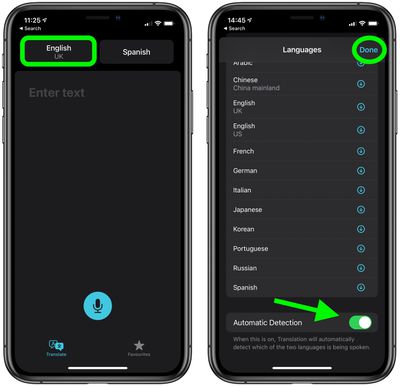
- Tap the top-left button and select the language of the text that you want translated.
- Scroll down to the bottom of the languages list and make sure the Automatic Detection option is toggled to the green ON position.
- Tap Done in the top-right corner of the screen.

- Tap the top-right button and select the language that you want the text translated into.
- Tap Done.
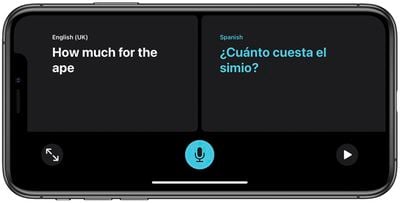
- Now turn your iPhone sideways into landscape orientation. If the interface doesn't automatically switch to Conversation Mode, check Control Center to make sure you don't have Orientation Lock activated.
- As you're having a conversation with someone, make sure to tap the microphone button when each person talks, and the iPhone will translate the conversation for each person in their language. You can also tap the play button to hear the translation in the correct pronunciation.
- Tap the Expand icon (two outward-facing arrows) to enter Attention Mode, and the last translation will take up the entirety of the iPhone's display for easier reading.
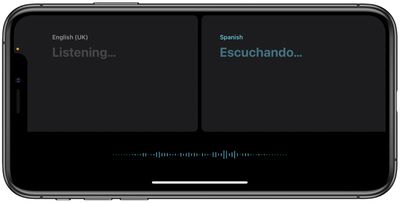
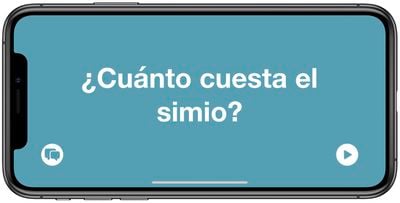
Tip: If Automatic Detection isn't working well, it can be helpful to disable it and to speak by tapping between the two microphones at the bottom of the app that show up when Automatic Detection is off. This way, you can make sure the iPhone is listening for and translating the proper language.
For more on the Translate app, be sure to check our comprehensive guide.






















![Apple Pulls Keynote, Pages and Numbers From App Store [Update: Back]](https://images.macrumors.com/t/Okb7kitB_gNr6qe5Pex9nQIysD8=/112x112/article-new/2026/01/Apple-Creator-Studio-iWork-suite.jpg)