 Apple enables iCloud account holders to use email aliases, which allow you to send and receive emails without disclosing your true email address.
Using an email alias to log in to websites and online services can help protect your genuine email address by hiding it from spammers and other sources of unsoliticted messages.
In addition, email aliases make it easy to filter messages, because they automatically sort incoming emails into separate mailboxes. They also allow you to name email addresses to better match their use, whether for casual or professional purposes.
The first set of steps in this article shows you how to set up iCloud email aliases. The second and third sets of steps explain how to manage them on iOS devices and Macs, respectively.
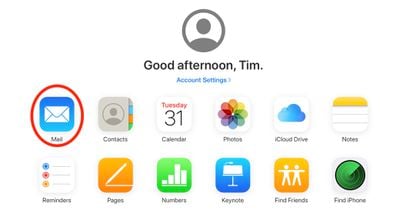
- Using a desktop web browser, go to icloud.com and sign in with your Apple ID credentials.
- Click Mail.

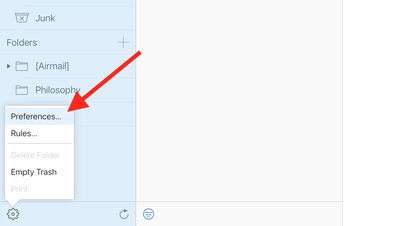
- Click the gear cog icon in the bottom-left corner of the window.
- Click Preferences.
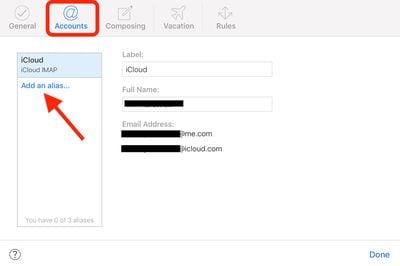
- Click Accounts.
- Clid Add an alias….
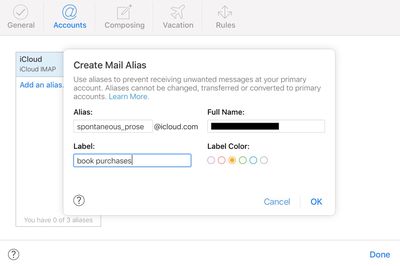
- Enter an alias for your iCloud email address. Apple also provides options to label the address to specify how you'll use it – home or office, for example.
- Click OK.
- Click Close, then click Done.
Deleting an alias is easy – just select it in the Accounts tab and click Delete.
How to Set Up iCloud Aliases in iOS
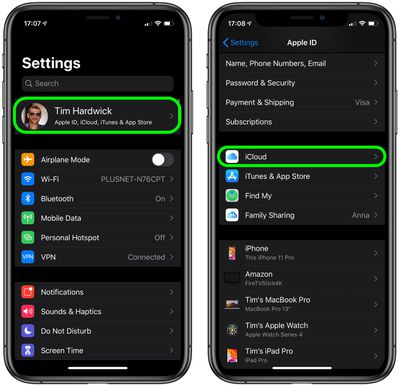
- Launch the Settings app on your iPhone or iPad.
- Tap your Apple ID in the banner at the top of the screen.
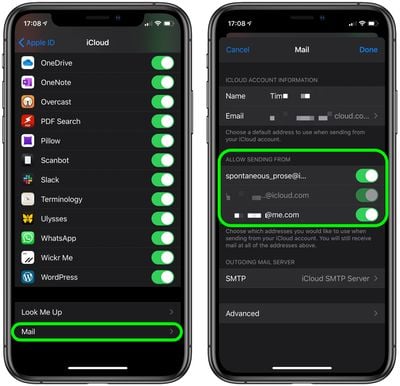
- Tap iCloud.
- Scroll down to the bottom of the screen and tap Mail.
- Under Allow Sending From, tap the switches next to the email aliases to choose which ones you'd like to use on your device.
How to Set Up iCloud Aliases on Mac
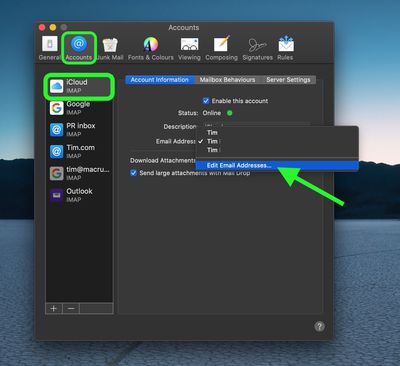
- Open the Mail app on your Mac.
- Select Mail -> Preferences in the menu bar at the top of the screen.
- Select the Accounts tab.
- Click your iCloud account in the sidebar.
- Click the Email Address dropdown menu and select Edit Email Addresses.
- This will launch your browser and open the icloud.com website. Enter your Apple ID credentials, then manage your email addresses as desired.
Remember, iCloud aliases ensure that all of your addresses are accessible in one account, so you only have to remember your genuine iCloud email address and password to access them.