 This article explains what Instant Hotspot is and how you can make the most of it using your Apple devices. If you like, click the links below to jump to the sections that most interest you.
- What is Instant Hotspot?
- How Does Instant Hotspot Differ From Personal Hotspot?
- What You Need to Use Instant Hotspot
- How to Connect Your Mac to an Instant Hotspot
- How to Connect Other iOS Devices to Your Instant Hotspot
- How to Let Others Use Your Instant Hotspot
- How to Enable Hotspot Family Sharing
- How to Disable Instant Hotspot on iPhone and iPad
What is Instant Hotspot?
In iOS and iPadOS, Instant Hotspot refers to Apple's long-standing Personal Hotspot feature that lets you share the data connection on your iPhone or cellular iPad with other Apple devices.
Apple calls it Instant Hotspot to highlight the fact that your hotspot is always on and ready to provide internet access to any other devices nearby that are signed into your iCloud account, without them requiring a password to connect.
How is it Different From Personal Hotspot?
Instant Hotspot uses Apple's Continuity framework to connect other devices to your hotspot, so that it stays connected in the absence of a viable Wi-Fi connection, even if the iPhone or iPad hosting the hotspot goes to sleep. That means any incoming messages and push notifications will still arrive on the connected device(s).
In previous versions of iOS, you could only connect to an iPhone or iPad personal hotspot manually, and you had to know your hotspot password, but that's no longer the case.
What You Need to Use Instant Hotspot
Instant Hotspot is an extension of Apple's platform-wide Continuity framework. Therefore, in order for Instant Hotspot to work, your devices need to fulfill the following requirements.
- Your iPhone or iPad (Wi-Fi + Cellular) has an activated carrier plan that provides Personal Hotspot service.
- Each device meets Apple's Continuity requirements.
- Each device is signed in to iCloud with the same Apple ID.
- Each device has Bluetooth turned on.
- Each device has Wi-Fi turned on.
How to Connect Your Mac to an Instant Hotspot
To connect your Mac to your Personal Hotspot, click the Wi-Fi status menu in the menu bar and choose the name of your iPhone or iPad.
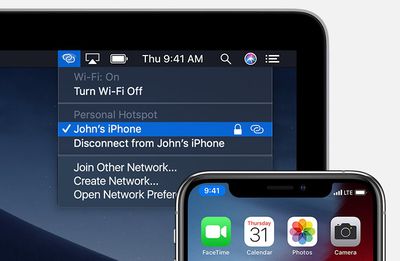
The Wi-Fi status icon in the menu bar will change to the hotspot icon (it looks like a chain link) to indicate that you've successfully connected.
How to Connect Other iOS Devices to Instant Hotspot
To connect an iPod touch or another iPhone or iPad to your Instant Hotspot, tap through to Settings -> Wi-Fi on the device in question, then tap the name of the iPhone or iPad hosting your hotspot.
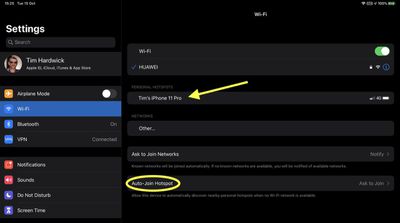
Note the Auto-Join Hotspot setting located at the bottom of the Wi-Fi screen in Settings. This allows the connecting device to automatically discover nearby personal hotspots when no Wi-Fi network is available. Tapping this option lets you set it to Automatic, Ask to Join, or Never.
How to Let Others Use Your Instant Hotspot
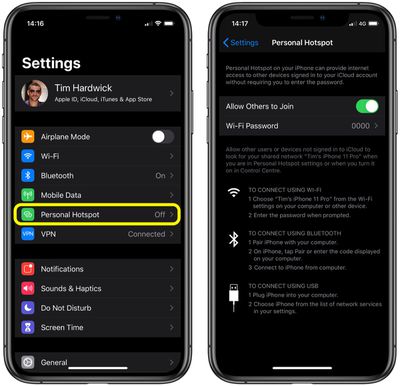
On the Personal Hotspot settings screen, there's a switch that you can turn on to Allow Others to Join.
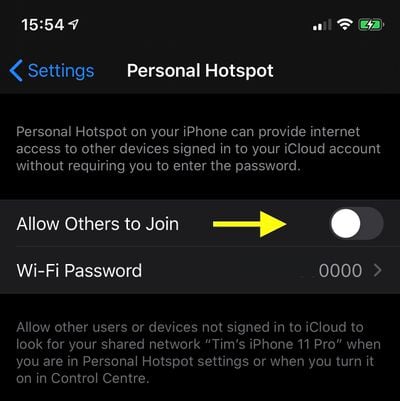
This makes your hotspot appear to other devices that are not signed into your iCloud account, but only when you're in the Personal Hotspot settings screen of if you've made it discoverable via Control Center.
Other devices can be connected via Bluetooth or plugged in via USB. However, the user of the device must enter the hotspot password you created, just like they would need to in order to connect to a typical Wi-Fi network.
How to Enable Hotspot Family Sharing
You can also set up your iPhone or iPad hotspot so that family members can automatically connect to it whenever an internet connection isn't available. This setting only works with Apple's Family Sharing feature, so make sure you've set that up first.
Once that's done, follow the steps below to start sharing your Instant Hotspot with your Family group.
- Launch the Settings app on your iPhone.
- Tap Personal Hotspot.
- Tap Family Sharing.

- Toggle the Family Sharing switch to the ON position.
- Tap a family member to Ask for Approval.
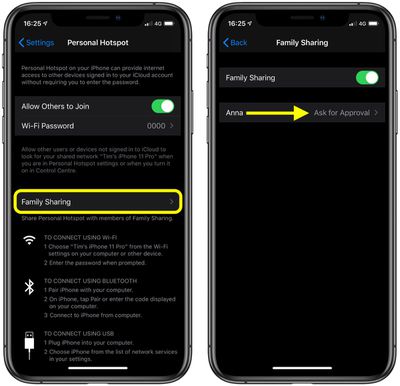
Once the family member accepts your request, their device will automatically connect to your iOS device's hotspot when required.
How to Disable Instant Hotspot on iPhone and iPad
With the release of iOS 13.1, Apple removed the on/off switch from the Personal Hotspot screen in the Settings app. As described above, the thinking behind this change is that your hotspot is always ready to provide internet access to your other devices whenever they need it. On that basis, verified devices may automatically connect to your nearby instant hotspot if there's no Wi-Fi internet connection available.
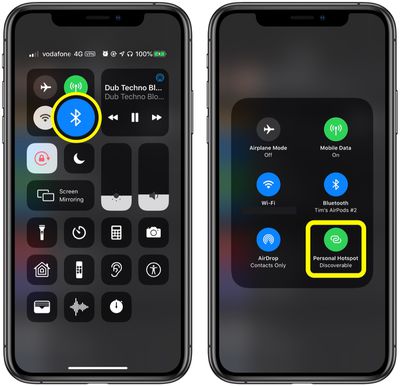
If you want to prevent other devices from connecting to your iPhone or iPad hotspot, you can do so via the Control Center: Long press the Bluetooth button, and if the Personal Hotspot button is green on the next screen, tap it to make your hotspot Not Discoverable.