With online account hacking becoming increasingly widespread, Mac users should make sure they're taking every security measure available to them. In other words, consider using Apple verification codes to protect your accounts. Keep reading to learn how it works.
One of the best ways to protect any online account is by using two-factor authentication (2FA). 2FA offers hardened security during login attempts by requesting that the user provides an extra piece of information only they would know, such as a randomly generated code from a third-party.
In macOS Monterey and later versions of its Mac operating system software, Apple's Safari browser (version 15 and later) includes a built-in two-factor authenticator that can generate verification codes for additional sign-in security. This means if a site offers 2FA, you can set up verification codes for it without downloading a third-party app.
Verification codes are backed up via iCloud, and once set up, the codes will autofill when you sign into the site using any Apple device linked to your Apple ID. This makes using 2FA on iPhone and iPad much more streamlined.
Enabling 2FA on the Account or Service
First, make sure you have the latest version of Safari (Safari 17). Once you've done that, you'll need to enable the use of a 2FA app on whichever website or service you are trying to secure. Note that if you've already enrolled an account with 2FA on a mobile app, you'll either have to unenroll from 2FA or use the current 2FA code from your mobile app.
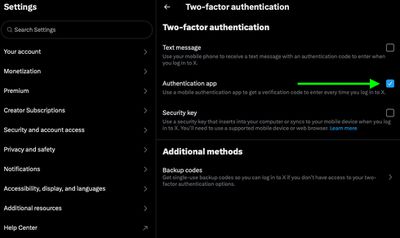
You may need to explore the security or privacy settings of the site to enable the use of an authenticator app. On X (formerly Twitter) accounts, for example, the 2FA option is found under Settings and privacy -> security and account access -> Security.
Using Setup Keys
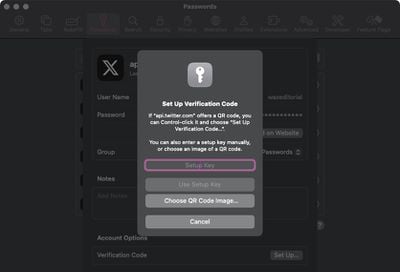
Once you've enabled 2FA on the account or service in question, you'll be asked to either enter a setup key on your device or scan a QR code using your device's camera. Note that you'll need to ensure that Safari's AutoFill feature is enabled (Safari ➝ Settings ➝ AutoFill) and the website's login credentials are saved in Safari for the 2FA code generator to work properly.
- Open Safari, then select Safari ➝ Settings... from the menu bar.
- Choose the Passwords tab, then either type your user password or use Touch ID to authenticate.
- Find and open the entry for the site you want to add 2FA to, then click Set Up next to "Verification Code," under Account Options.
- If the site offers a setup key, enter it in the Setup Key field. If it offers a QR code, Control-click it and choose "Set Up Verification Code". (Alternatively, you can download the QR code image and choose it using the option.)
Using Safari's Generated 2FA Code
- Open Safari and navigate to the website that requires two-factor authentication (2FA).
- Enter your username and password for the website as usual.
- When the site asks for a 2FA code, look for Safari's built-in suggestion that appears above the input field.
- Click on the 2FA code suggestion. Safari will automatically generate and fill in a 2FA code.
- Complete the login process by verifying the 2FA code, and you're done.
In future, when you come to log in to the site or service and you're prompted for a verification code, Safari will automatically display the latest code as an AutoFill option – all you need to do is click the code to enter it into the input field, and away you go.