If you're someone that has a lot of files on your desktop, you're going to love the new Stacks feature in macOS Mojave, which is designed to organize all of your files into neat little piles on your desktop, getting rid of clutter.

Unfortunately, Stacks is an option that's limited to the desktop and not available within individual file folders.

Enabling and Disabling Stacks

Toggling Stacks on and off is done with just a couple of clicks on the desktop. When at the desktop, right click to bring up the desktop options menu, and then choose the "Stacks" option.
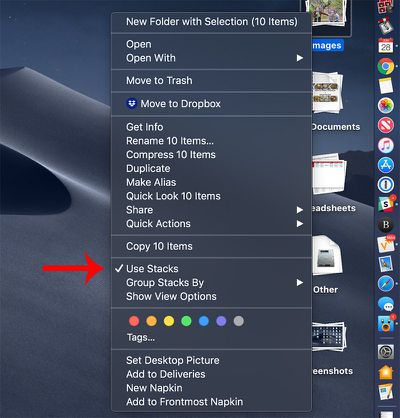
macosmojavenablingstacks1
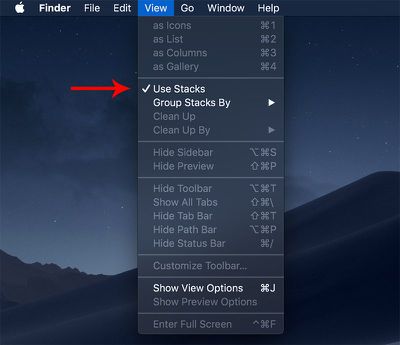
You can also use the Finder to enable Stacks.

  1. Open a Finder window.
  2. In the menu bar at the top of the Mac, go to View.
  3. Check the "Use Stacks" option. macosmojaveenablingstacks2

Turning on Stacks will automatically organize your files by file type. Some of the available Stacks include documents, images, PDF documents, spreadsheets, other, and screenshots.
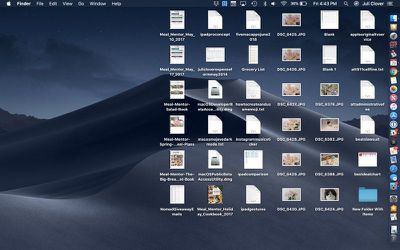
beforestacks

Files on the desktop before enabling Stacks.

If you want to turn Stacks off and go back to a full view of all the files on the desktop, right click again and uncheck the Stacks option. Alternatively, reverse the Finder steps.
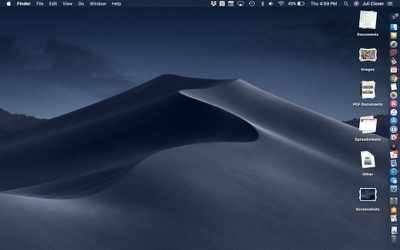
afterstacks

Files on the desktop after enabling Stacks.

Viewing Files in a Stack

If you want to view all of the files that are contained within a Stack, just click, and it will expand the Stack and put a little arrow on the Stack's name so that you know which Stack you're viewing.

With the Stack expanded, if you click on a file, it will open up in whatever app is set to be the default app for that file type.
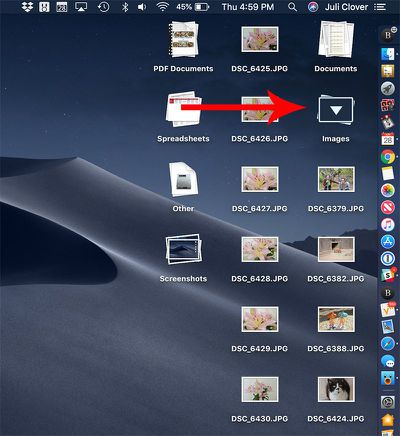
expandstacksmacosmojave

Click on a stack to expand it to see the files inside.

When done, click the Stack again to collapse it back down into an organized pile.

To open up all of your Stacks at once, option click on the any Stack, which will expand all of the desktop Stacks at once. Option click again on any of the open Stacks to close them all.
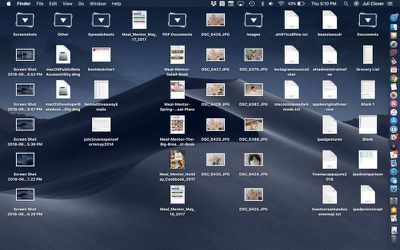
allstacksexpanded

Option click on any Stack to expand all Stacks.

Tip: If for some reason you want to open up or close all of your Stacks with a slower expanding/collapsing animation, shift click instead of just clicking regularly.

Customizing Stacks

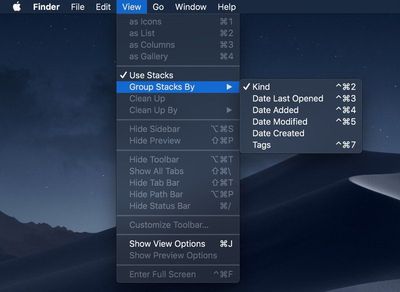
Stacks are organized by file type by default, but you can change the Stack organizational system, grouping your files by Date Last Opened, Date Added, Date Modified, Date Created, and Tags.

  1. Open Finder.
  2. In the menu bar, click on the View option.
  3. Select the "Group Stacks By" option. groupstacksmojave
  4. Choose one of the available options to change the way your Stacks are sorted.
The most powerful sorting option in Stacks is of course Tags, which are user set and can be used to identify certain types of files, such as all documents relating to a specific topic.

When grouped by one of the date options, Stacks will be listed in increments of Today, Yesterday, Previous 7 Days, Previous 30 Days, and then after that, by year.
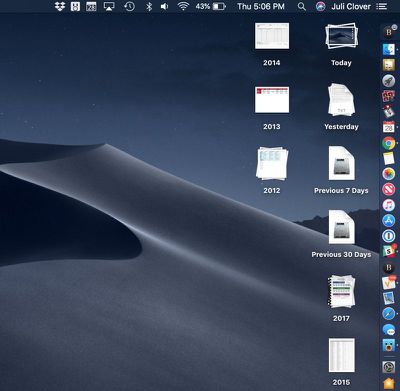
stacksortedbycreationdate

Stacks when sorted by creation date.

Further Stacks Options

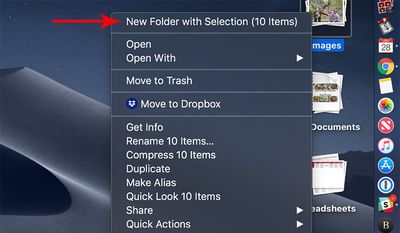
If you want to stick one of your Stacks into a folder, you can do so by right clicking on one of the Stacks and selecting the "New Folder With Selection" option.
stacksnewfolder
Using the same right click options that are available when a Stack is selected, you can open the files, open them in a specified app, rename files, share files, compress files, send files to trash, and more. You basically have all of the same organizational options that you would have selecting any group of files on your desktop, but without the need to select them manually.


Related Forum: macOS Mojave

Top Rated Comments

MysteriousStain Avatar
99 months ago
Makes no difference. My girlfriend will still keep ALL her files on the desktop
Score: 6 Votes (Like | Disagree)
martyjmclean Avatar
99 months ago
I rarely use Stacks in the Dock, but this is something I can see myself using a lot.
Score: 5 Votes (Like | Disagree)
roland.g Avatar
99 months ago
Many years ago a preview at WWDC had dock stacks for Apps and other items. App stacks went away before the release and has never come out though they can be simulated. However this desktop stacks is a clutter cleanup. Instead of this solution, don’t put anything on your desktop!
Score: 3 Votes (Like | Disagree)
Internet Enzyme Avatar
99 months ago
Many years ago a preview at WWDC had dock stacks for Apps and other items. App stacks went away before the release and has never come out though they can be simulated. However this desktop stacks is a clutter cleanup. Instead of this solution, don’t put anything on your desktop!
The only thing that goes on the desktop for me are temporary files. Temporary as in they exist for about a minute and are swiftly dealt with. The cluttered desktop is one of the most egregious idiosyncrasies of the undisciplined user. That's a bit sanctimonious, but I mean really if you clutter finder like that i mean what does that say about how much of a disaster the rest of your life is organized
[doublepost=1530672059][/doublepost]
Is Stacks just a display organization function or are there now sub-folders in the desktop directory?
They are purely display and for the end user's benefit. they do not appear in finder
Score: 2 Votes (Like | Disagree)
harriska2 Avatar
99 months ago
When will Windows steal this.
Score: 2 Votes (Like | Disagree)
mistasopz Avatar
99 months ago
When will Windows steal this.
You’ve been able to do this on windows for a long time with several programs like fences, nimi places, etc.
Score: 2 Votes (Like | Disagree)

Popular Stories

Apple Logo Zoomed

Tim Cook Teases Plans for Apple's Upcoming 50th Anniversary

Thursday February 5, 2026 12:54 pm PST by
Apple turns 50 this year, and its CEO Tim Cook has promised to celebrate the milestone. The big day falls on April 1, 2026. "I've been unusually reflective lately about Apple because we have been working on what do we do to mark this moment," Cook told employees today, according to Bloomberg's Mark Gurman. "When you really stop and pause and think about the last 50 years, it makes your heart ...
wwdc sans text feature

Apple Rumored to Announce New Product on February 19

Thursday February 5, 2026 12:22 pm PST by
Apple plans to announce the iPhone 17e on Thursday, February 19, according to Macwelt, the German equivalent of Macworld. The report, citing industry sources, is available in English on Macworld. Apple announced the iPhone 16e on Wednesday, February 19 last year, so the iPhone 17e would be unveiled exactly one year later if this rumor is accurate. It is quite uncommon for Apple to unveil...
Finder Siri Feature

Why Apple's iOS 26.4 Siri Upgrade Will Be Bigger Than Originally Promised

Friday February 6, 2026 3:06 pm PST by
In the iOS 26.4 update that's coming this spring, Apple will introduce a new version of Siri that's going to overhaul how we interact with the personal assistant and what it's able to do. The iOS 26.4 version of Siri won't work like ChatGPT or Claude, but it will rely on large language models (LLMs) and has been updated from the ground up. Upgraded Architecture The next-generation...
iOS 26

iOS 26.3 and iOS 26.4 Will Add These New Features to Your iPhone

Tuesday February 3, 2026 7:47 am PST by
While the iOS 26.3 Release Candidate is now available ahead of a public release, the first iOS 26.4 beta is likely still at least a week away. Following beta testing, iOS 26.4 will likely be released to the general public in March or April. Below, we have recapped known or rumored iOS 26.3 and iOS 26.4 features so far. iOS 26.3 iPhone to Android Transfer Tool iOS 26.3 makes it easier...
iphone 17 pro dark blue 1

iPhone 18 Pro Max Rumored to Deliver Next-Level Battery Life

Friday February 6, 2026 5:14 am PST by
The iPhone 18 Pro Max will feature a bigger battery for continued best-in-class battery life, according to a known Weibo leaker. Citing supply chain information, the Weibo user known as "Digital Chat Station" said that the iPhone 18 Pro Max will have a battery capacity of 5,100 to 5,200 mAh. Combined with the efficiency improvements of the A20 Pro chip, made with TSMC's 2nm process, the...