Netflix is Finally Letting You Turn Off Those Annoying Autoplay Previews - MacRumors
Skip to Content

Netflix is Finally Letting You Turn Off Those Annoying Autoplay Previews

by

Netflix today announced the launch of a new toggle that will let Netflix users turn off autoplay previews, which has been a controversial Netflix feature for years now.

When browsing through Netflix, the service is designed to play previews of the content that you stop on, which usually includes a trailer. Until today, Netflix has offered no option to turn these previews off.
netflixautoplay
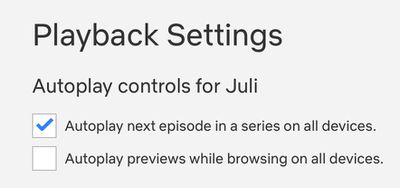
As of now, though, you can disable them by opening up Netflix, selecting your profile, selecting Playback Settings and toggling off "Autoplay previews while browsing on all devices."


Changing the setting will prevent content from playing while you swap through different shows and movies. The setting will need to be enabled on a per-profile basis as it is not account wide.


Tag: Netflix

Top Rated Comments

twistedpixel8 Avatar
80 months ago

Now where is my god damn „already watched“ button
I’d also like a button for “I started watching but it was ****. Stop bugging me to finish watching it.”
Score: 12 Votes (Like | Disagree)
MisterSavage Avatar
80 months ago
I couldn't turn this feature off fast enough when I heard about this.
Score: 7 Votes (Like | Disagree)
itsmilo Avatar
80 months ago
Now where is my god damn „already watched“ button
Score: 6 Votes (Like | Disagree)
iBreatheApple Avatar
80 months ago
I actually prefer this and for years I wished content had trailers. Conversely, I hate it when clicking on a show for the first time auto starts the first episode.
Score: 5 Votes (Like | Disagree)
randolorian Avatar
80 months ago
This was so annoying that I found myself avoiding Netflix. Maybe I won't cancel now. ;-)
Score: 5 Votes (Like | Disagree)
MisterSavage Avatar
80 months ago

I’d also like a button for “I started watching but it was ****. Stop bugging me to finish watching it.”
I literally just finished looking up how to do this. You have to do it from a web browser. Go into the menu, select "viewing activity", and then hit the circle with a line through it next to the item you don't care about. They say within 24 hours they'll stop suggesting you finish watching it.
Score: 4 Votes (Like | Disagree)

Popular Stories

iOS 26

iOS 26.4 Adds Two New Features to CarPlay

Tuesday March 24, 2026 1:55 pm PDT by
iOS 26.4 was released today, and it includes a couple of new features for CarPlay: an Ambient Music widget and support for voice-based chatbot apps. To update your iPhone 11 or newer to iOS 26.4, open the Settings app and tap on General → Software Update. CarPlay will automatically offer the new features so long as the iPhone connected to your vehicle is running iOS 26.4 or later....
Apple Business hero

Apple Unveils 'Apple Business' All-in-One Platform

Tuesday March 24, 2026 8:53 am PDT by
Apple today announced Apple Business, a new all-in-one platform that unifies device management, productivity tools, and customer outreach features. The service is designed to be a consolidated replacement for several of Apple's existing business-focused offerings, including Apple Business Essentials, Apple Business Manager, and Apple Business Connect. It provides organizations with a single...
AirPods Pro Firmware Feature

Apple Releases New Firmware for AirPods Pro 3, AirPods Pro 2 and AirPods 4

Tuesday March 24, 2026 12:31 pm PDT by
Apple today released new firmware for the AirPods Pro 2, AirPods Pro 3, and the AirPods 4. The firmware has a version number of 8B39, up from 8B34 on the AirPods Pro 3, 8B28 on the AirPods Pro 2, and 8B21 on the AirPods 4. There is no word on what's included in the firmware, but Apple has a support document with limited notes. Most updates are limited to bug fixes and performance...