How to Set Up Mail VIP Contacts in macOS, iOS 11, and iCloud Mail - MacRumors
Skip to Content

How to Set Up Mail VIP Contacts in macOS, iOS 11, and iCloud Mail

Mac OS X 10In Apple Mail, finding email messages from certain contacts can be made easier by giving them a "VIP" status. Short for Very Important Person, VIPs are identified in your inbox by a star next to the person's name in any messages you receive from them. Messages from the same VIP are also displayed in their own folder in a special VIP smart mailbox that sits in Apple Mail's Favorites bar.

You can assign up to 100 VIPs, and if you use iCloud Contacts, your VIPs are available on any other Apple devices signed in to the same account. Moreover, you can choose to be notified of emails only when the messages are from people in your VIPs list, thanks to Apple Mail's custom alerts feature. Keep reading to learn how to set up VIPs on macOS, iOS 11 (including Apple Watch), and iCloud Mail.

How to Add a Contact to Your VIP List in macOS
How to Revoke a Contact's VIP Status in macOS
How to Set Up VIP Alerts in macOS

How to Add a Contact to Your VIP List in iOS 11
How to Revoke a Contact's VIP status in iOS 11
How to Set Up VIP Alerts in iOS 11 and Apple Watch

How to Add a Contact to Your VIP List in iCloud Mail
How to Revoke a Contact's VIP Status in iCloud Mail

How to Add a Contact to Your VIP List in macOS

  1. Launch the stock Mail app on your Mac.

  2. Select a message in your inbox from the sender that you want to make a VIP.

  3. Move your mouse cursor next to the person's name in the message header and click the star that appears so that it turns opaque. Alternatively, click the down arrow next to the name or address and select Add to VIPs in the dropdown menu.
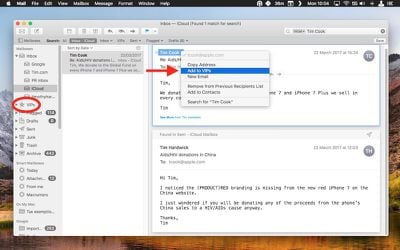
macOS Mail VIPs

With at least one contact in your VIPs list, a special VIP inbox will appear in the Favorites bar. If you click the VIP inbox and select a VIP, only messages from that person will be shown in the message list.

How to Revoke a Contact's VIP Status in macOS

In Mail, you can right-click on a person's VIP mailbox in the sidebar and select Remove from VIPs. Alternatively:

  1. Select a message in your inbox from the person whose VIP status you want to remove.

  2. Click the star next to the person's name so that the symbol is no longer opaque. You can also click the down arrow next to the name or address and select Remove from VIPs in the dropdown menu.
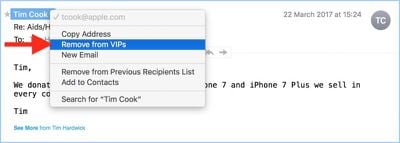
macos remove VIPs

How to Set Up VIP Alerts in macOS

  1. Launch the Mail app.

  2. Select Preferences... from the Mail menu bar.

  3. Stay in the General pane, and select VIPs from the dropdown menu next to New message notifications.
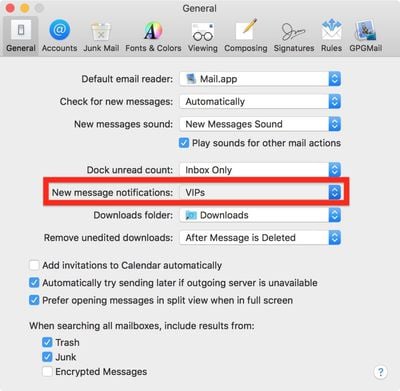
macOS VIP notifications

How to Add a Contact to Your VIP List in iOS 11

  1. Launch the Mail app on your iPhone or iPad.

  2. Tap Mailboxes in the upper left corner of the screen.

  3. If you've not created any VIPs before, tap the VIP inbox, which should appear below your regular mailboxes. If you're adding to an existing VIP list, tap the circled 'i' icon next to the VIP inbox.

  4. Tap Add VIP. This option will appear either at the center of the screen if you have no VIPs yet, or at the bottom of your existing VIP list.

  5. Select the person from your contacts that you'd like to add to your VIP list. (Note that the contact card needs to include their email address, otherwise you won't be able to add them as a VIP.)
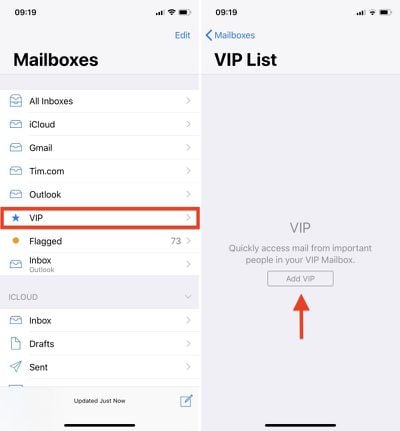
ios 11 add VIPs Mail

How to Revoke a Contact's VIP status in iOS 11

  1. Launch the Mail app on your iPhone or iPad.

  2. Tap Mailboxes in the upper left corner of the screen.

  3. Tap the circled 'i' icon next to the VIP inbox.

  4. Swipe across the name of the person you want to remove from your VIP list, tap Delete, and you're done. Alternatively, if you want to remove several contacts, tap Edit in the upper right corner of the screen.
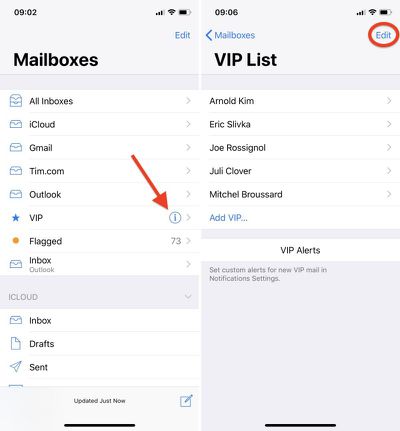
  5. Tap the red minus symbol next to the contacts that you wish to remove from your VIP list.

  6. Tap Delete.

  7. Tap Done in the upper right corner of the screen.

ios 11 revoke VIPs Mail

How to Set Up VIP Alerts in iOS 11 and Apple Watch

You can set custom notifications using the VIP alerts button on the VIP list screen. To change your custom VIP alerts at any time, open the Settings app and tap through to Notifications -> Mail -> VIP.

Similarly, you may find email alerts on your Apple Watch aren't worth your time unless the messages are from specific people. So add these to your VIP list, and you can disable all watch Mail notifications except for VIP alerts. You can find these settings in the iOS Watch app in Notifications -> Mail.
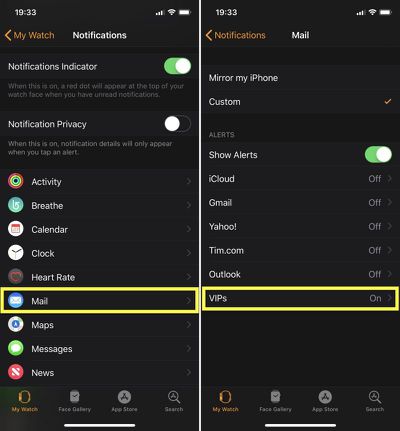
VIP alerts apple watch

How to Add a Contact to Your VIP List in iCloud Mail

  1. If you haven't already, navigate to icloud.com in a web browser, sign in using your Apple ID credentials, and select Mail in the web app list.

  2. Select a message in your inbox from the sender you want to make a VIP.

  3. Click the sender's name or email address in the message header.

  4. In the dropdown menu, tick the checkbox next to VIP and click Save.
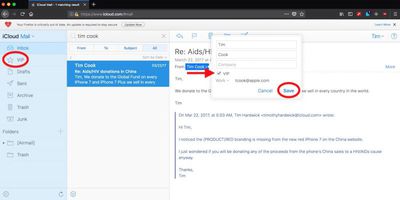
icloud mail VIPs

Note that you can also make a sender a VIP by dragging a message from the sender to the VIP folder in the iCloud Mail sidebar.

How to Revoke a Contact's VIP Status in iCloud Mail

  1. In iCloud Mail, select a message from the person whose VIP status you want to remove.

  2. Click the sender's name or email address in the message header.

  3. In the dropdown menu, untick the checkbox next to VIP and click Save.

Related Roundup: Apple Watch 12
Buyer's Guide: Apple Watch (Buy Now)

Popular Stories

General macOS Mail Feature

Microsoft 365 Work Accounts May Stop Syncing in Apple Mail

Thursday October 1, 2026 3:17 am PDT by
From October 1, 2026, Microsoft began disabling Exchange Web Services (EWS) by default in Exchange Online, which will cut off the protocol that Apple's Mail and Calendar apps on Mac still rely on to sync Microsoft 365 work accounts. The cutoff has been on the cards for a fairly long time, as Microsoft stopped adding new features to EWS back in 2018, while in 2023 it announced that it would...

apple watch s12 ultra 4

Apple Watch Series 12, Ultra 4 Owners Report Skin Irritation

Wednesday October 7, 2026 12:02 pm PDT by
Some Apple Watch Series 12 and Ultra 4 owners have experienced unexpected skin irritation with the new models, according to reports on the MacRumors forums and Reddit. Affected users complain of a burning sensation and redness under the sensor area. The Apple Watch Series 12 and Ultra 4 measure heart rate every five seconds, and some people have wondered if that's the cause of the skin...
southern straps 3 1

MacRumors Giveaway: Win an Apple Watch Series 12 and a Nylon Band From Southern Straps

Friday October 9, 2026 10:20 am PDT by
For this week's giveaway, we've teamed up with Southern Straps to offer MacRumors readers a chance to win an Apple Watch Series 12 and a nylon band from Southern Straps to go along with it. Southern Straps is a California-based company that has been making high-quality bands for the Apple Watch since the device first launched in 2015, and the company's selection of bands offer a an...

Top Rated Comments

111 months ago
they should pay much more attention to mail app, they've been ignoring it for a long time .. it's ok for a personal usage, but I'm missing some important features for a work related mail handling - especially more advanced text formatting/highlighting, issues with tables, not possibly to schedule emails etc etc. But Apple has been ignoring MacOS as a whole for quite some time (I blame Cook) which is sad
Score: 3 Votes (Like | Disagree)
111 months ago
macOS has a limit of 100 VIP, but iOS doesn’t, so you can add 100+ via your iDevice and these will work as will on the macOS mail app. Been using the “trick” for a few years, no problem so far on macOS Sierra.

You can also add VIP to contacts who aren't in your address book on iOS. When you receive an email in the iOS mail app, just click on the email address in the open email and there will appear a window overlay on top. In one of the first fields, you can choose "add to VIP".

Wish apple would remove the limit, since I like using it for important clients
Score: 1 Votes (Like | Disagree)
Latest Stories
Giant iPhone Duo Displays Coming to Four Apple Stores
49 minutes ago
Apple Pulls Keynote, Pages and Numbers From App Store
2 hours ago
Apple Updates More Apps With iPhone Duo Support
2 hours ago
Apple Will Label Apps 'Made for iPhone Duo' in App Store
5 hours ago
Amazon Takes $49 Off iPad With Prices Starting at $399.99
6 hours ago
F1 on Apple TV Now Available in Dolby Atmos
6 hours ago
Apple Reveals More Than 50 Apps That Will Be Updated for iPhone Duo
7 hours ago
Apple Blocks Certificates That Could Help Attackers Fake Websites
8 hours ago
Giant iPhone Duo Installations Spotted at Apple Fifth Avenue
9 hours ago
iPhone Duo 2 Prototypes Include Under-Display Face ID
9 hours ago
Tesla App Gains iPad and iPhone Duo Support
13 hours ago
Apple Reportedly Boosts iPhone Duo Orders by 44%
13 hours ago
Fortnite Returning to Australian App Store After Court Ruling
14 hours ago
Apple Ordered to Open iPhone to Rival App Stores in Australia
14 hours ago
Apple Suppliers Face Hurdles Cutting Circuit Board Emissions
14 hours ago
Things Updated for iPhone Duo With Adaptive Layout
15 hours ago
Simplicity and Siri AI Are HomeView's Killer Features, Apple Says
15 hours ago
iPhone Duo Reviewers Really Miss Face ID
20 hours ago
Does the iPhone Duo Run Hot? Here's What Reviews Found
22 hours ago
Apple Music's New Look is Now Live on Apple's Website
22 hours ago
Anthropic Launches Claude Duet, a Proactive AI Agent
23 hours ago
What 32,000 Folds Did to the iPhone Duo's Hinge
1 day ago
iPhone Duo's Hidden FaceTime Camera Takes 'Trash' Photos
1 day ago
iPhone Duo Has 'Edge Light' Feature That Debuted on Macs Last Year
1 day ago
Apple Support App Updated for iPhone Duo's Larger Display
1 day ago
Amazon Sweetens the Deal on Entry-Level 16-Inch MacBook Pro With $570 Off
1 day ago
iPhone Duo Tips Over on MagSafe Stands When Unfolded
1 day ago
Apple Music's New Look Officially Announced
1 day ago
iPhone Duo Supports Apple Pencil Starting With iOS 27.2
1 day ago
iPhone Duo Accessories Roundup: Cases and Screen Protectors From OtterBox, ZAGG, and More
1 day ago