iOS 26.1 Features: Everything New in iOS 26.1 - GeekWebGuides
Skip to Content

iOS 26.1 Features: Everything New in iOS 26.1

iOS 26.1 is the first major update to the iOS 26 software that came out in September, and it's now available for everyone. There are some useful new features in iOS 26.1 that address complaints about Liquid Glass and fix a longtime Lock Screen irritation.


We've complied a list of all of the new features in iOS 26.1, down to the tiniest interface change.

Liquid Glass Transparency Toggle

There is a new setting for customizing the look of Liquid Glass. You can now opt for a more tinted look that adds opacity.
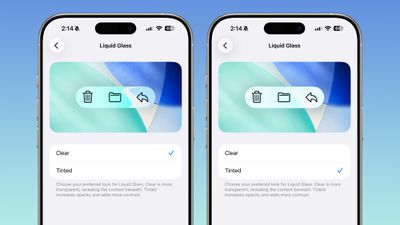
ios 26 1 liquid glass opaque
Under Settings > Display and Brightness, there's a new option to switch between Clear or Tinted settings. Clear is more transparent and is the standard version of Liquid Glass that displays the background underneath buttons, menu bars, and other interface elements, while Tinted increases the opacity of Liquid Glass to improve contrast.

You'll see the most noticeable difference in apps and with Lock Screen notifications when Tinted mode is enabled.

Lock Screen Camera Swipe

Apple finally added a way to turn off the Lock Screen gesture that opens the Camera app, which means no more accidentally turning on the camera when your iPhone is in your pocket.
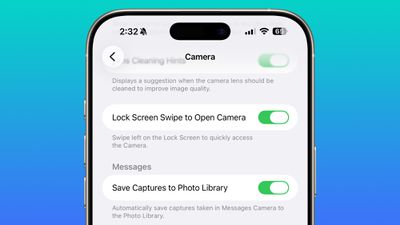
lock screen swipe disable camera
In the Camera section of the Settings app, there's a Lock Screen Swipe to Open Camera setting, and turning it off disables the left swipe that opens the Camera app.

There was previously no way to turn off Lock Screen camera activation without disabling the camera app entirely.

Phone Haptics

The Phone app includes a toggle to turn off haptic feedback when a call is connected or dropped, so if you find that little buzz irritating, you can now disable it.
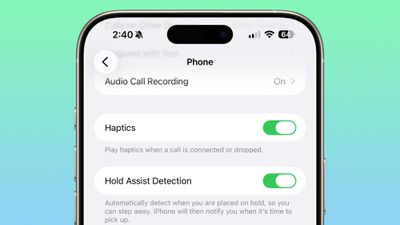
ios 26 1 phone haptics

Alarms and Timers

Apple updated the interface of alarms and timers in iOS 26.1. There's now a Slide to Stop bar on the Lock Screen instead of a tap to stop button.

ios 26 1 slide to stop

You can still snooze an alarm with a tap on the oversized button, but to turn it off entirely, you need to use a slide gesture that requires more dexterity.

If you've accidentally dismissed an alarm while trying to tap the snooze button and then overslept, this will be a welcome change. Unfortunately, there is no option to choose to stick with the tap to stop button.

New Apple Intelligence Languages

Apple Intelligence is now available in Danish, Dutch, Norwegian, Portuguese (Portugal), Swedish, Turkish, Chinese (Traditional), and Vietnamese.

The new languages join English, French, German, Italian, Portuguese (Brazil), Spanish, Chinese (Simplified), Japanese, and Korean, opening up ‌Apple Intelligence‌ to more people.

AirPods Live Translation Languages

AirPods Live Translation works with additional languages in iOS 26.1, including Japanese, Korean, Italian, and Chinese (both Mandarin Traditional and Simplified).

At launch, Live Translation was limited to English (US, UK), French (France), German, Portuguese (Brazil), and Spanish (Spain).

You can translate to and from all of the above languages with the AirPods Pro 2, AirPods Pro 3, or AirPods 4 with ANC.

Apple Music

There's a hidden Apple Music gesture in iOS 26.1. You can swipe on the music player in the ‌Apple Music‌ app to switch songs. Just slide a finger over where the song title is listed, and it'll go to the next song or back to the previous song.
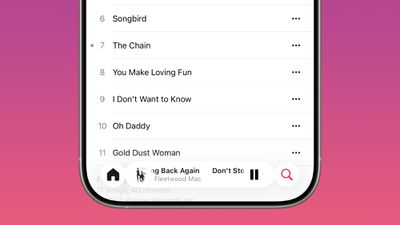
ios 26 1 apple music swipe

AirPlay

‌Apple Music‌ AutoMix now works over AirPlay, so you'll hear AutoMix transitions when playing music over ‌AirPlay‌ 2-compatible speakers.

Apple TV App

The Apple TV app has a new, more colorful icon that adopts the Liquid Glass aesthetic. The redesign coincides with Apple's decision to drop the "Plus" from its ‌Apple TV‌ streaming service. ‌Apple TV‌+ is now called ‌Apple TV‌ in the ‌Apple TV‌ app.

apple tv rebrand icon

Fitness App

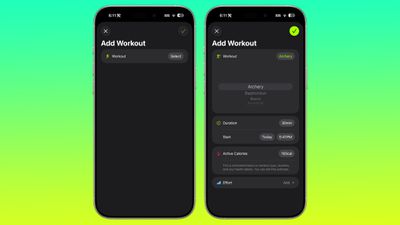
You can now create fully custom workouts in the Fitness app on iPhone. There are options for selecting workout type, estimated Active Calories, effort, duration, and start time.
ios 26 1 custom workout

There were workout creation options before, but they were more structured than the open, custom creation options that are in iOS 26.1.

Settings App

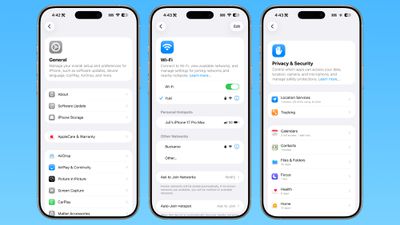
Apple changed the alignment of icons and text in the Settings app. All settings with headers that feature text now have that text aligned to the left instead of center aligned. It's a small change that makes a big visual difference.
ios 26 1 left aligned settings
This includes General, Bluetooth, Wi-Fi, Cellular, Personal Hotspot, Accessibility, ‌Apple Intelligence‌, and more.

Home Screen Folders

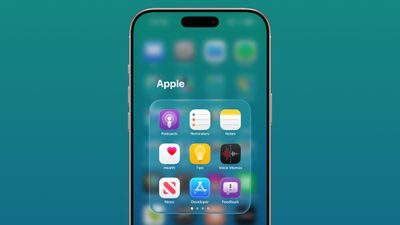
When you tap into a folder on the Home Screen, the name of the folder at the top is left aligned instead of center aligned, matching the changes made in the Settings app.
ios 26 1 folder alignment

Phone

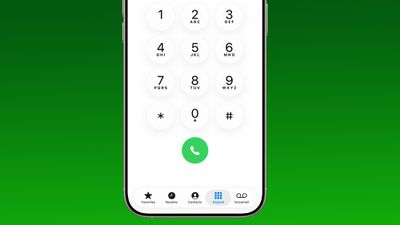
The Phone keypad now uses Liquid Glass for the numbers, fixing a visual issue present in ‌iOS 26‌.

ios 26 1 phone app keypad

Photos

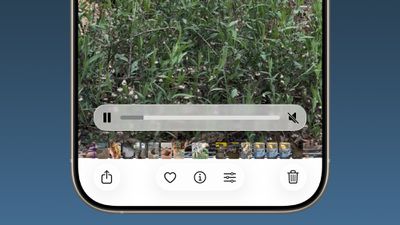
The slider for scrubbing through videos in the Photos app has a new look.
ios 26 1 photos app video

The ‌Photos‌ app navigation bar has a slightly more frosted look that makes it easier to see on light backgrounds.
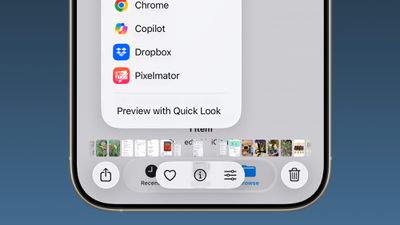
ios 26
The interface for managing multiple photos that you've selected has been tweaked slightly. Play as Slideshow, Favorite, and Hide have been relocated to the top of the menu.
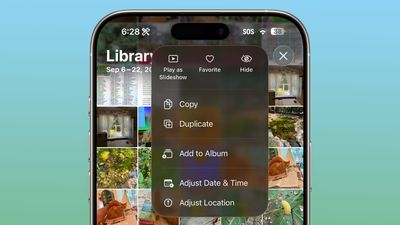
ios 26 1 photos app

Safari

The Tab Bar (Bottom) in Safari is wider with less padding around the edges, so there's less wasted space. In Reduce Transparency mode, there's more padding, so it no longer looks odd.
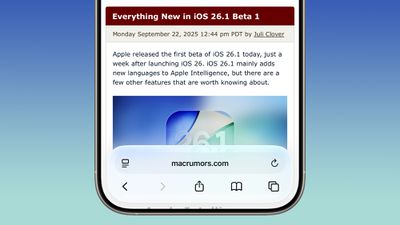
ios 26 1 safari bar

Background Security Improvements

The Privacy and Security section of the Settings app has a toggle to automatically download and install security improvements. It's a revamp of the prior Rapid Security Responses feature that allows Apple to provide security updates without having to offer a full new version of iOS.
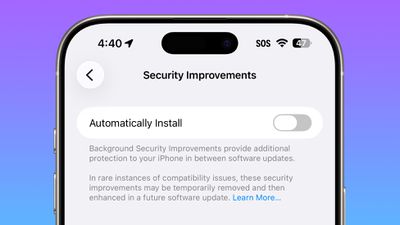
ios 26 1 security improvements

Display Settings

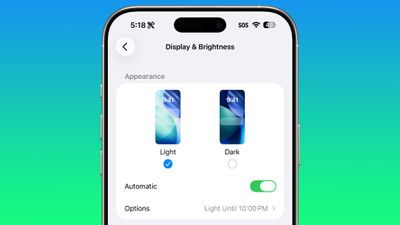
The Display section of the Settings app now has iOS 26-themed wallpaper instead of iOS 18 wallpaper, fixing an ‌iOS 26‌ oversight.

display brightness setting ios 26 1

Liquid Glass

The light refraction effect around apps is now more subtle with darker icon colors and background colors. It's a subtle change that most might not notice.

Wallpaper

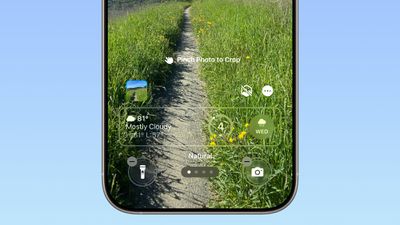
When setting a wallpaper on the Lock Screen, instructions like Pinch to Crop show up momentarily and then disappear rather than being shown all the time, which gives a better view of your wallpaper when you're choosing how you want it to appear.
ios 26 1 wallpaper crop

Display Accessibility

Under the Display and Text Size section in the Accessibility settings, there is a "Display Borders" toggle. It adds a border to all buttons, and replaces the prior "Button Shapes" setting.

Local Capture Settings

There's an option to set a location in the Files app for audio and video recordings from calls. It's available by going to Settings > General > Local Capture.

External Microphones

There's an option to adjust input gain when using an external microphone with local capture.

FaceTime

FaceTime now supports improved audio quality in low-bandwidth conditions.

Communication Safety

Communication Safety and Web content filters that limit access to adult websites are not enabled by default for existing child accounts for ages 13-17.

iPadOS 26.1 - Slide Over

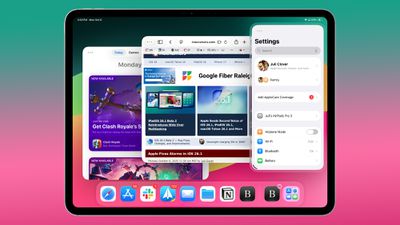
Many of the changes above are in iPadOS 26.1 too, and iPadOS 26.1 also includes major changes to multitasking. With iPadOS 26.1, Apple reintroduced Slide Over. Slide Over works alongside the window-based iPadOS 26 multitasking functionality, so you can have multiple windows open and still swipe over to quickly access a Slide Over app.
ipados 26 1 slide over
You can only have one Slide Over app at a time in iPadOS 26.1, and you can use the feature by tapping on the green window resizing button and toggling on Enter Slide Over.

The iPadOS 26.1 update also brings a Vision Pro app to the iPad.

Download iOS 26.1

You can get the update by opening up the Settings app, choosing the General section, and tapping on Software Update.

Compatibility

iOS 26.1 is available on all devices that are able to run ‌iOS 26‌, which includes the iPhone 11 and later along with the iPhone SE 2.

iPadOS 26.1 is available on all iPads able to run ‌iPadOS 26‌.

Related Roundups: iOS 26, iPadOS 26
Related Forum: iOS 26

Popular Stories

iOS 27 Feature Dark

Apple Now Pushing iPhone Users Still on iOS 26 to Install iOS 27

Thursday October 8, 2026 1:17 pm PDT by
Starting today, iPhone users still running iOS 26 will see iOS 27.0.1 as the prominent software update in the Settings app under General → Software Update, with iOS 26.7.1 now relegated to a smaller "Also Available" section at the bottom. iOS 27 was released on September 14, but until now that update and later iOS 27.0.1 were shown under the "Also Available" section, with iOS 26.7 and...
apple lock security bug vulnerability fix privacy

iOS 26.7.1 Fixes Vulnerability Used in Targeted Attacks

Monday September 28, 2026 11:45 am PDT by
iOS 26.7.1, iPadOS 26.7.1, macOS Tahoe 26.7.1, and macOS Sequoia 15.8.1 address a major vulnerability that Apple believes was used against a small number of people. Apple's security support pages say there was a CoreGraphics out-of-bounds write issue that could be exploited with a maliciously crafted file, allowing for arbitrary code execution. It has been fixed with improved bounds...
M5 MacBook Pro

RIP, MacBook Ultra

Monday October 19, 2026 9:37 am PDT by
Apple today sent out invites for an experience in Los Angeles on Wednesday, October 28, and the "Pro and tell" tagline on the invitation likely means that the rumored MacBook models with touch-enabled OLED displays will stick with MacBook Pro branding instead of the once-rumored "MacBook Ultra" name. The long-rumored "iPhone Ultra" ended up being named iPhone Duo, so speculation that Apple...

Top Rated Comments

sniffies Avatar
13 months ago
Nice changes, but I desperately need an option to make it super hard to trigger Home Screen edit wiggle mode.

Every time I handle my iPhone, it's somehow in the wiggle mode. Lost count of how many times I've accidentally rearranged or nearly deleted apps.

🤬

P.S. Lock Screen, too.
Score: 26 Votes (Like | Disagree)

13 months ago

This may shock you but implementing AI across 5 product lines and 2 dozen or so devices may be a process that takes a few years.

What people don't seem to understand is that Apple HAS shipped a ton of work on Apple Intelligence. The problem is almost none of it is user facing, and the stuff that is directly usable by end users is pretty lame. Now over the next few years they will build on that foundation and hopefully come up with something that's pretty good.
This may not shock you but Apple has failed for decades regarding Siri implementation across all their product lines. No once cares for their excuses. They are a 4 trillion dollar company for goodness sakes!
Score: 17 Votes (Like | Disagree)
13 months ago
iOS 26.1 is a cluster**** like usual! Apple should be embarrassed how bad their software development team has become.
Score: 12 Votes (Like | Disagree)
13 months ago
This screen shows you everything that is currently wrong with the glass design. It's a visual mess.

Who thought this was a good interface? Even when approached objectively, it’s hard to read, difficult to understand, and a real pain to use.

Icons overlap, text is truncated, documents appear as nanoscopic miniatures, and the branding is obscure and unnecessary. What the hell is Quick Look, and why do I need to know about it? Wouldn’t “preview” suffice?

Trying to solve the problem of limited screen space by layering multiple UI levels on top of each other makes no sense on a 2D display. It might work in a VR device like the Vision Pro, but even then the random apps, commands, and icons create pointless clutter.

It’s time Apple looks beyond its bubble and acknowledges the growing disconnect between its products and users.

Attachment Image
Score: 11 Votes (Like | Disagree)
13 months ago

If you've accidentally dismissed an alarm while trying to tap the snooze button and then overslept, this will be a welcome change. Unfortunately, there is no option to choose to stick with the tap to stop button.

Take a look at Settings -> Accessibility -> Touch -> Prefer Single-Touch Actions
Score: 11 Votes (Like | Disagree)
13 months ago
Got super excited for a minute when I saw Liquid Glass toggle. I was hoping it was a toggle to turn it off completely.
Score: 9 Votes (Like | Disagree)
Latest Stories
Giant iPhone Duo Displays Coming to Four Apple Stores
59 minutes ago
Apple Pulls Keynote, Pages and Numbers From App Store
2 hours ago
Apple Updates More Apps With iPhone Duo Support
2 hours ago
Apple Will Label Apps 'Made for iPhone Duo' in App Store
5 hours ago
Amazon Takes $49 Off iPad With Prices Starting at $399.99
6 hours ago
F1 on Apple TV Now Available in Dolby Atmos
6 hours ago
Apple Reveals More Than 50 Apps That Will Be Updated for iPhone Duo
7 hours ago
Apple Blocks Certificates That Could Help Attackers Fake Websites
8 hours ago
Giant iPhone Duo Installations Spotted at Apple Fifth Avenue
9 hours ago
iPhone Duo 2 Prototypes Include Under-Display Face ID
9 hours ago
Tesla App Gains iPad and iPhone Duo Support
13 hours ago
Apple Reportedly Boosts iPhone Duo Orders by 44%
13 hours ago
Fortnite Returning to Australian App Store After Court Ruling
14 hours ago
Apple Ordered to Open iPhone to Rival App Stores in Australia
14 hours ago
Apple Suppliers Face Hurdles Cutting Circuit Board Emissions
15 hours ago
Things Updated for iPhone Duo With Adaptive Layout
15 hours ago
Simplicity and Siri AI Are HomeView's Killer Features, Apple Says
15 hours ago
iPhone Duo Reviewers Really Miss Face ID
20 hours ago
Does the iPhone Duo Run Hot? Here's What Reviews Found
22 hours ago
Apple Music's New Look is Now Live on Apple's Website
22 hours ago
Anthropic Launches Claude Duet, a Proactive AI Agent
23 hours ago
What 32,000 Folds Did to the iPhone Duo's Hinge
1 day ago
iPhone Duo's Hidden FaceTime Camera Takes 'Trash' Photos
1 day ago
iPhone Duo Has 'Edge Light' Feature That Debuted on Macs Last Year
1 day ago
Apple Support App Updated for iPhone Duo's Larger Display
1 day ago
Amazon Sweetens the Deal on Entry-Level 16-Inch MacBook Pro With $570 Off
1 day ago
iPhone Duo Tips Over on MagSafe Stands When Unfolded
1 day ago
Apple Music's New Look Officially Announced
1 day ago
iPhone Duo Supports Apple Pencil Starting With iOS 27.2
1 day ago
iPhone Duo Accessories Roundup: Cases and Screen Protectors From OtterBox, ZAGG, and More
1 day ago