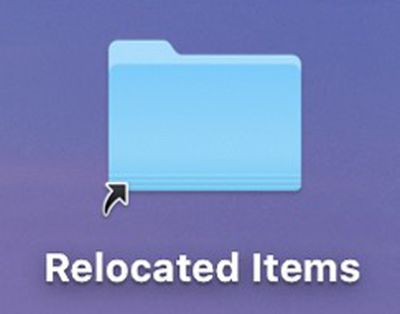
 After upgrading to macOS Catalina, you may be surprised to discover a shortcut on your Mac's desktop to a Relocated Items folder that wasn't there previously. The generation of this folder is actually normal behavior when upgrading an older version of macOS to Catalina, but we're highlighting it in this article because a lot of users are confused about why the folder exists and what to do with its contents.
What Are Relocated Items?
Relocated items are older files and data from previous macOS installations that Apple is not sure what to do with after upgrading to Catalina.
Catalina is the first version of macOS to adopt wholesale the relatively new Apple File System (APFS), which is optimized for the flash storage used in recent Macs. Aside from introducing a bunch of other new technical features, an APFS-formatted disk uses a space-sharing "container" that can house multiple secure "volumes" or file systems. This allows the disk's free space to be shared on demand and allocated to any of the individual volumes in the container as required.
When you upgrade to macOS 10.15, Catalina is installed on a dedicated read-only system volume called "Macintosh HD," while your files and data are stored separately in another volume named "Macintosh HD - Data." The idea behind this setup is that it helps prevent the accidental overwriting of critical operating system files, since the user can no longer alter data or store files on the read-only system volume.
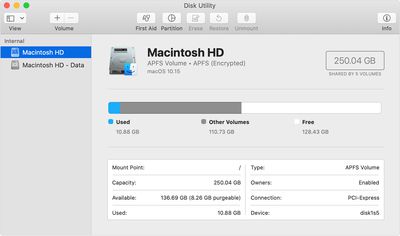
In practice, the average user shouldn't notice any difference after the split, since both volumes appear in Finder as a single unified Macintosh HD volume (although if you want, you can view them separately in Disk Utility).
However, during the upgrade process, files or data that were previously stored in the startup volume are now stored in the new Macintosh - HD Data volume, and Catalina may not be able to find a corresponding home for them there. That's where the Relocated Items folder comes in.
The Relocated Items Folder
While creating the two separate volumes during the upgrade process, Catalina reviews the files and data on your hard drive to check that they're valid, authorized, and in the correct location. Any files and data that couldn't be stored on the Macintosh HD - Data volume in a folder equivalent to their original location, are placed in the Relocated Items folder. This folder also includes a PDF document with more details about these files.
Amongst a bunch of other things that you may not recognize, the folder can include configuration files that were modified by you, by another user, or by an app. Regardless, the modifications make them incompatible with macOS Catalina and are considered redundant as far as the system is concerned.
Can I Delete the Relocated Items Folder?
It's worth reiterating that the Relocated Items folder you see on the Desktop is just a shortcut that can be safely deleted. Doing so will not remove the folder or its contents from your hard disk. You can find the actual folder in /Users/Shared/Relocated Items.
Whether or not you delete the Relocated Items folder proper is entirely up to you. Removing the contents should be safe as far as your Mac's operating system goes, just be sure to check the contents carefully for anything that looks familiar. If you have any third-party apps that don't work since you updated to Catalina, then the Relocated Items folder may well contain data related to them, but it likely needs updating by the developers in new versions of these apps. If you recognize custom configuration files in the Relocated Items folder, then you might want to keep them around for reference in case you want to recreate them at a later date.
If your Relocated Items folder isn't very big, then simply remove the Relocated Items shortcut on your Desktop to remove the eyesore and carry on. But if you feel strongly about deleting the actual files, see below.
How to Delete the Relocated Items folder
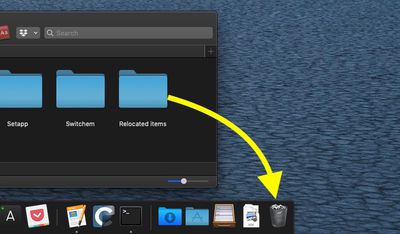
To delete the actual Relocated Items folder, simply drag it into the Trash and then empty the Trash folder. Having said that, some of the contents may resist being deleted when you come to empty the Trash because of old security permissions on the relocated files.
If that's the case, one way to get rid of the files is to disable system integrity protection (SIP) on your Mac. The following steps explain how to disable SIP, but before you go ahead, note that the process involves rebooting your Mac and using Terminal. If you're not familiar with the Terminal command prompt, or if you have any other misgivings about the steps, our advice is to just leave the Relocated Items folder where it is, or move it elsewhere out of sight. MacRumors cannot be held responsible for any data loss.
- If the Relocated Items folder is in your Trash, right-click it there and select Put Back from the contextual pop-up menu.
- Restart your Mac via the Restart... option in the Apple menu bar, and when the boot cycle starts again, hold down the Command and R keys to enter Recovery mode.
- From the Recovery screen menu bar, select Utilities -> Terminal.
- Type csrutil disable and hit Enter.
- Restart your Mac via the Restart option in the menu bar.
- Now delete the Relocated Items folder, then empty the Trash.
- Restart your Mac and enter Recovery mode again using Command-R.
- From the Recovery screen menu bar, select Utilities -> Terminal.
- Type csrutil enable and press Enter to re-enable SIP.
- Restart your Mac via the Restart option the menu bar.
Once you've followed these steps, the contents of the Relocated Items folder should be gone from your system for good.