Top 10 Apple TV Remote Tips and Tricks

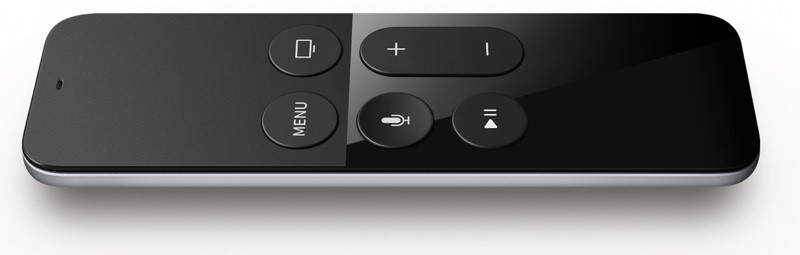
When Apple released the fourth-generation Apple TV in 2015, it also included a new Siri Remote with the set-top box (although in some regions Apple kept the original name "Apple TV Remote" due to Siri not working in those territories).


The redesigned remote features dual microphones for Siri support as well as a glass touch surface for navigating the tvOS interface by swiping, tapping, and scrubbing to fast forward/rewind content. The remote also has a Menu button, a Home button (with a TV icon on it), a Siri button, a Play/Pause button, and a Volume Up/Down button.

With the release of the Apple TV 4K in 2017, Apple tweaked the remote design to add a raised white ring around the Menu button, making it easier to identify the correct orientation of the remote by both touch and feel. The buttons and operation of the remote, however, remained unchanged, and the revised remote is also included with new units of the fourth-generation Apple TV.

In this guide, we've collected 10 of our favorite tips for controlling features of tvOS using the Apple TV Remote included with the fourth generation Apple TV and the latest fifth-generation Apple TV 4K. Keep reading and you might well discover a new trick or two.

1. Quickly Switch Between Open Apps
1 switch apps
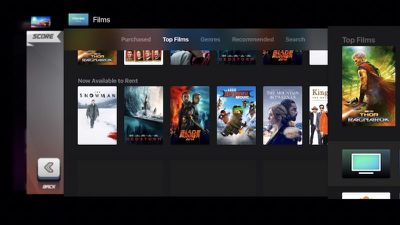
If you have an iOS device then you'll be familiar with this feature. To quickly switch between open Apple TV apps, click the Home button twice. This will bring up the App Switcher screen, which you can navigate by swiping sideways on the Apple TV Remote's touch surface. Tap the surface to open the selected app, or swipe up to force quit it.

2. Quickly Restart Your Apple TV
2 Restart
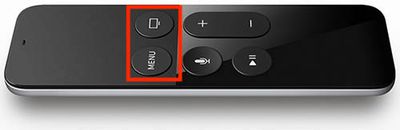
If you're troubleshooting your Apple TV and need to restart it several times, going through the settings screens to select Restart is quickly going to grate. Fortunately, you can perform the same action simply by holding down the Home and Menu buttons simultaneously for six seconds.

3. Sleep Your Apple TV
3 sleep
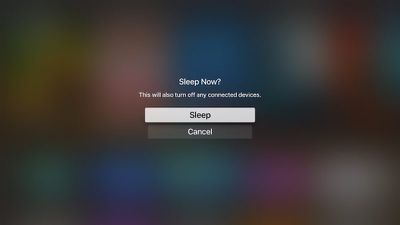
Similarly, if you're regularly digging into setting screens to select the sleep option when you're done using Apple TV, then this tip's for you. Simply hold the Home button for two seconds and the Sleep option will appear at the center of the screen where you can promptly select it.

4. Quick Switch to the Home Screen
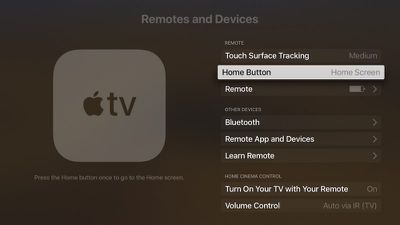
4 home screen
Apple likes new Apple TV owners to associate the Apple TV Remote's Home button with the company's native TV app, but that shortcut can start to get annoying, especially if the things you tend to watch don't even show up there (Netflix content being just one example.) Thankfully, you can reinstate the Home button's original functionality by going into Settings and selecting Remotes and Devices -> Home Button.

5. Activate the Screen Saver

5 Start screensaver
You can set your Apple TV's screen saver to come on after so many minutes have passed (Settings -> General -> Screen Saver -> Start After) but you can also activate it straight away by double-clicking the Menu button on the Apple TV Remote at any time.

6. Rearrange Your Apple TV Apps
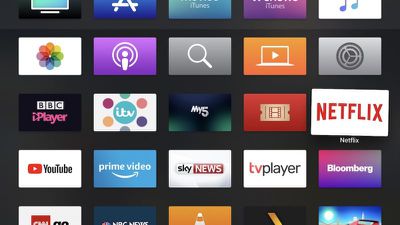
6 Rearrange apps
Whenever you download an Apple TV app from the tvOS App Store it automatically appears at the bottom of the Home screen's grid. If you've installed quite a few apps, you might like to rearrange them. Select the app to move and then click and hold down on the Apple TV Remote's touch surface for a couple of seconds. The app icon will start jiggling, at which point you can swipe to place it where you want. Simply click the touch surface again once you have the app in your preferred location.

7. View Video Settings
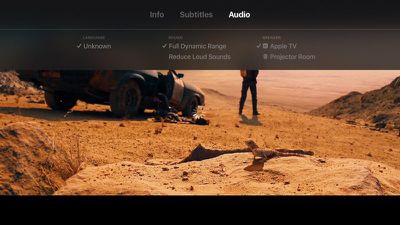
7 video settings
When watching video on Apple TV, you can access a number of media playback settings with a quick swipe down on the Apple TV Remote's touch surface. The info overlay that slides into view from the top contains options to enable/disable subtitles, as well as audio settings for language, sound processing, and speaker. Simply navigate the menus using the touch surface and click down to select. A swipe up hides the overlay and returns you back to the video with your changes applied.

8. Quick-Switch Between Lowercase/Uppercase Keyboard
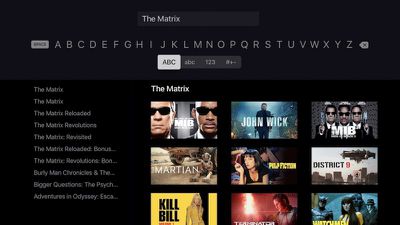
8 Keyboard
When using Apple TV's onscreen keyboard, you can avoid the hassle of navigating the cursor between the lowercase and uppercase layout, simply by pressing the Play/Pause button on your Apple TV Remote. This instantly switches the letters from lowercase to uppercase and vice versa, which makes entering passwords in particular less of a chore.

9. Quick Backspace and Access to Alternate Characters

This is another handy tip for using Apple TV's onscreen keyboard that makes navigating it a lot less frustrating.
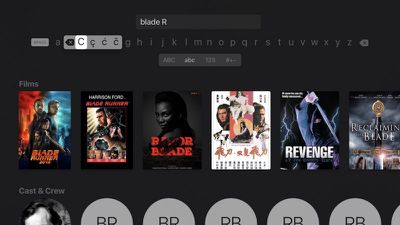
9 Quick Backspace
Next time you need to correct a mistake, don't bother swiping all the way to the far right of the screen to select the backspace key. Instead, click down on the Apple TV Remote's touch surface and hold until the character overlay appears. A quick swipe left will now automatically delete the last letter you entered in the input field.

10. Change Audio Output Device on the Fly
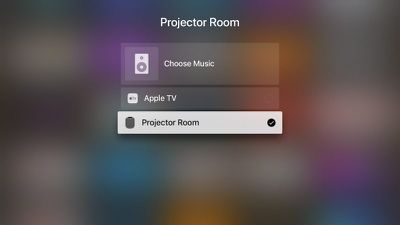
10 Change audio output
There's a quick way to switch your Apple TV's audio output device right from the home screen. Hold down the Play/Pause button on the Apple TV Remote, and in the menu that comes up on the screen, simply select the device you want to link to by clicking the Remote's touch surface.

Got an Apple TV Remote tip we haven't covered here? Be sure to share it in the comments.

Related Roundup: Apple TV
Buyer's Guide: Apple TV (Don't Buy)

Popular Stories

Apple Logo Zoomed

Tim Cook Teases Plans for Apple's Upcoming 50th Anniversary

Thursday February 5, 2026 12:54 pm PST by
Apple turns 50 this year, and its CEO Tim Cook has promised to celebrate the milestone. The big day falls on April 1, 2026. "I've been unusually reflective lately about Apple because we have been working on what do we do to mark this moment," Cook told employees today, according to Bloomberg's Mark Gurman. "When you really stop and pause and think about the last 50 years, it makes your heart ...
Finder Siri Feature

Why Apple's iOS 26.4 Siri Upgrade Will Be Bigger Than Originally Promised

Friday February 6, 2026 3:06 pm PST by
In the iOS 26.4 update that's coming this spring, Apple will introduce a new version of Siri that's going to overhaul how we interact with the personal assistant and what it's able to do. The iOS 26.4 version of Siri won't work like ChatGPT or Claude, but it will rely on large language models (LLMs) and has been updated from the ground up. Upgraded Architecture The next-generation...
wwdc sans text feature

Apple Rumored to Announce New Product on February 19

Thursday February 5, 2026 12:22 pm PST by
Apple plans to announce the iPhone 17e on Thursday, February 19, according to Macwelt, the German equivalent of Macworld. The report, citing industry sources, is available in English on Macworld. Apple announced the iPhone 16e on Wednesday, February 19 last year, so the iPhone 17e would be unveiled exactly one year later if this rumor is accurate. It is quite uncommon for Apple to unveil...
iOS 26

iOS 26.3 and iOS 26.4 Will Add These New Features to Your iPhone

Tuesday February 3, 2026 7:47 am PST by
While the iOS 26.3 Release Candidate is now available ahead of a public release, the first iOS 26.4 beta is likely still at least a week away. Following beta testing, iOS 26.4 will likely be released to the general public in March or April. Below, we have recapped known or rumored iOS 26.3 and iOS 26.4 features so far. iOS 26.3 iPhone to Android Transfer Tool iOS 26.3 makes it easier...
iphone 17 pro dark blue 1

iPhone 18 Pro Max Rumored to Deliver Next-Level Battery Life

Friday February 6, 2026 5:14 am PST by
The iPhone 18 Pro Max will feature a bigger battery for continued best-in-class battery life, according to a known Weibo leaker. Citing supply chain information, the Weibo user known as "Digital Chat Station" said that the iPhone 18 Pro Max will have a battery capacity of 5,100 to 5,200 mAh. Combined with the efficiency improvements of the A20 Pro chip, made with TSMC's 2nm process, the...

Top Rated Comments

Botanique Avatar
104 months ago
('https://www.geekwebguides.com/guide/top-10-apple-tv-remote-tips-tricks/')


When Apple released the fourth-generation Apple TV in 2015, it also included a new Siri Remote with the set-top box (although in some regions Apple kept the original name "Apple TV Remote" due to Siri not working in those territories).


The redesigned remote features dual microphones for Siri support as well as a glass touch surface for navigating the tvOS interface by swiping, tapping, and scrubbing to fast forward/rewind content. The remote also has a Menu button, a Home button (with a TV icon on it), a Siri button, a Play/Pause button, and a Volume Up/Down button.

With the release of the Apple TV 4K in 2017, Apple tweaked the remote design to add a raised white ring around the Menu button, making it easier to identify the correct orientation of the remote by both touch and feel. The buttons and operation of the remote, however, remained unchanged, and the revised remote is also included with new units of the fourth-generation Apple TV.

In this guide, we've collected 10 of our favorite tips for controlling features of tvOS using the Apple TV Remote included with the fourth generation Apple TV and the latest fifth-generation Apple TV 4K. Keep reading and you might well discover a new trick or two.


Click here to read more... ('https://www.geekwebguides.com/guide/top-10-apple-tv-remote-tips-tricks/')

Article Link: Top 10 Apple TV Remote Tips and Tricks ('https://www.geekwebguides.com/guide/top-10-apple-tv-remote-tips-tricks/')
[doublepost=1519728906][/doublepost]These suggestions are helpful - but the fact remains that this is the worst remote I have ever had to deal with. There is a reason my Apple TV sits unloved and unused - the idiotic and frustrating remote. Swipe to change a setting....nothing happens, swipe again - the selection moves five steps across the screen....swipe once more....no movement. Here's a thought....have a look at the Amazon Fire TV remote....simple, functional, it works and I don't need to load an app on my phone as a work around for poor design.
Score: 12 Votes (Like | Disagree)
Mefisto Avatar
104 months ago
I like these kinds of articles. Most of the stuff above I already knew, but there were a few nuggets of really useful, new info as well! Thanks.
Score: 8 Votes (Like | Disagree)
ljonesj Avatar
104 months ago
I hate the remote I use the old aluminum Apple remote it works a lot better I can fast forward and reverse easier with the older remote
Score: 5 Votes (Like | Disagree)
Mike MA Avatar
104 months ago
Very interesting read and collection. The majority of those were not known to me I have to admit. Appreciate it.
Score: 5 Votes (Like | Disagree)
timborama Avatar
104 months ago
The fact these tips require explaining is a huge fail. Nothing about Apple products is intuitive any longer. Worst remote EVER!
Score: 4 Votes (Like | Disagree)
imola.zhp Avatar
104 months ago
The fact these tips require explaining is a huge fail. Nothing about Apple products is intuitive any longer. Worst remote EVER!
These types of comments crack me up. None of these tips are required for the easy use of the remote, these are just shortcuts. I knew most of them but still learned a few new ones and appreciated the tip about turning the double click of the home/tv button back to home as opposed to the tv app (which I still haven not really used).
Score: 3 Votes (Like | Disagree)