With the debut of watchOS 9, Apple introduced new workout features that aim to take your personal fitness to the next level. For example, you can now display running form metrics to your Apple Watch display during running workouts. This article explains what the new metrics are and how you can enable them.
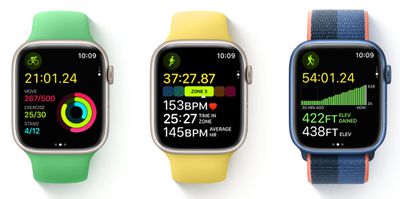
Apple has leaned further into fitness with the release of each new version of watchOS, and the latest version, watchOS 9, adds more metrics to your wrist than ever before on Apple Watch.
In particular, Apple Watch Series 6 and later models can now measure and display additional elements of your running form in real time, including vertical oscillation, running stride length, and ground contact time.
- Vertical oscillation is the amount your torso moves vertically with each step while running. Taken in centimeters, this measurement can give you a sense of how much energy you're using to drive upward versus forward.
- Running stride length is an estimate of how much distance you cover from one step to the next while running in metres. Along with cadence, stride length determines your overall running speed.
- Ground contact time is an estimate of the time each foot spends touching the ground whitle running in milliseconds.
How to View Running Form Metrics for Completed Runs
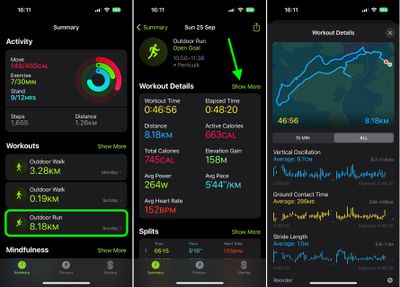
If you've already completed a running workout, you can view these new running form metrics in the Fitness app on your iPhone. Under "Workouts," simply tap the run you completed, then tap Show More alongside "Workout Details."
How to Add Running Form Metrics to Your Apple Watch Workout Display
The following steps show you how to add all three metrics to your Workout Views when creating a new custom running workout, enabling you to switch to them freely when you're on the move.
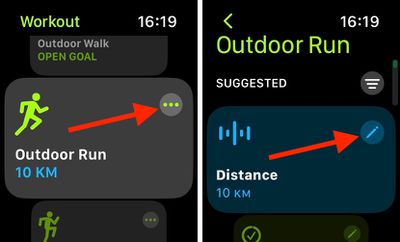
- On Apple Watch, launch the Workout app, then select the ellipsis (three dots) button on the Outdoor Run card.
- Tap the edit (pen) button on the workout card you want to add running form metrics to.

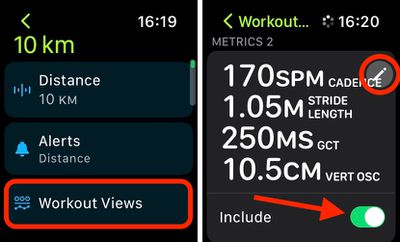
- Tap Workout Views, then tap Edit Views.
- Under "Metrics 2," toggle on the switch next to Include. (You can also optionally tap the Edit button to change the individual metrics displayed.)
- When you're done, tap the Back arrow twice, then tap Start Workout. Alternatively, exit the Workout app with a press of the Digital Crown – your running workout will be ready to use when you are.
To view the new metrics while you're out running, simply turn the Digital Crown on your Apple Watch to switch to the second Workout View that you added to your custom run.