

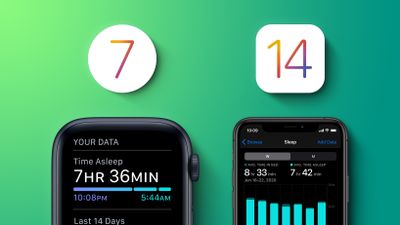
In iOS 14, Apple introduced new sleep features that let you monitor how much sleep you're getting each night and improve your sleep habits with the help of sleep goals, bedtime reminders and a winding down process.
When you set a sleep schedule in the iOS Health app or on Apple Watch, you also have the option to set an alarm to wake you up in the morning. Of course, some days you might want to adjust the time it goes off, or you may want to disable it completely for a well earned lie in.
Fortunately, you don't have to dig into the Health app to do this. The steps below show you how to change your alarm in super-quick time.
How to Adjust Your Wake Up Alarm on iPhone
- Open Control Center on your iPhone: on iPhone 8 or earlier, swipe up from the bottom of the screen; on iPhone X and later, swipe down from the upper right of the screen.
- Tap the Timer or Stopwatch button.
- Tap the Alarm tab at the bottom of the screen.
- Tap the Change button next to the alarm you want to adjust.
- If you want to change your Sleep Schedule for just the night so that your alarm goes off earlier or later, drag the sleep block around the clock graphic to change your bedtime/wakeup time (you can drag the whole thing from the center to make sure you hit your Sleep Goal, or you can reduce/expand the block of time by dragging the ends). Alternately, scroll down and switch off the toggle next to Wake Up Alarm.
- Tap Done to finish.

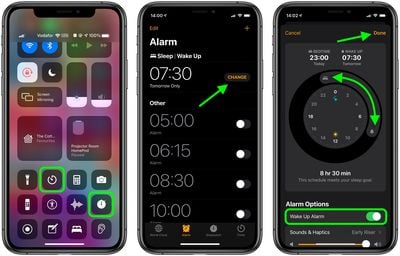
Note that you can also change the alarm's Sounds & Haptics, volume, and add or remove a Snooze from the same screen.
How to Adjust Your Wake Up Alarm on Apple Watch
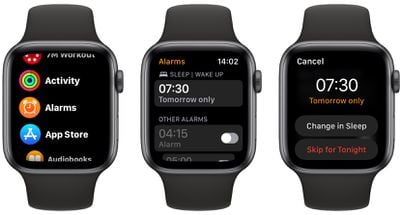
- Press the Digital Crown on your Apple Watch to open the App View.
- If you want to skip your alarm just for the next morning, open the Alarms app, tap the wakeup alarm you want to change, then tap Skip for Tonight, and you're done.
- Alternately, open the Sleep app and tap your sleep schedule.
- Under "Wake Up," tap the time next to the bell icon to adjust the time your alarm goes off, otherwise tap the switch next to Alarm to turn it to the grey OFF position.
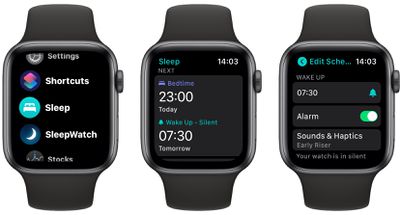
Note that you can also change the alarm's Sounds & Haptics from the same screen. Also bear in mind that if your watch is on silent, it will tap your wrist rather than be an audible alarm.
















