Apple's AirPlay 2 brought speaker controls to the Home app, allowing you to individually control all of your AirPlay-compatible speakers from your iPhone or iPad. Keep reading to learn how to add your speakers to the Home app and organize them by room.
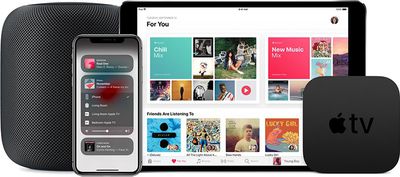
Before you start adding speakers to the Home app, make sure that your iOS device is running iOS 11.4 or later. You should also check that you've turned on iCloud Keychain on your iPhone or iPad. To do so, launch the Settings app, tap your name in the banner at the top, tap iCloud, then turn on the iCloud Keychain toggle.
If you own a HomePod, it should automatically appear in the Home app on your iOS device. You can also add an Apple TV to the Home app as a speaker, so long as it's on the same Wi-Fi network and signed into iCloud with your Apple ID. The following steps show you how to add third-party AirPlay 2 speakers to the Home app.
How to Add Speakers to the Home App
Apple maintains a section of its website that lists the speakers and receivers that come with AirPlay 2 support. Note that some speakers might require a firmware update or additional setup with the manufacturer's app before the following steps work.
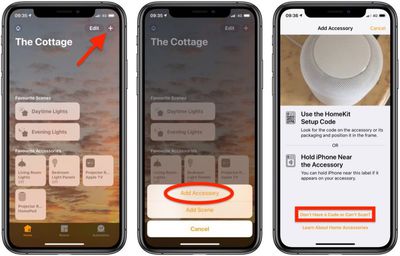
- Launch the Home app on your iPhone or iPad.
- Tap the plus (+) button in the top-right corner of the screen.
- Tap Add Accessory.

- Tap Don't have a Code or Can't Scan, then tap the speaker you want to add. You may have to wait a moment for it to show up.
- Wait for your speaker to be added, then give it a name and choose a room where it's located.
- Tap Done.
How to Organize Your Speakers by Room
When you add speakers to the Home app, you can use AirPlay 2 to play music everywhere in your home. If you have songs in your Music Library, it will also let you play a certain song in one room while something different is playing in another room on a different speaker.
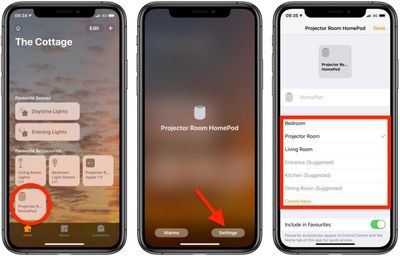
- Launch the Home app on your iPhone or iPad.
- Press and hold the speaker icon.
- Tap Settings.
- Tap Room and choose a room where your Apple TV, HomePod, or other speaker is located.
- Tap Done.
You can use Siri to play music in specific rooms of the house or even multiple rooms. For example, you could invoke the digital assistant with "Hey Siri" and then say something like "Play Red Hot Chili Peppers in the kitchen and the living room."






















![Apple Pulls Keynote, Pages and Numbers From App Store [Update: Back]](https://images.macrumors.com/t/Okb7kitB_gNr6qe5Pex9nQIysD8=/112x112/article-new/2026/01/Apple-Creator-Studio-iWork-suite.jpg)