The Apple TV 4K (second- and third-generation) is capable of relaying audio from a compatible TV to a HomePod – even when you're not using your Apple TV. This allows you to stream audio from a TV-connected game console or other set-top box straight to Apple's smart speakers. Keep reading to learn more and how to set it up.
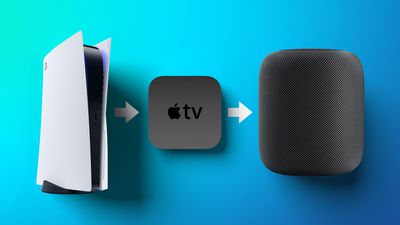
The second- and third-generation Apple TV 4K supports two additional connection standards, called ARC and eARC. ARC (Audio Return Channel) is a feature of HDMI 1.4 that enables audio from a device to be sent to a compatible TV and relayed through its HDMI port to a separate audio receiver, speaker, or sound bar. Meanwhile, eARC (enhanced ARC) adds support for the passthrough of higher bandwidth audio like Dolby Atmos, as well as 5.1 and 7.1 surround sound.
On Apple TV 4K, ARC and eARC support effectively allows a HomePod or HomePod mini (or stereo-paired Homepods in a Home Theater Audio setup) to play audio from other TV-connected devices like a cable box, PS5, or Xbox Series X. The following steps show you how to get it set up.
Set Up ARC or eARC on Apple TV 4K
Make sure that your TV supports ARC or eARC. You can check if it does by seeing if there's an ARC label next to the HDMI port that your Apple TV is connected to. Alternatively, check your TV manual or try contacting the TV manufacturer.
- On your Apple TV, launch the Settings app.
- Select Video and Audio ➝ Audio Output.
- Under "Default Audio Output," make sure the HomePod(s) in the same room as your TV are selected.
- Under "Audio Return Channel," select Play Television Audio. You'll know ARC or eARC is enabled when it says On (ARC) or On (eARC).
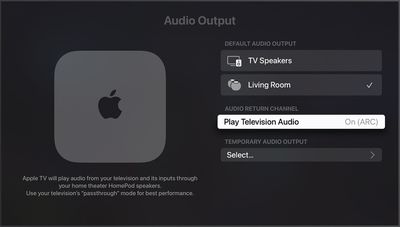
If ARC or eARC doesn't work for you after following the above steps: assuming your TV supports the standard, check whether you need to turn on ARC, eARC, or HDMI-CEC in your TV's settings.