

 In iOS 11 and later, it's possible to add an Apple TV Remote interface to the Control Center that will allow you to quickly navigate and control playback on your 4K Apple TV or fourth-generation Apple TV using your iPhone or iPad. It's a great solution if you just can't get on with Apple's Siri Remote, and doesn't require you to install an app. In this article, we'll show you how to set up the Apple TV Remote on your iOS device and explain how to use it once you've done so.
Before continuing, make sure that your iPhone, iPad, or iPod touch is updated to the latest version of iOS: Open the Settings app, tap General -> About, and look for the version number. If you need to update, tap back to Settings, select Software Update, and follow the onscreen instructions, then meet us back here when installation is complete.
How to Set Up Apple TV Remote in iOS Control Center
- Turn on your Apple TV and the TV/monitor connected to it, and make sure your iOS device and Apple TV are connected to the same Wi-Fi network.
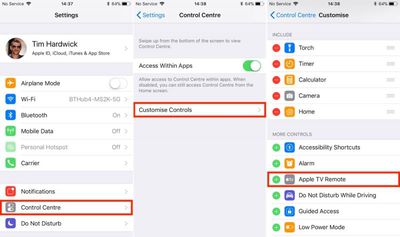
- Launch the Settings app on your iOS device.

- Select Control Center from the options list.
- Tap Customize Controls.
- In the More Controls list, tap the entry called Apple TV Remote.
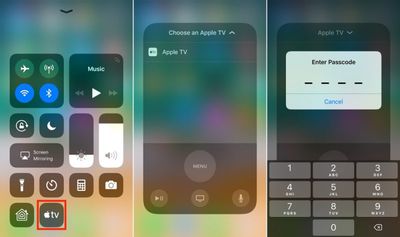
- Next, launch the Control Center on your iOS device in the following manner: On iPad, double-tap the Home button; on iPhone 8 or earlier, swipe up from the bottom of the screen; or on iPhone X, swipe down from the upper right "ear".
- Tap the Apple TV button that now appears in the Control Center grid of options.
- In the Remote overlay that appears, choose the Apple TV that you want to connect to from the list.
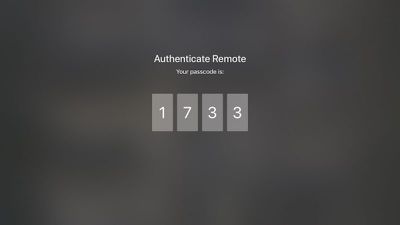
- Enter the four-digit passcode that appears on your Apple TV's display to connect.
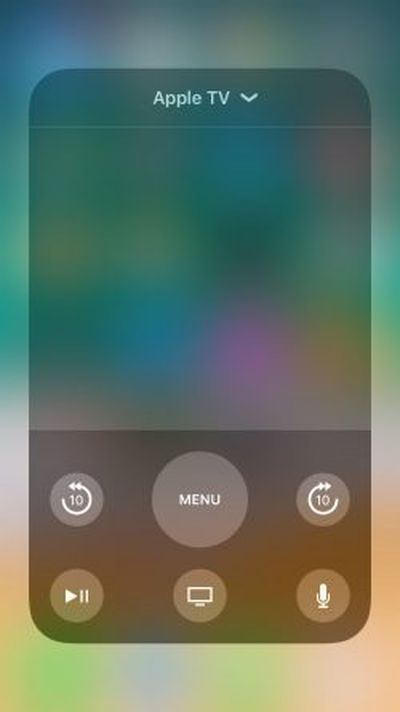
The touch interface that appears on your iPhone or iPad screen will replicate the function of the original Apple TV Remote. If your Apple TV is set up to stream audio to an AirPlay/Bluetooth speaker or headset, you can use the volume buttons on your iOS device to adjust the output volume. Otherwise, you'll have to continue to adjust sound levels using the dedicated remote, your television, or any hi-fi equipment your Apple TV is connected to. With that in mind, here's a quick breakdown of the touchscreen controls that are available to you.
How to Use the Apple TV Remote in iOS Control Center
- The large gray space in the middle of the onscreen interface acts as the touchpad. You can swipe it to move through Apple TV menus, tap it to select items, and use both actions to rewind and fast-forward media during playback.
- The big Menu button can be used to go back a level in menu screens. A quick double tap on it will also activate the Apple TV screensaver.
- During playback, two buttons will appear on either side of the Menu button that allow you to jump forward and back 10 seconds.
- The Play/Pause button in the lower left of the interface can be used to start the selected item straight away, bypassing any associated content info screens.
- The Home button (the one with the TV icon) takes you to the Home screen where all your installed Apple TV apps live in a grid formation. It may also take you to the TV app, depending on your settings.
- The Microphone button activates Siri input, allowing you to perform a variety of voice commands from anywhere in the system. Activating a search field will also bring up a pop-up window that lets you either type using your iOS device's keyboard or dictate your search term. Either of these options is significantly easier than navigating the Apple TV's onscreen keyboard.
For more details on the functions you can perform using the Apple TV Remote's controls, be sure to check out our dedicated tips and tricks guide.













Top Rated Comments
It actually DOES have a volume control. If you can control your TV’s volume with the Siri remote, you’re using AirPods, connected to a Bluetooth speaker, or AirPlay speaker, you can change the volume using the physical volume buttons on your device. Super nifty.
I love these 'delighters' - this is what makes Apple, Apple :)