Top 10 Apple TV Remote Tips and Tricks - MacRumors
Skip to Content

Top 10 Apple TV Remote Tips and Tricks

When Apple released the fourth-generation Apple TV in 2015, it also included a new Siri Remote with the set-top box (although in some regions Apple kept the original name "Apple TV Remote" due to Siri not working in those territories).
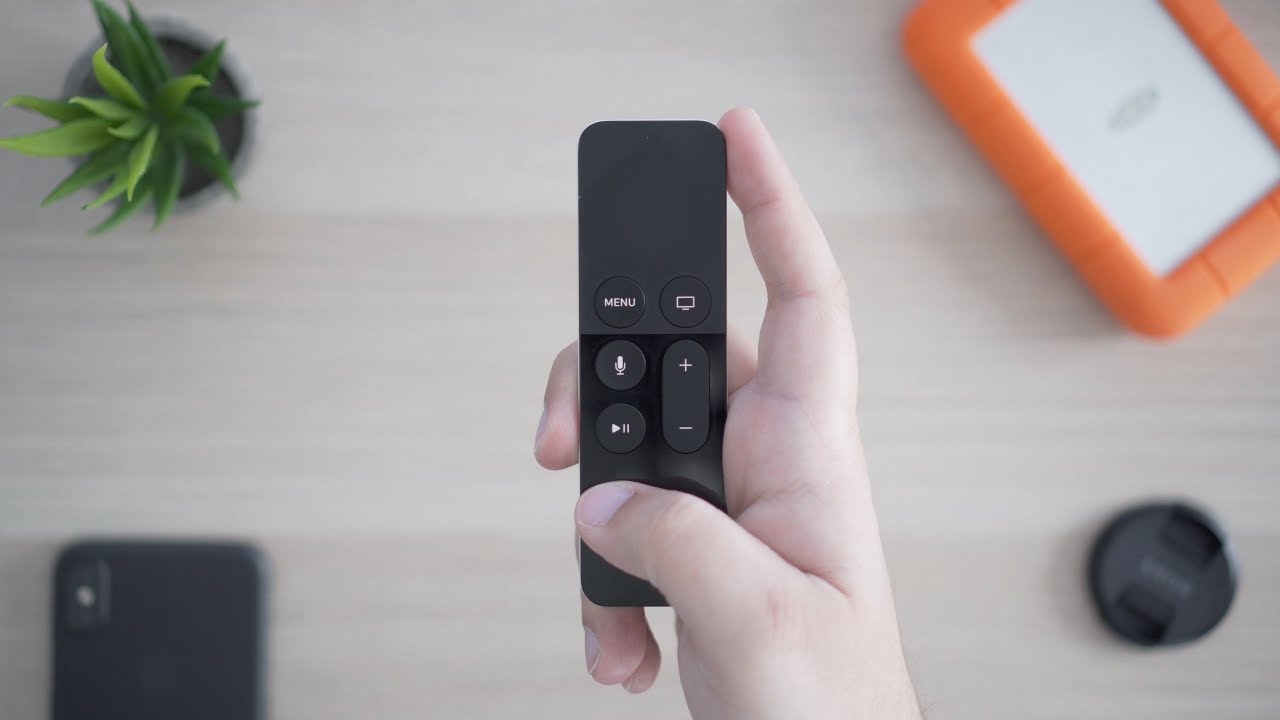

The redesigned remote features dual microphones for Siri support as well as a glass touch surface for navigating the tvOS interface by swiping, tapping, and scrubbing to fast forward/rewind content. The remote also has a Menu button, a Home button (with a TV icon on it), a Siri button, a Play/Pause button, and a Volume Up/Down button.

With the release of the Apple TV 4K in 2017, Apple tweaked the remote design to add a raised white ring around the Menu button, making it easier to identify the correct orientation of the remote by both touch and feel. The buttons and operation of the remote, however, remained unchanged, and the revised remote is also included with new units of the fourth-generation Apple TV.

In this guide, we've collected 10 of our favorite tips for controlling features of tvOS using the Apple TV Remote included with the fourth generation Apple TV and the latest fifth-generation Apple TV 4K. Keep reading and you might well discover a new trick or two.

1. Quickly Switch Between Open Apps
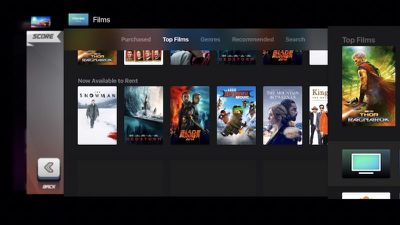
1 switch apps
If you have an iOS device then you'll be familiar with this feature. To quickly switch between open Apple TV apps, click the Home button twice. This will bring up the App Switcher screen, which you can navigate by swiping sideways on the Apple TV Remote's touch surface. Tap the surface to open the selected app, or swipe up to force quit it.

2. Quickly Restart Your Apple TV
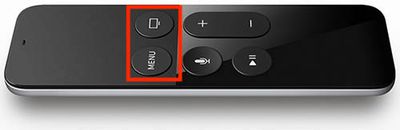
2 Restart
If you're troubleshooting your Apple TV and need to restart it several times, going through the settings screens to select Restart is quickly going to grate. Fortunately, you can perform the same action simply by holding down the Home and Menu buttons simultaneously for six seconds.

3. Sleep Your Apple TV
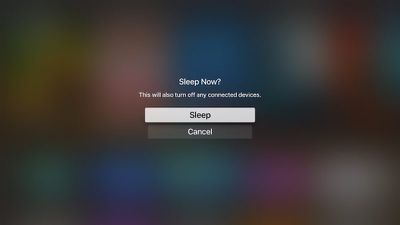
3 sleep
Similarly, if you're regularly digging into setting screens to select the sleep option when you're done using Apple TV, then this tip's for you. Simply hold the Home button for two seconds and the Sleep option will appear at the center of the screen where you can promptly select it.

4. Quick Switch to the Home Screen
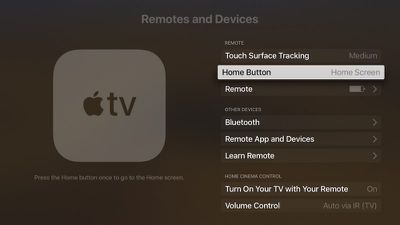
4 home screen
Apple likes new Apple TV owners to associate the Apple TV Remote's Home button with the company's native TV app, but that shortcut can start to get annoying, especially if the things you tend to watch don't even show up there (Netflix content being just one example.) Thankfully, you can reinstate the Home button's original functionality by going into Settings and selecting Remotes and Devices -> Home Button.

5. Activate the Screen Saver

5 Start screensaver
You can set your Apple TV's screen saver to come on after so many minutes have passed (Settings -> General -> Screen Saver -> Start After) but you can also activate it straight away by double-clicking the Menu button on the Apple TV Remote at any time.

6. Rearrange Your Apple TV Apps
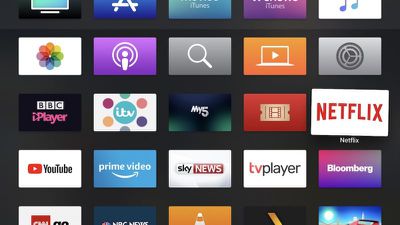
6 Rearrange apps
Whenever you download an Apple TV app from the tvOS App Store it automatically appears at the bottom of the Home screen's grid. If you've installed quite a few apps, you might like to rearrange them. Select the app to move and then click and hold down on the Apple TV Remote's touch surface for a couple of seconds. The app icon will start jiggling, at which point you can swipe to place it where you want. Simply click the touch surface again once you have the app in your preferred location.

7. View Video Settings

7 video settings
When watching video on Apple TV, you can access a number of media playback settings with a quick swipe down on the Apple TV Remote's touch surface. The info overlay that slides into view from the top contains options to enable/disable subtitles, as well as audio settings for language, sound processing, and speaker. Simply navigate the menus using the touch surface and click down to select. A swipe up hides the overlay and returns you back to the video with your changes applied.

8. Quick-Switch Between Lowercase/Uppercase Keyboard

8 Keyboard
When using Apple TV's onscreen keyboard, you can avoid the hassle of navigating the cursor between the lowercase and uppercase layout, simply by pressing the Play/Pause button on your Apple TV Remote. This instantly switches the letters from lowercase to uppercase and vice versa, which makes entering passwords in particular less of a chore.

9. Quick Backspace and Access to Alternate Characters

This is another handy tip for using Apple TV's onscreen keyboard that makes navigating it a lot less frustrating.
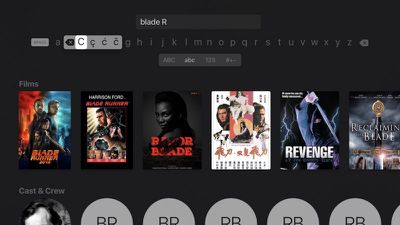
9 Quick Backspace
Next time you need to correct a mistake, don't bother swiping all the way to the far right of the screen to select the backspace key. Instead, click down on the Apple TV Remote's touch surface and hold until the character overlay appears. A quick swipe left will now automatically delete the last letter you entered in the input field.

10. Change Audio Output Device on the Fly
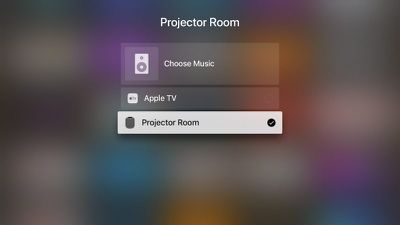
10 Change audio output
There's a quick way to switch your Apple TV's audio output device right from the home screen. Hold down the Play/Pause button on the Apple TV Remote, and in the menu that comes up on the screen, simply select the device you want to link to by clicking the Remote's touch surface.

Got an Apple TV Remote tip we haven't covered here? Be sure to share it in the comments.
Related Roundup: Apple TV
Buyer's Guide: Apple TV (Buy Now)

Popular Stories

Apple TV Sans Remote Feature

New Apple TV 4K Leaked

Friday September 25, 2026 8:16 am PDT by
MacRumors contributor Aaron Perris has uncovered an image file from Apple for an unreleased Apple TV 4K, suggesting that a new model will finally be released soon. The image is specifically for an "Apple TV 4K (4th generation)" model. Apple TV 4K (4th generation) image (on a gradient) The image reveals that the Apple TV will have the same external design as the current model, with all of its...
Apple TV 4K HomeView HomePod Mini tweaked

New Apple TV 4K, HomeView, and HomePod Mini: 16 Details Just Leaked

Sunday October 11, 2026 12:56 pm PDT by
Just two days before Apple's "Welcome home" experience in New York, Bloomberg's Mark Gurman has leaked several details about the new products set to be unveiled, including an all-new smart home hub, a HomePod mini 2, and a new Apple TV 4K. Here is an all-in-one summary of the details shared by Gurman:Apple's home hub with a touch-enabled display will be named HomeView, seemingly confirming a ...
HomePod minis Apple TV and iPad mini Leak Feature

iPad Mini With A20 Pro, New HomePod Mini Colors, and New Apple TV 4K All Just Leaked

Friday September 25, 2026 8:18 am PDT by
The next iPad mini, HomePod mini, and Apple TV 4K models have all leaked, just a few weeks before the devices are expected to be announced. Specifically, MacRumors contributor Aaron Perris discovered a few of Apple's official images of the devices, confirming their existence and some new features that are planned. The most notable iPad mini details revealed in today's leak include an A20 Pro ...

Top Rated Comments

113 months ago
When Apple released the fourth-generation Apple TV in 2015, it also included a new Siri Remote with the set-top box (although in some regions Apple kept the original name "Apple TV Remote" due to Siri not working in those territories).


The redesigned remote features dual microphones for Siri support as well as a glass touch surface for navigating the tvOS interface by swiping, tapping, and scrubbing to fast forward/rewind content. The remote also has a Menu button, a Home button (with a TV icon on it), a Siri button, a Play/Pause button, and a Volume Up/Down button.

With the release of the Apple TV 4K in 2017, Apple tweaked the remote design to add a raised white ring around the Menu button, making it easier to identify the correct orientation of the remote by both touch and feel. The buttons and operation of the remote, however, remained unchanged, and the revised remote is also included with new units of the fourth-generation Apple TV.

In this guide, we've collected 10 of our favorite tips for controlling features of tvOS using the Apple TV Remote included with the fourth generation Apple TV and the latest fifth-generation Apple TV 4K. Keep reading and you might well discover a new trick or two.


Click here to read more... ('https://www.geekwebguides.com/guide/top-10-apple-tv-remote-tips-tricks/')

Article Link: Top 10 Apple TV Remote Tips and Tricks ('https://www.geekwebguides.com/guide/top-10-apple-tv-remote-tips-tricks/')
[doublepost=1519728906][/doublepost]These suggestions are helpful - but the fact remains that this is the worst remote I have ever had to deal with. There is a reason my Apple TV sits unloved and unused - the idiotic and frustrating remote. Swipe to change a setting....nothing happens, swipe again - the selection moves five steps across the screen....swipe once more....no movement. Here's a thought....have a look at the Amazon Fire TV remote....simple, functional, it works and I don't need to load an app on my phone as a work around for poor design.
Score: 12 Votes (Like | Disagree)

Mefisto Avatar
113 months ago
I like these kinds of articles. Most of the stuff above I already knew, but there were a few nuggets of really useful, new info as well! Thanks.
Score: 8 Votes (Like | Disagree)

ljonesj Avatar
113 months ago
I hate the remote I use the old aluminum Apple remote it works a lot better I can fast forward and reverse easier with the older remote
Score: 5 Votes (Like | Disagree)
Mike MA Avatar
113 months ago
Very interesting read and collection. The majority of those were not known to me I have to admit. Appreciate it.
Score: 5 Votes (Like | Disagree)
timborama Avatar
113 months ago
The fact these tips require explaining is a huge fail. Nothing about Apple products is intuitive any longer. Worst remote EVER!
Score: 4 Votes (Like | Disagree)
imola.zhp Avatar
113 months ago
The fact these tips require explaining is a huge fail. Nothing about Apple products is intuitive any longer. Worst remote EVER!
These types of comments crack me up. None of these tips are required for the easy use of the remote, these are just shortcuts. I knew most of them but still learned a few new ones and appreciated the tip about turning the double click of the home/tv button back to home as opposed to the tv app (which I still haven not really used).
Score: 3 Votes (Like | Disagree)
Latest Stories
Apple Will Label Apps 'Made for iPhone Duo' in App Store
20 minutes ago
Amazon Takes $49 Off iPad With Prices Starting at $399.99
55 minutes ago
F1 on Apple TV Now Available in Dolby Atmos
1 hour ago
Apple Reveals More Than 50 Apps That Will Be Updated for iPhone Duo
2 hours ago
Apple Blocks Certificates That Could Help Attackers Fake Websites
3 hours ago
Giant iPhone Duo Installations Spotted at Apple Fifth Avenue
4 hours ago
iPhone Duo 2 Prototypes Include Under-Display Face ID
4 hours ago
Tesla App Gains iPad and iPhone Duo Support
8 hours ago
Apple Reportedly Boosts iPhone Duo Orders by 44%
9 hours ago
Fortnite Returning to Australian App Store After Court Ruling
9 hours ago
Apple Ordered to Open iPhone to Rival App Stores in Australia
9 hours ago
Apple Suppliers Face Hurdles Cutting Circuit Board Emissions
10 hours ago
Things Updated for iPhone Duo With Adaptive Layout
10 hours ago
Simplicity and Siri AI Are HomeView's Killer Features, Apple Says
11 hours ago
iPhone Duo Reviewers Really Miss Face ID
16 hours ago
Does the iPhone Duo Run Hot? Here's What Reviews Found
17 hours ago
Apple Music's New Look is Now Live on Apple's Website
18 hours ago
Anthropic Launches Claude Duet, a Proactive AI Agent
18 hours ago
What 32,000 Folds Did to the iPhone Duo's Hinge
19 hours ago
iPhone Duo's Hidden FaceTime Camera Takes 'Trash' Photos
20 hours ago
iPhone Duo Has 'Edge Light' Feature That Debuted on Macs Last Year
21 hours ago
Apple Support App Updated for iPhone Duo's Larger Display
21 hours ago
Amazon Sweetens the Deal on Entry-Level 16-Inch MacBook Pro With $570 Off
21 hours ago
iPhone Duo Tips Over on MagSafe Stands When Unfolded
22 hours ago
Apple Music's New Look Officially Announced
23 hours ago
iPhone Duo Supports Apple Pencil Starting With iOS 27.2
1 day ago
iPhone Duo Accessories Roundup: Cases and Screen Protectors From OtterBox, ZAGG, and More
1 day ago
Apple Stores Will Have 'Limited' Availability of iPhone Duo for Walk-In Customers
1 day ago
iPhone Duo Reviews Explain Why Device is Both 'Fun' and 'Frustrating'
1 day ago
Apple Says 'Reachability' Feature Coming to iPhone Duo Later This Year
1 day ago