

Apple Watch Ultra features a customizable Action button on the left side of the case that is capable of performing a variety of functions. This article explains what it can do, and how you can configure it.
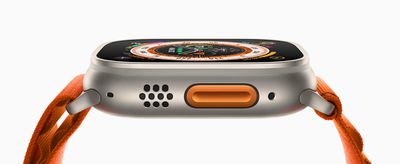
Apart from activating the Siren, the Action Button on Apple Watch Ultra can be customized to perform a number of functions, offering quick access to them without you having to tap through various screens.
When you first set up your Apple Watch Ultra, you'll be invited to assign one of the following functions to it:
- Workout
- Stopwatch
- Waypoint
- Backtrack
- Dive
- Flashlight
- Shortcut
- None
You can customize your selection further, depending on the app or function chosen. If you chose the Workout app, for example, pressing the Action button once will open the Workout app, but you can also assign the "First Press" function within the app to start a specific workout.
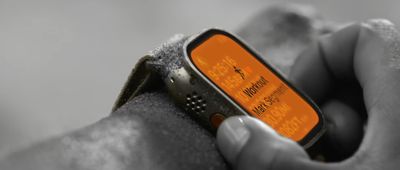
But that's not all. When you've started the activity, you can then press again to perform a secondary function, such as marking segments or laps in a track workout, or switching from cycling to running in a triathlon. Again though, what function this is will depend on the current activity.
How to Map Functions to the Action Button
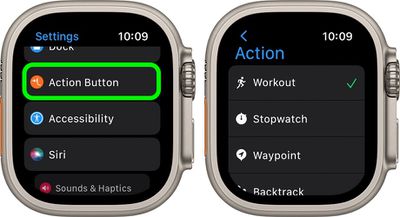
Once your Apple Watch Ultra is set up, you can re-assign functions to the Action button via a new menu right on your wrist, like so.
- On Apple Watch Ultra, launch the Settings app.
- Scroll down and tap Action Button.
- Tap the menu under "Action" and select one of the following options: Workout, Stopwatch, Waypoint, Backtrack, Dive, Flashlight, and Shortcut.

- Tap the arrow in the left-hand corner to go back to Action Button settings.
- Tap the menu under "App" if it appears, then select an app to perform the action. Some actions, such as Flashlight, don't show the App option.
- Tap the arrow to go back.
- Tap the menu under "First Press" if it appears, then select an action. Some features allow different actions to happen on the first and second press of the button.
Tips appear on the screen under "Gestures" explaining how the Action button works with the settings that you've assigned to it. For example, tips for an outdoor walk show you that pressing the Action button once starts a workout, and pressing the Action button and the side button at the same time pauses the workout.
Configuring the Action Button via iPhone
You can also use the iOS Watch app to configure what the Action button on the Apple Watch Ultra does.
- Launch the Watch app on your iPhone.
- Tap the My Watch tab if it's not already selected.
- Tap Action Button.
- Under "Action," tap the currently selected action to change it.
- Select from one of the following options: Workout, Stopwatch, Waypoint, Backtrack, Dive, Flashlight, and Shortcut.
- Tap Action Button to go back to the previous menu.
- Tap the menu under "App" if it appears, then select an app to perform the action. Some actions, such as Flashlight, don't show the App option.
- Tap the arrow to go back.
- Tap the menu under "First Press" if it appears, then select an action. Some features allow different actions to happen on the first and second press of the button.
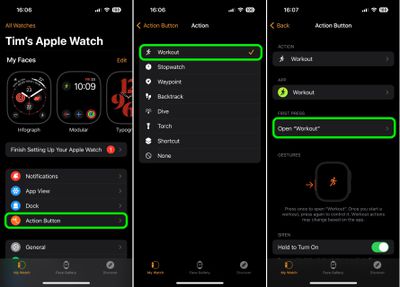
Note that tips on the screen under "Gestures" explaining how the Action button works with the settings that you've assigned to it.
Note that if you want to pause the current action, you can press and hold both the Action and Side buttons at the same time. Try to avoid pressing the Side button or the Digital Crown accidentally when you press the Action button. Your Apple Watch will do whatever is assigned to the Action button if you happen to press another button at the same time, unless a button combination is configured.



















Top Rated Comments
If they didn't add this new (useful) action button, people would be saying it is the same watch. Some would find something to complain about no matter what.