

Other than touch-based screen gestures like tapping and swiping, the Digital Crown and Side buttons are the Apple Watch's only control mechanisms. You can use the Digital Crown to scroll through lists and zoom into pictures and maps, plus it can be used to control slider bars like volume and font size. The Side button is the Apple Watch's one-step access to contacts on your favorites list who you can then call, write a text, or even send your heartbeat.
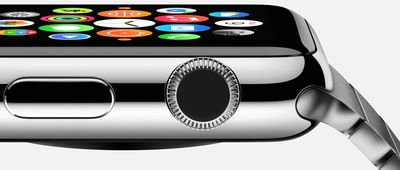
The Digital Crown and Side buttons have a few additional uses that you may not already know about. We've got a list of 10 important actions that the Apple Watch's external controls activate.
Activate Siri
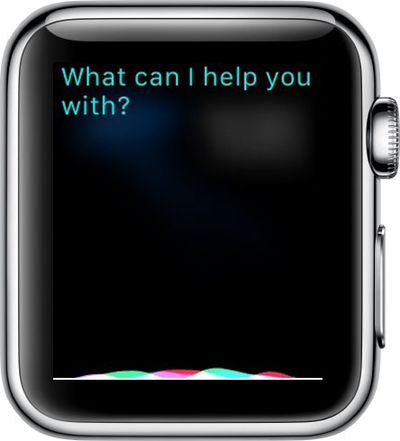
In addition to saying "Hey Siri," you can activate the personal assistant by holding down the Digital Crown until you see "What can I help you with?" You will also feel a tap on your wrist, acknowledging that Siri is listening.
Trigger Apple Pay
When near a supported terminal, you don't have to open the Apple Pay app on Apple Watch to activate it. Simply double-tap the Side button to bring up your card information. Then hold it near a terminal to make the purchase.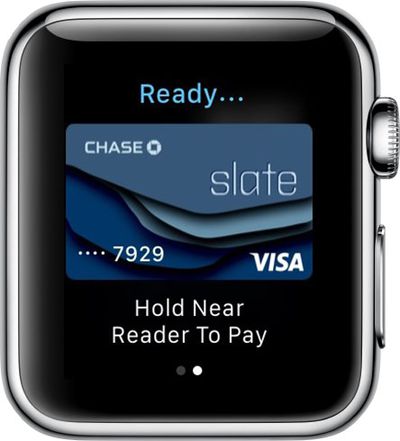
Return to Home Screen
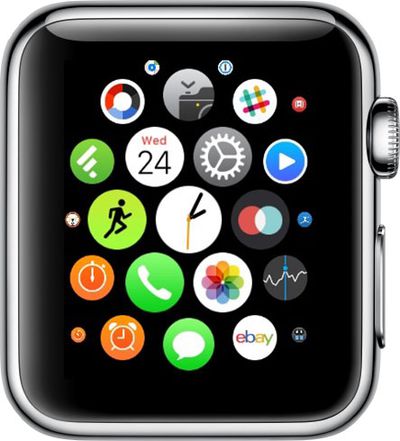
The Digital Crown is like the home button on Apple Watch. No matter what screen you are on, you will be able to get to the home screen with one click.
Return to Watch Face
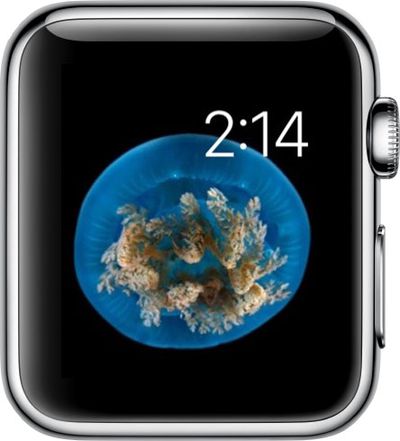
After returning to the home screen by clicking the Digital Crown once, you can click it again (not a double-click) to return to the center app, which is the clock app. Then, rotate the Digital Crown upward to switch to the watch face. You can also click the Digital Crown a third time to switch to the watch face.
Return to Last Used App
Whether you are looking at your calendar or checking your email, you can quickly switch to the last app you used by double-clicking the Digital Crown. You can switch between the two apps easily by double clicking each time. It also works with the watch face. If you went from the watch face to the Messages app, double-clicking the Digital Crown will switch between those two views.
Open an App
When on the Home Screen, you can center on an app and simply rotate the Digital Crown upward to open it. This helps you avoid those accidentally tapping on the wrong icon because it's so small.
Take a Screenshot
As with taking a screenshot on your iPhone, you need to press two buttons at once on the Apple Watch to capture what's on its display. Briefly press down on the Side button and the Digital Crown at the same time to take a screenshot. If it's not working, try holding the Side button down first and then pressing and releasing the Digital Crown. If a screenshot is successfully taken, you'll see a white flash, feel a tap, and hear the shutter sound if volume is enabled.
Activate VoiceOver
Just like on the iPhone, you can use VoiceOver on Apple Watch to help you know what is happening on the screen. Triple-click the Digital Crown to activate VoiceOver. You will hear a chime, and Siri will announce "VoiceOver on." Then you can tap on anything on the screen to have it read to you. Some gestures will change when VoiceOver is on, but it is familiar territory for anyone who has used the accessibility feature on the iPhone.
Power Off and On Apple Watch
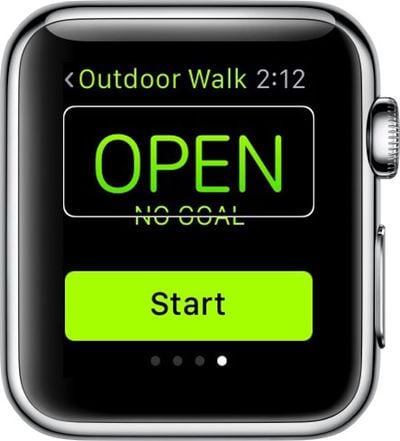
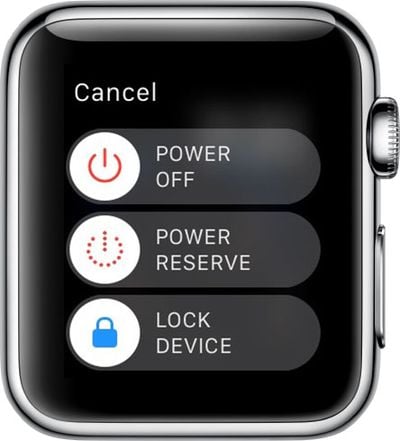
If, for any reason, you need to restart your Apple Watch, you can do so by holding down the Side button until the power options appear, prompting you to turn off, activate Power Reserve, or lock Apple Watch. Once this pops up, slide the bar to shut your Apple Watch down. To start it up again, press and hold the Side button until you see the Apple logo.
Force Quit an App
Sometimes, an app will freeze up on you. It rarely happens, but it is good to know what to do in such a situation. Hold down the Side button while the frozen app is open. When the power options appear, hold down the Side button again until the app quits.
Now you know about the actions that both the Digital Crown and Side button can perform. They are more than just controls for zooming, scrolling, and finding your friends.


















Top Rated Comments
Apple Pay strikes me as clunky, having to reach over with your wrist and hold it awkwardly next to the terminal. I feel the phone is much better for this purpose.
You've obviously have never done it, so it amazes me how you can pass judgement. I've used Apple Pay on the watch many, many times. It's incredibly easy to do. While twisting my wrist to let the watch face the terminal might be uncomfortable is I had to hold it there for a minute, it only takes a second and there is absolutely no discomfort involved. It's so much easier than using the phone.
How can people continue to criticize something that they have never tried and what's even worse make up erroneous fantasies based upon unfounded and blind hatred of something. I'll never understand that.