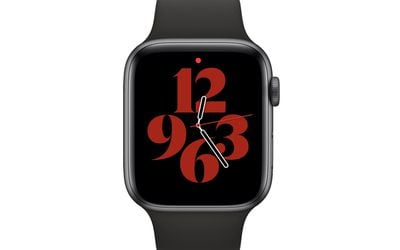
If you're wondering what the little red dot means at the top of the watch face on an Apple Watch, this is an indicator that you have unread notifications. If you'd like to know how to get rid of it either temporarily or for good, read on.
What the Red Dot Does
The red dot is a bit like the badge notification you see on iPhone app icons. It's useful for knowing when you have a notification that hasn't been viewed, but for some people it can be somewhat distracting.
To see the notifications and clear them on your watch, simply swipe down on the red dot to reveal them. At the top of the list will be a Clear All button to get rid of all the notifications, and by design, the red dot.
If you don't get many notifications, then the dot indicator a handy way of knowing when at least one is waiting to be viewed, but if you get notifications all the time then that little red dot can become a permanent feature of your watch face.
You can always disable Apple Watch notifications for individual apps, or you can simply hide the red dot completely by following the steps outlined below.
How to Hide the Red Dot on Apple Watch
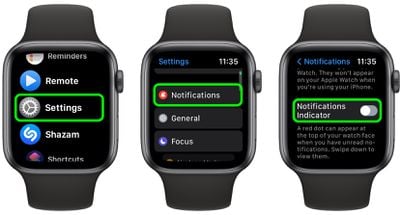
- Raise your wrist to wake the Apple Watch screen.
- Press the Digital Crown on the side of the watch.
- From the list or grid of apps, select the Settings app.
- Tap Notifications.
- Toggle off the switch next to Notifications Indicator.
- Press the Digital Crown again to exit Settings.
How to Hide the Red Dot Using iPhone
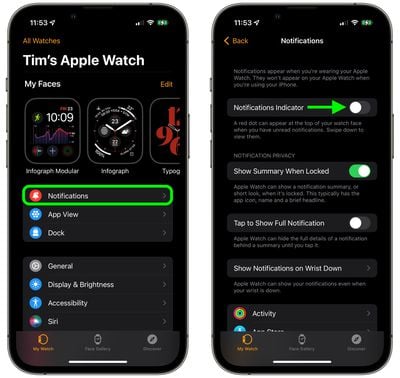
- On your iPhone, open the Watch app.
- Tap Notifications.
- Toggle off the switch next to Notifications Indicator.
That's all there is to it. If you want to learn how to turn off Apple Watch notifications from particular apps, check out our dedicated how-to.